***
title: Ask Fern Discord bot
description: >-
Enable your customers to get instant answers to product questions directly in
Discord using Ask Fern's AI-powered documentation bot.
------------------------------------------------------
Ask Fern is also available for Slack. See the [Slack app documentation](/learn/docs/ai-features/ask-fern/slack-app) for setup instructions.
The Ask Fern Discord bot allows customers to ask questions about your products directly in Discord channels and receive AI-generated answers from your documentation database.
Fern stores all questions and answers from Discord interactions for [analytics purposes](/learn/docs/ai-features/ask-fern/features#analytics).
## Setup
Install the Ask Fern bot in your Discord server and configure it for your channels.
To install Ask Fern in your Discord server, you must have **Manage Server** permissions. This is set in **Server Settings > People > Roles**.
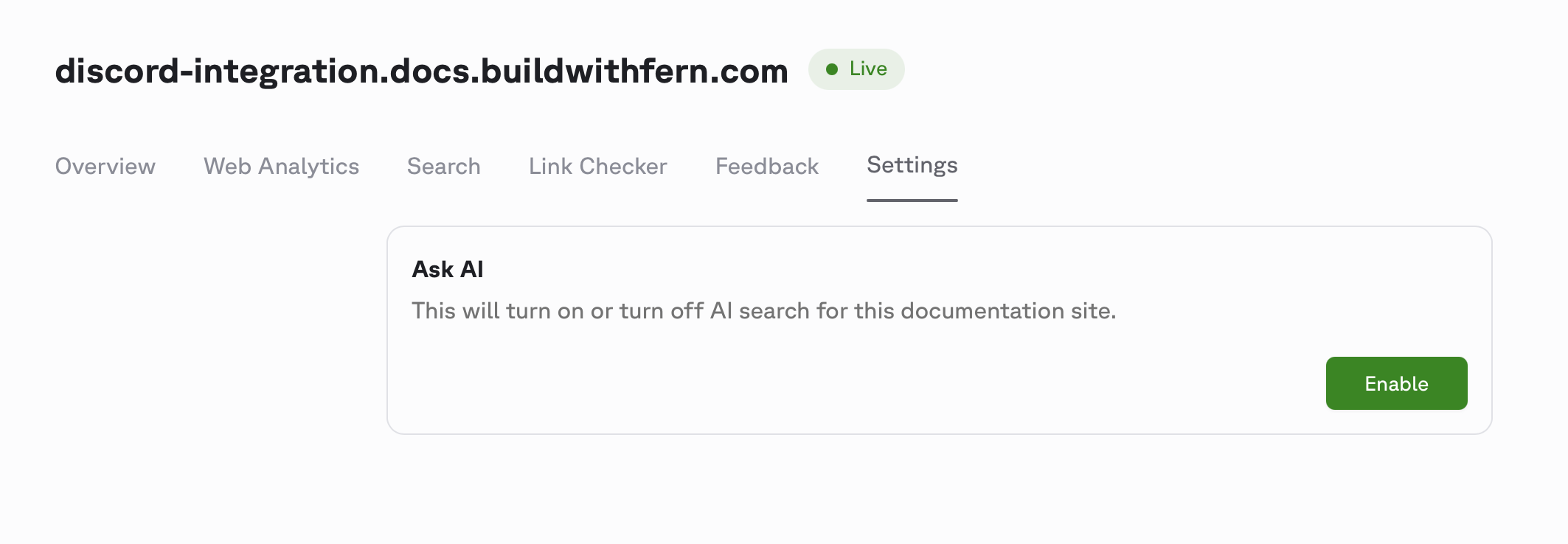
Before installing the Discord bot, you need to enable Ask AI for your documentation site.
Go to your [Fern Dashboard](https://dashboard.buildwithfern.com) and enable Ask AI in the "Settings" tab of your domain. For more advanced configuration instructions, see the [Ask Fern setup guide](https://buildwithfern.com/learn/docs/ai-features/ask-fern/setup).
 Use the [API Explorer](/learn/docs/ai-features/ask-fern/api-reference/discord/create-discord-integration) to get a unique Discord installation link for your organization.
You will need:
* Your [Fern token](/learn/cli-api-reference/cli-reference/commands#fern-token)
* Your domain without protocol or path (e.g., `website.com`, not `https://website.com/docs`)
You can alternatively use this cURL request:
```bash
curl -X POST "https://fai.buildwithfern.com/discord/install?domain=" \
-H "Authorization: Bearer "
```
Follow the URL returned in the `integration_url` response field.
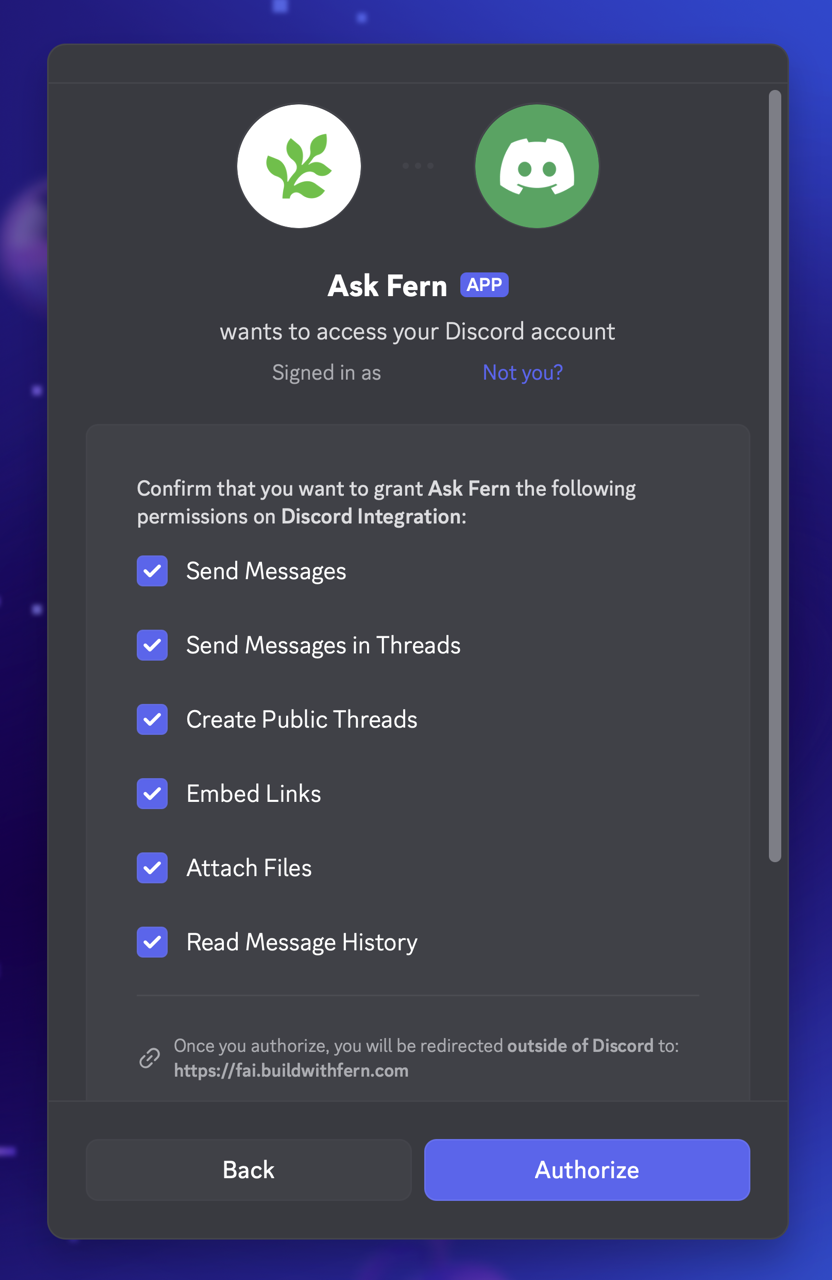
You'll be redirected to Discord to authorize the Ask Fern bot. Select the server where you want to add Ask Fern and click **Authorize**.
Use the [API Explorer](/learn/docs/ai-features/ask-fern/api-reference/discord/create-discord-integration) to get a unique Discord installation link for your organization.
You will need:
* Your [Fern token](/learn/cli-api-reference/cli-reference/commands#fern-token)
* Your domain without protocol or path (e.g., `website.com`, not `https://website.com/docs`)
You can alternatively use this cURL request:
```bash
curl -X POST "https://fai.buildwithfern.com/discord/install?domain=" \
-H "Authorization: Bearer "
```
Follow the URL returned in the `integration_url` response field.
You'll be redirected to Discord to authorize the Ask Fern bot. Select the server where you want to add Ask Fern and click **Authorize**.
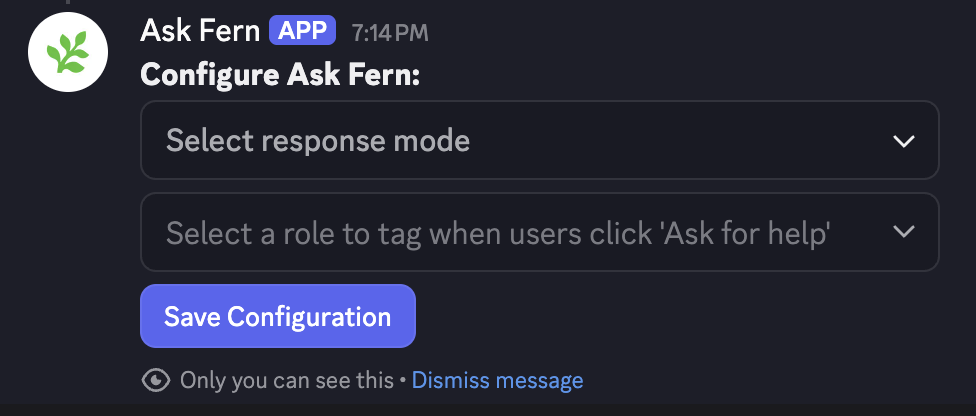
 Once the bot is added to your server, use the `/configure` slash command in each channel where you want the bot to respond. Without this configuration, the bot won't respond to messages in that channel.
 ## Configuration
Customize the bot's behavior to match your workflow needs.
### Bot settings per channel
Use the `/configure` slash command in any channel to adjust the settings. This opens an interactive menu where you can configure:
| Setting | Description |
| ----------------- | ----------------------------------------------------------------------------------------------------------------------------------------------------------------------------- |
| **Response mode** | Controls whether the bot responds only when directly mentioned with `@Ask Fern` (`mentions_only`) or automatically responds to questions while ignoring casual chat (`auto`). |
| **Help role** | Optionally select a role or user to tag when users click the "Ask for help" button on bot responses. |
After selecting your preferences, click **Save Configuration** to apply the changes.
## Configuration
Customize the bot's behavior to match your workflow needs.
### Bot settings per channel
Use the `/configure` slash command in any channel to adjust the settings. This opens an interactive menu where you can configure:
| Setting | Description |
| ----------------- | ----------------------------------------------------------------------------------------------------------------------------------------------------------------------------- |
| **Response mode** | Controls whether the bot responds only when directly mentioned with `@Ask Fern` (`mentions_only`) or automatically responds to questions while ignoring casual chat (`auto`). |
| **Help role** | Optionally select a role or user to tag when users click the "Ask for help" button on bot responses. |
After selecting your preferences, click **Save Configuration** to apply the changes.
 ### Customize the bot name
You can rename the bot to match your brand (example: "YourCompanyName Support"):
To rename your Bot, you must have **Change Nickname** permissions. This is set in Server **Settings > People > Roles**
Go to the Members List section at the top of the Discord server
### Customize the bot name
You can rename the bot to match your brand (example: "YourCompanyName Support"):
To rename your Bot, you must have **Change Nickname** permissions. This is set in Server **Settings > People > Roles**
Go to the Members List section at the top of the Discord server
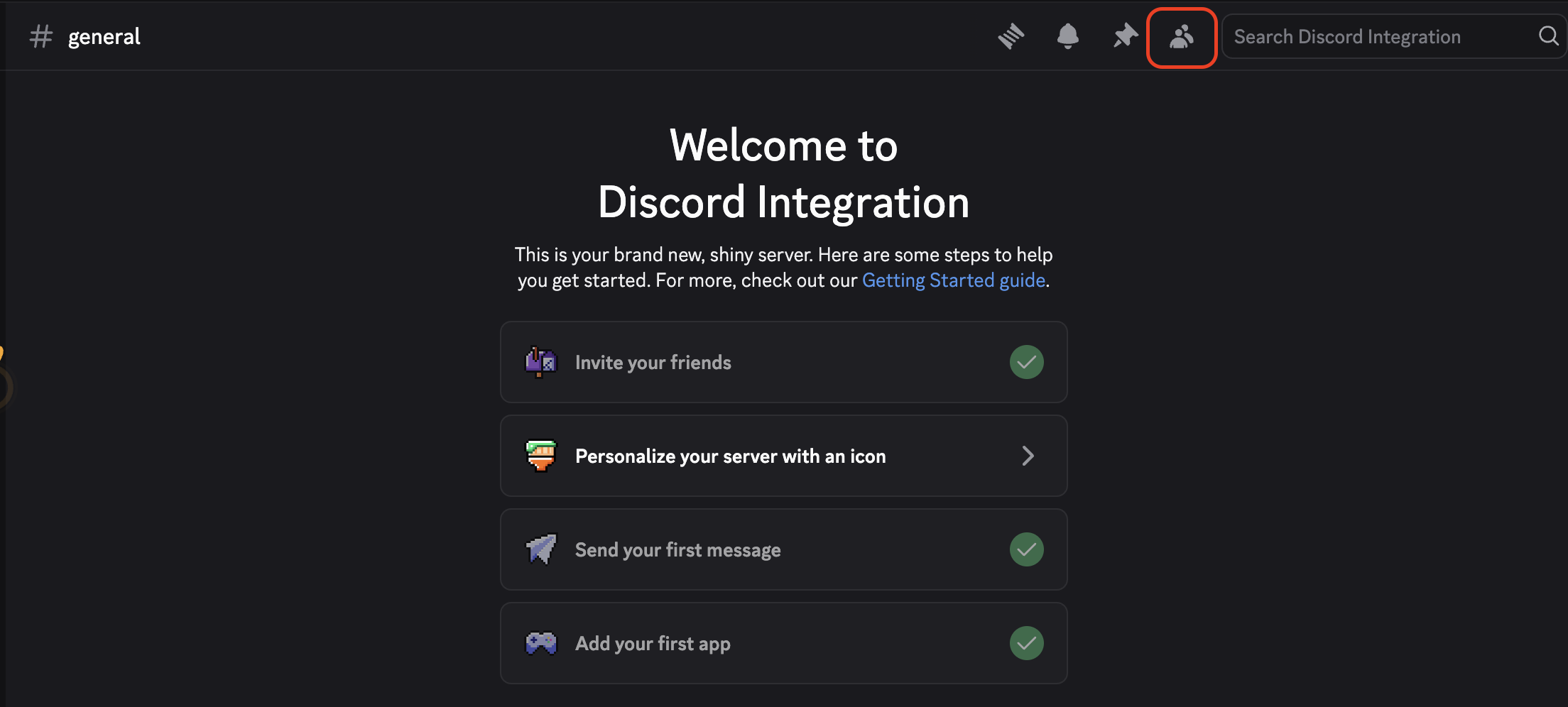 Right click the AskFern bot and select "Change Nickname"
Enter your preferred bot name and click "Save"
Now, users will see your custom bot name instead of the default "Ask Fern" name.
## Architecture
When a user asks Ask Fern a question in Discord, the bot receives the message and triggers Fern's servers to search your documentation database and retrieve relevant context. Using that context, Ask Fern generates a response and replies in a thread.
```mermaid
sequenceDiagram
autonumber
participant U as User (Discord)
participant D as Discord Bot
participant F as Fern Servers
participant V as Documentation Database
participant A as Ask Fern
U->>D: Ask question to @Ask Fern
D->>F: Forward message to Fern servers
F->>F: Convert query to vector
F->>V: Search for relevant chunks
V->>F: Return matching documents
F->>A: Send query + context
A->>A: Generate response
A->>D: Return answer
D->>U: Reply in Discord thread
F->>F: Store question and answer for analytics
```
Right click the AskFern bot and select "Change Nickname"
Enter your preferred bot name and click "Save"
Now, users will see your custom bot name instead of the default "Ask Fern" name.
## Architecture
When a user asks Ask Fern a question in Discord, the bot receives the message and triggers Fern's servers to search your documentation database and retrieve relevant context. Using that context, Ask Fern generates a response and replies in a thread.
```mermaid
sequenceDiagram
autonumber
participant U as User (Discord)
participant D as Discord Bot
participant F as Fern Servers
participant V as Documentation Database
participant A as Ask Fern
U->>D: Ask question to @Ask Fern
D->>F: Forward message to Fern servers
F->>F: Convert query to vector
F->>V: Search for relevant chunks
V->>F: Return matching documents
F->>A: Send query + context
A->>A: Generate response
A->>D: Return answer
D->>U: Reply in Discord thread
F->>F: Store question and answer for analytics
```