> For clean Markdown content of this page, append .md to this URL. For the complete documentation index, see https://buildwithfern.com/learn/llms.txt.
# Sections, pages, and folders
> Configure the sidebar navigation for your Fern documentation site, including sections, pages, folders, URL slugs, icons, and links.
A `page` points at a single Markdown file, a `section` groups entries and can nest more sections, and a `folder` pulls in every file in a directory.
## Add a section
Sections organize your documentation in the left-side nav bar. Each section has a name and a list of `contents`, which can include pages, folders, or nested sections.
**`docs.yml`**
```yaml docs.yml
navigation:
- section: Introduction
contents:
- page: My page
path: ./pages/my-page.mdx
- page: Another page
path: ./pages/another-page.mdx
```
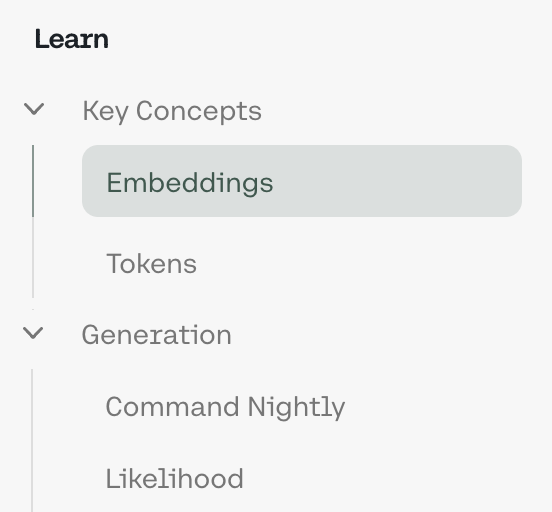
Sections can be nested to create multi-level navigation hierarchies.
**`docs.yml`**
```yaml docs.yml
navigation:
- section: Learn
contents:
- section: Key concepts
contents:
- page: Embeddings
path: ./docs/pages/embeddings.mdx
- page: Prompt engineering
path: ./docs/pages/prompts.mdx
- section: Generation
contents:
- page: Command nightly
path: ./docs/pages/command.mdx
- page: Likelihood
path: ./docs/pages/likelihood.mdx
```
To add an overview page to a section, add a `path` property pointing to an `.mdx` file.
**`Section with an overview page`**
```yaml Section with an overview page {3}
navigation:
- section: Guides
path: ./pages/guide-overview.mdx
contents:
- page: Simple guide
path: ./pages/guides/simple.mdx
- page: Complex guide
path: ./pages/guides/complex.mdx
```
Sections also support [`slug` and `skip-slug`](/learn/docs/seo/configuring-slugs) to customize URL paths.
#### API Reference section
Use the special `api` key to create a [generated API Reference section](/learn/docs/api-references/overview).
**`docs.yml`**
```yaml docs.yml
navigation:
- section: Introduction
contents:
- page: My page
path: ./pages/my-page.mdx
- api: API Reference
```
## Add a page
Create an `.md` or `.mdx` file, then add a `page` entry to a section's `contents` with the file path.
**`docs.yml`**
```yaml docs.yml
navigation:
- section: Introduction
contents:
- page: My page
path: ./pages/my-page.mdx
- page: Another page
path: ./pages/another-page.mdx
```
## Add a folder
Add a `folder` entry pointing to a directory. Fern auto-discovers all `.md` and `.mdx` files and adds them to the navigation.
**`docs.yml`**
```yaml docs.yml
navigation:
- section: Introduction
contents:
- folder: ./pages/guides
title: Guides # Optional, defaults to folder name
```
For the pages in a folder, Fern automatically:
* Derives titles and [URL slugs](#slugs-and-url-paths) from filenames
* Creates nested sections from subdirectories
* Sorts pages alphabetically
* Uses `index.mdx` or `index.md` files as section overview pages (case-insensitive)
#### Folder configuration options
Customize folder behavior with these options:
**`docs.yml`**
```yaml docs.yml
navigation:
- folder: ./pages/guides
title: Guides # Display name in sidebar
slug: user-guides # Custom URL path
title-source: frontmatter # Use frontmatter titles
```
**`title`** `string`
The title to display for this folder section. If not provided, the folder name is used.
---
**`title-source`** `'filename' | 'frontmatter'` — default: filename
Determines how page and section titles within the folder are derived. By default (`filename`), titles are derived from file names. Set to `frontmatter` to use the `title` field from each file's frontmatter instead (falls back to filename if not set). This per-folder setting overrides the global [`settings.folder-title-source`](/learn/docs/configuration/site-level-settings#settingsfolder-title-source) value.
---
**`slug`** `string`
Overrides the auto-generated URL slug for the folder.
---
**`skip-slug`** `boolean` — default: false
Omits the folder from the URL path, so pages appear at the parent level.
---
**`position`** `number`
Set in page frontmatter to control ordering within the folder. Pages with `position` appear first (sorted numerically), followed by the rest alphabetically.
**`page frontmatter`**
```yaml page frontmatter
---
title: Quickstart
position: 1
---
```
---
## Slugs and URL paths
Fern builds each page's URL by combining slugs from every level of its navigation hierarchy — section, folder, tab, version, and product. Each level gets an auto-generated slug from its display name, or from the filename for [folder-based navigation](#add-a-folder). You can [rename a slug, skip a level, or override the path in a page's frontmatter](/learn/docs/seo/configuring-slugs).
**`docs.yml`**
```yaml docs.yml
navigation:
- section: Get Started # slug renamed to "start"
slug: start
contents:
- section: Guides # skipped — omitted from the URL
skip-slug: true
contents:
- page: Quickstart # slug renamed to "quick"
slug: quick
path: ./pages/quickstart.mdx
```
The **Quickstart** page is hosted at `/start/quick`. The renamed section and page slugs apply, and the skipped **Guides** slug drops out of the path.
## Hiding content
To hide a page, folder, or section, add `hidden: true`. Hidden content (including all pages within a folder) is still accessible via direct URL but is excluded from search and won't be indexed.
**`docs.yml`**
```yaml docs.yml {7, 10, 12}
navigation:
- section: Introduction
contents:
- page: My page
path: ./pages/my-page.mdx
- page: Hidden page
hidden: true
path: ./pages/my-hidden-page.mdx
- folder: .pages/features
title: Hidden folder
hidden: true
- section: Hidden sections
hidden: true
contents:
- page: Another hidden page
path: ./pages/also-hidden.mdx
```
## Availability
Set availability badges on pages, sections, or folders to indicate their lifecycle status. The badge is shown in the page header; the value controls the badge label and style:
| Value | Badge |
| --------------------- | --------------------------------------------------- |
| `beta` | Yes |
| `pre-release` | Yes |
| `in-development` | Yes |
| `deprecated` | Yes, and the title is struck through in the sidebar |
| `stable` | No (default available state) |
| `generally-available` | No (default available state) |
To render availability badges in the sidebar navigation in addition to the page header, [set `layout.show-nav-availability-badges: true` in `docs.yml`](/learn/docs/configuration/site-level-settings#layoutshow-nav-availability-badges).
Pages inherit availability from their parent section or folder unless overridden by:
* A per-page `availability` setting in `docs.yml` (shown below)
* [Page frontmatter availability](/learn/docs/configuration/page-level-settings#availability), which takes precedence over all `docs.yml` availability
**`docs.yml`**
```yaml docs.yml {3, 11, 14}
navigation:
- section: Developer resources
availability: generally-available
contents:
- page: Code examples # Inherits generally-available
path: ./pages/code-examples.mdx
- folder: ./pages/cli-tools # Inherits generally-available
title: CLI tools
- page: Testing framework
path: ./pages/testing-framework.mdx
availability: beta # Overrides section-level availability
- folder: ./pages/performance-monitoring
title: Performance monitoring
availability: in-development # Overrides section-level availability
```
If you have different versions of your docs, section, folder, and page availability should be set in [the `.yml` files that define the navigational structure for each version](/learn/docs/configuration/versions#define-your-versions).
[API Reference sections and endpoints](/learn/docs/api-references/customize-api-reference-layout#adding-availability) render the same sidebar badges based on their availability.
## Collapsed sections or folders
By default, sections and folders are expanded and not collapsible. Use the `collapsed` property to control how they appear in the sidebar when the page loads.
| Value | Behavior |
| ----------------- | --------------------------------------------------------------------------------------------- |
| `true` | Collapsed on load. The user can expand it. |
| `open-by-default` | Expanded on load, but collapsible. The section displays a toggle so the user can collapse it. |
**`Example config with collapsed sections`**
```yaml {8, 10, 17} Example config with collapsed sections
navigation:
- section: Getting started # expanded, not collapsible (default)
contents:
- page: Introduction
path: ./pages/intro.mdx
- folder: ./pages/features
title: Features
collapsed: true # Folder starts collapsed
- section: Advanced topics
collapsed: true # Section starts collapsed
contents:
- page: Custom CSS
path: ./pages/advanced/css.mdx
- page: Analytics
path: ./pages/advanced/analytics.mdx
- section: API guides
collapsed: open-by-default # Section starts expanded, but can be collapsed by the user
contents:
- page: Authentication
path: ./pages/api/auth.mdx
- page: Pagination
path: ./pages/api/pagination.mdx
```
## Sidebar icons
Add icons next to sections, pages, and folders using the `icon` key.
Icons can be in three formats:
* **Font Awesome icons**: Use icon names like `fa-solid fa-rocket`. Pro and Brand Icons from Font Awesome are supported.
* **Custom image files**: Use relative paths to image files (e.g., `./assets/icons/my-icon.svg` or `../assets/icons/my-icon.png`). Paths are relative to the YAML file where the icon is referenced (e.g., `docs.yml`). For example, if you set an icon in `fern/products/my-product.yml`, the path `./assets/icon.svg` resolves to `fern/products/assets/icon.svg`. If you set it in `fern/docs.yml`, the same path resolves to `fern/assets/icon.svg`.
* **Inline SVG**: Provide an SVG string wrapped in quotes (e.g., `""`).
**`Example config with different icon files`**
```yaml Example config with different icon files {3, 6, 10-11, 14}
navigation:
- section: Home
icon: fa-regular fa-home # Font Awesome icon
contents:
- page: Introduction
icon: ./assets/icons/intro-icon.svg # Custom image file
path: ./pages/intro.mdx
- folder: .pages/features
title: Custom features
icon: "" # Inline SVG
path: ./pages/custom.mdx
- api: API Reference
icon: fa-regular fa-puzzle
```
## Links
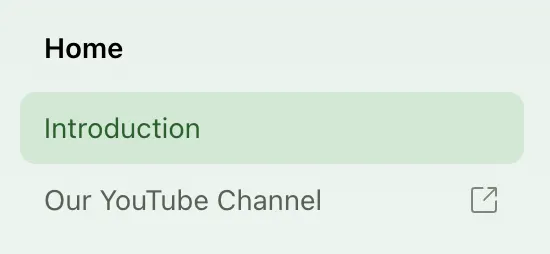
You can add a link to an external page within your sidebar navigation with the following configuration:
**`docs.yml`**
```yaml title="docs.yml"
navigation:
- section: Home
contents:
- page: Introduction
path: ./intro.mdx
- link: Our YouTube channel
href: https://www.youtube.com/
```
### Link target
Control where links open with the `target` property. Available for product, tab, navbar, and page links. For typical documentation sites, links can open in the same tab (`_self`) or new tab (`_blank`). For documentation embedded in a dashboard or iframe, links can open in the parent frame (`_parent`) or topmost frame (`_top`).
**`docs.yml`**
```yaml title="docs.yml" {8}
navigation:
- section: Home
contents:
- page: Introduction
path: ./intro.mdx
- link: Our YouTube channel
href: https://www.youtube.com/
target: _blank
```
> Organize your sidebar navigation structure in `docs.yml`