> For clean Markdown content of this page, append .md to this URL. For the complete documentation index, see https://buildwithfern.com/learn/llms.txt.
# Products
> Configure multi-product documentation in Fern, including the product switcher, per-product navigation, and internal and external products.
Products add a switcher to your docs for documenting distinct offerings. Each product can contain its own navigation, tabs, versions, and API references, and products can share content.
Products can be internal (hosted on your site) or external (linking to external URLs).

View Webflow's Product Switcher
## Add products to your docs
#### Define your products
Create a `products` folder inside of your `fern` folder. To specify a product's contents and navigational structure, add a `.yml` file to the `products` folder for each product.
Include the `navigation` and `tabs` properties, if applicable.
> **External products**
>
> You can also define external products, which link to external URLs (separate applications, third-party documentation, or other external resources) instead of documentation within your site. They appear in the product switcher but navigate users to the specified URL when selected. Define external products directly in `docs.yml` (no product-specific `.yml` file is needed).
> **Tip**
>
> To enable YAML validation and autocompletion in your editor, add a schema directive to the top of each `product.yml` file.
#### products/product-a.yml
```yaml
# yaml-language-server: $schema=https://raw.githubusercontent.com/fern-api/fern/main/product-yml.schema.json
navigation:
- section: Introduction
contents:
- page: Shared Resource
path: ../pages/shared-resource.mdx
- api: API Reference
```
#### products/product-b.yml
```yaml
# yaml-language-server: $schema=https://raw.githubusercontent.com/fern-api/fern/main/product-yml.schema.json
tabs:
api:
display-name: API Reference
icon: puzzle
help:
display-name: Help Center
icon: home
navigation:
- tab: api
layout:
- section: Introduction
contents:
- page: My Page
path: ./latest/pages/my-page.mdx # relative path to the file
- page: Shared Resource
path: ../pages/shared-resource.mdx
- api: API Reference
- tab: help
layout:
- section: Help Center
contents:
- page: Contact Us
path: contact-us.mdx
```
#### Add your product configuration
To define a product, add an item to the `products` list in `docs.yml`, specifying the `display-name` and either `path` (for internal products) or `href` (for external products).
For both internal and external products, `image`, `icon`, and `subtitle` are optional parameters. If you provide both an `image` and an `icon`, the `image` will take precedence. Internal products additionally support the optional `slug` and `versions` parameters.
> **Product icons**
>
> Icons can be in three formats:
>
> * **Font Awesome icons**: Use icon names like `fa-solid fa-rocket`. Pro and Brand Icons from Font Awesome are supported.
> * **Custom image files**: Use relative paths to image files (e.g., `./assets/icons/my-icon.svg` or `../assets/icons/my-icon.png`). Paths are relative to the YAML file where the icon is referenced (e.g., `docs.yml`). For example, if you set an icon in `fern/products/my-product.yml`, the path `./assets/icon.svg` resolves to `fern/products/assets/icon.svg`. If you set it in `fern/docs.yml`, the same path resolves to `fern/assets/icon.svg`.
> * **Inline SVG**: Provide an SVG string wrapped in quotes (e.g., `""`).
The below example is a `docs.yml` configuration for a site with two internal products (Product A and Product B) and one external product (Product C).
#### docs.yml
```yaml {2-3, 8-9, 14-15}
products:
- display-name: Product A
path: ./products/product-a.yml
icon: fa-solid fa-leaf # Font Awesome icon
slug: product-a # optional
subtitle: Product A subtitle # optional
- display-name: Product B
path: ./products/product-b/versions/latest/latest.yml # <-- default showing latest
icon: ./assets/icons/product-b-icon.svg # Custom image file
slug: product-b # optional
subtitle: Product B subtitle # optional
- display-name: Product C
href: https://dashboard.example.com # External product
icon: "" # Inline SVG
subtitle: Product C subtitle
target: _blank # Link opens in a new tab
```
#### Remove extra navigation from docs.yml
If your `docs.yml` includes a top-level `navigation` or `tabs` field, remove it. These fields now belong in the product-specific `.yml` files. A top-level `navigation` block cannot coexist with `products`: `fern check` rejects the configuration, and it would otherwise override your products and render an empty site. A top-level `changelog` key is the exception: it adds a [site-level changelog](/learn/docs/navigation/changelogs#site-level-changelog-for-multi-product-sites) at `/changelog` that's shared by every product.
> **Note**
>
> External products don't support `navigation` and `tabs` fields.
### Add a site-level landing page
You can add a landing page that appears at the root of your documentation site, independent of any product. This is useful when you want users to see an introductory page before selecting a product.
Configure the `landing-page` property in your `docs.yml`:
#### docs.yml
```yaml
landing-page:
page: Welcome
path: ./pages/welcome.mdx
slug: /welcome # optional
products:
- display-name: Product A
path: ./products/product-a.yml
- display-name: Product B
path: ./products/product-b.yml
```
The landing page is not linked to any product and will be accessible at the root URL (or the specified slug) of your documentation site.
> **Note**
>
> For detailed configuration options, see the [landing page configuration reference](/learn/docs/configuration/site-level-settings#landing-page-configuration).
### Add versioning to your products
You can optionally add versions to your internal products, and versioned and unversioned products can live next to each other in your site. Versions are not supported for external products.
Each version defines its own information architecture, so versions of the same product can differ in structure, not only in content. Versions can also exist [independently of products](/learn/docs/configuration/versions).
In the below example, Product A is **unversioned** and Product B is **versioned**:
#### Define your versions
Create a `versions` folder inside of folder of the product you want to version.
Each version of a single product has its own `yml` file. To specify the contents of each version, add a `.yml` file to the `versions` folder to define the navigational structure of that version. Include the `navigation` and `tabs` properties, if applicable.
Version-specific `yml` files:
#### latest.yml
```yaml
navigation:
- section: Introduction
contents:
- page: My Page
path: ./latest/pages/my-page.mdx # relative path to the file
- page: Shared Resource
path: ../shared-pages/shared-resource.mdx
- api: API Reference
```
#### v2.yml
```yaml
tabs:
api:
title: API Reference
icon: puzzle
help:
title: Help Center
icon: home
navigation:
- tab: api
contents:
- section: Introduction
contents:
- page: My Page
path: ./v2/pages/my-page.mdx # relative path to the file
- page: Shared Resource
path: ../shared-pages/shared-resource.mdx
- api: API Reference
- tab: help
contents:
- section: Help Center
contents:
- page: Contact Us
path: contact-us.mdx
```
#### Add your version configuration
Define a version in the top-level `docs.yml` by adding an item to the `versions` list and specifying the `display-name` and `path`.
The top-level `doc.yml` configuration for a Fern Docs website containing two products, one unversioned and one versioned, might look something like this:
#### docs.yml
```yaml {2, 8, 12-16}
products:
- display-name: Product A # unversioned
path: ./products/product-a.yml
icon: fa-solid fa-leaf # optional
slug: product-a # optional
subtitle: Product A subtitle # optional
- display-name: Product B # versioned
path: ./products/product-b/versions/latest/latest.yml # <-- default showing latest
image: ./images/product-b.png # optional
slug: product-b # optional
subtitle: Product B subtitle # optional
versions:
- display-name: Latest
path: ./products/product-b/versions/latest/latest.yml # relative path to the version file
- display-name: V2
path: ./products/product-b/versions/v2/v2.yml # relative path to the version file
```
> **Default versions**
>
> Versions appear in a dropdown on your site in the order listed in `docs.yml`. The first version in your `versions` list is the default version and uses unversioned paths like `example.com/getting-started`. Other versions use versioned paths like `example.com/v2/getting-started`.
>
> Fern automatically handles version routing by [redirecting](/learn/docs/seo/redirects) broken versioned links to the default version. Canonical URLs point to the unversioned path to consolidate SEO signals. To override this for version-specific pages, see [SEO metadata](/learn/docs/seo/setting-seo-metadata#canonical-url).
#### Indicate availability
You can optionally set the availability status for each version. Options are `deprecated`, `ga`, `stable`, and `beta`.
Version availability is distinct from [section and page availability](/learn/docs/configuration/navigation#availability), with different options. If you want to set section and page availability, do so in your version-specific `yml` files.
#### docs.yml
```yaml {4}
versions:
- display-name: Latest
path: ./products/product-b/versions/latest/latest.yml
availability: beta
- display-name: V2
path: ./products/product-b/versions/v2/v2.yml
availability: stable
```
#### Remove extra navigation
If your product-specific `.yml` files for **versioned products** includes a `navigation` field or a `tabs` field, remove them. Those fields should now belong in the version-specific `.yml` files.
### Add instance audiences
Control which versions and/or products appear in each [documentation instance](/learn/docs/configuration/site-level-settings#instances-configuration) by tagging them with audiences. This enables separate sites for different user groups (e.g., internal developers, beta testers, public customers).
Content is filtered based on audience tags:
* **Match**: Content with an audience matching the instance audience is included
* **No match**: Content with a non-matching audience is excluded
* **No audience**: Content without an audience tag is included by default
Define audiences for instances, products, and versions in `docs.yml`:
#### docs.yml
```yaml
instances:
- url: internal.docs.buildwithfern.com
audiences:
- internal # Only shows content tagged with 'internal'
- url: public.docs.buildwithfern.com
audiences:
- public # Only shows content tagged with 'public'
products:
- display-name: Platform API
path: ./products/platform-api.yml
audiences:
- public
- internal # This product appears on both instances
versions:
- display-name: v3
path: ./versions/v3.yml
audiences:
- public # This version only appears on the public instance
- display-name: v2 (Internal)
path: ./versions/v2.yml
audiences:
- internal # This version only appears on the internal instance
- display-name: Admin Tools
path: ./products/admin-tools.yml
audiences:
- internal # This product only appears on the internal instance
```
#### Combining with API Reference audiences
Instance audiences work alongside [API Reference audiences](/learn/docs/api-references/audiences), which filter endpoints and schemas within your API documentation. You can use both features together:
* **Instance audiences** - Control which products and versions appear in each instance
* **API Reference audiences** - Control which endpoints and schemas appear within API References
For example, you might have a `public` instance that includes only public products. Within those products, the API Reference should be marked as `public` so it's filtered to show only `public` endpoints.
### Conditionally render content
To conditionally render content within a page based on the current product, use the [`` component](/learn/docs/writing-content/components/if#by-product), which matches a product by its display name, slug, or id.
**`Markdown`**
```jsx Markdown
This content only appears when viewing the orchids product.
```
### Scope search by product
Search results can be [scoped to the reader's current product](/learn/docs/customization/search#scope-search-by-product-or-version) — either boosted in ranking or filtered by default — through the `settings.search` object in `docs.yml`.
## Customize selector styling
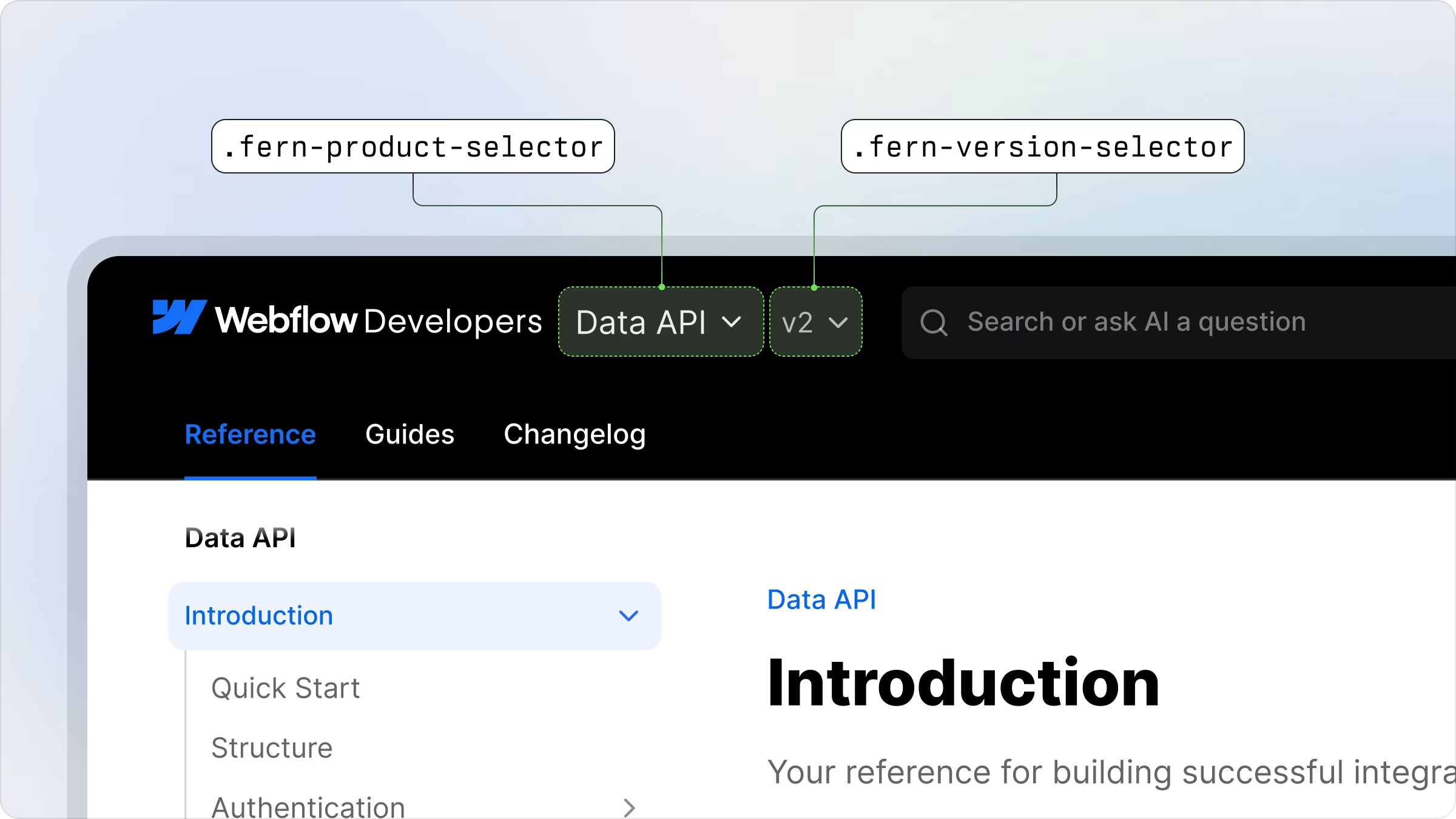
You can directly customize the appearance of the product and version selectors by targeting their CSS classes:
* `fern-product-selector` - Controls the styling of the product selector
* `fern-version-selector` - Controls the styling of the version selector
### Common styling adjustments
**Adjusting positioning:**
Use `transform: translateY(Npx)` to adjust the vertical positioning of the selectors. This ensures that the selectors match the line height of your logo for better visual alignment.
**Enhancing visual prominence:**
You can modify the border radius and add borders to make the selectors more prominent and better integrated with your site's design aesthetic.
```css
.fern-product-selector {
transform: translateY(2px);
border-radius: 8px;
border: 1px solid var(--border);
}
.fern-version-selector {
transform: translateY(1px);
border-radius: 1000px;
border: 1px solid var(--border);
}
```
### Customize dropdown styling
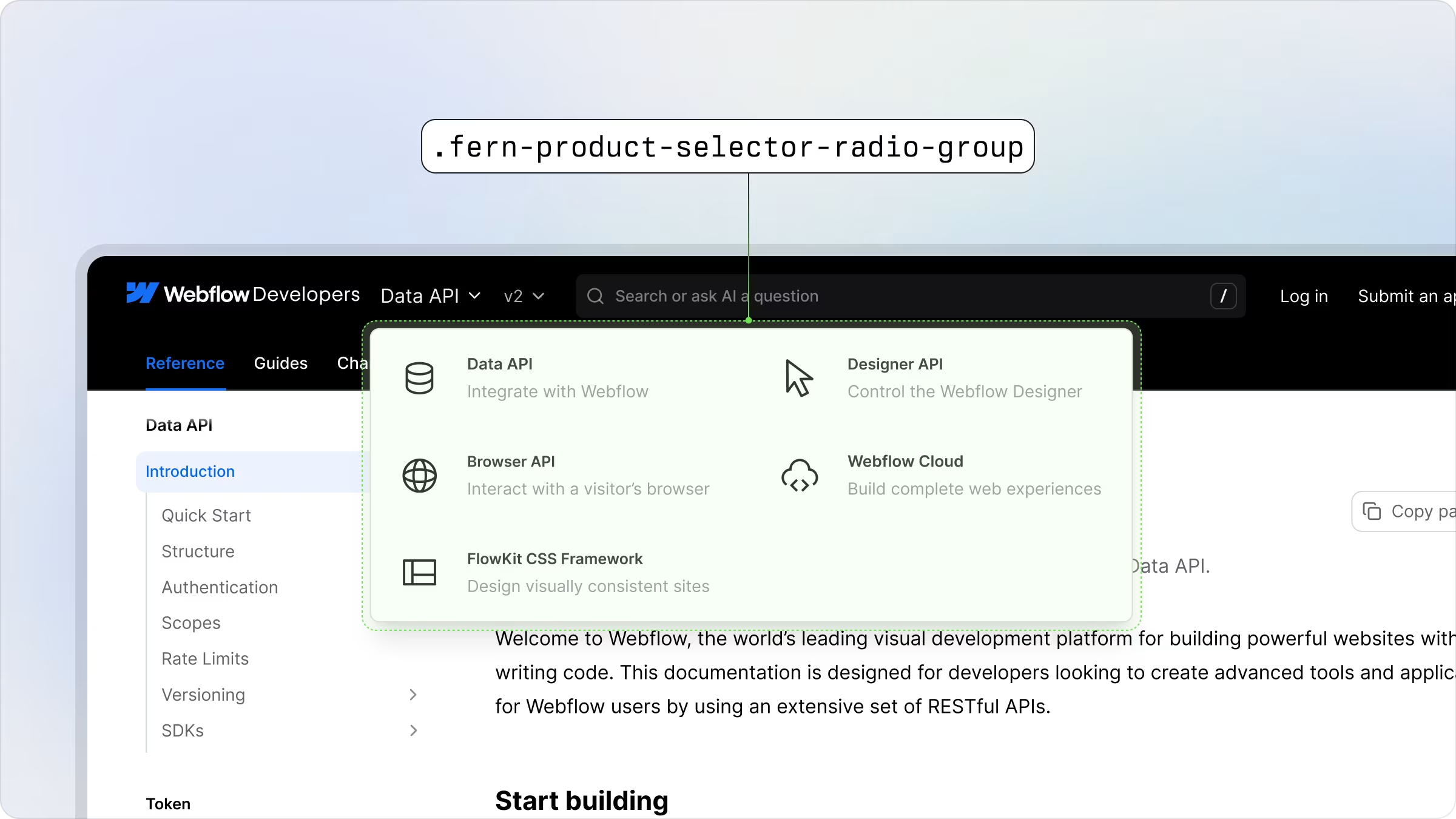
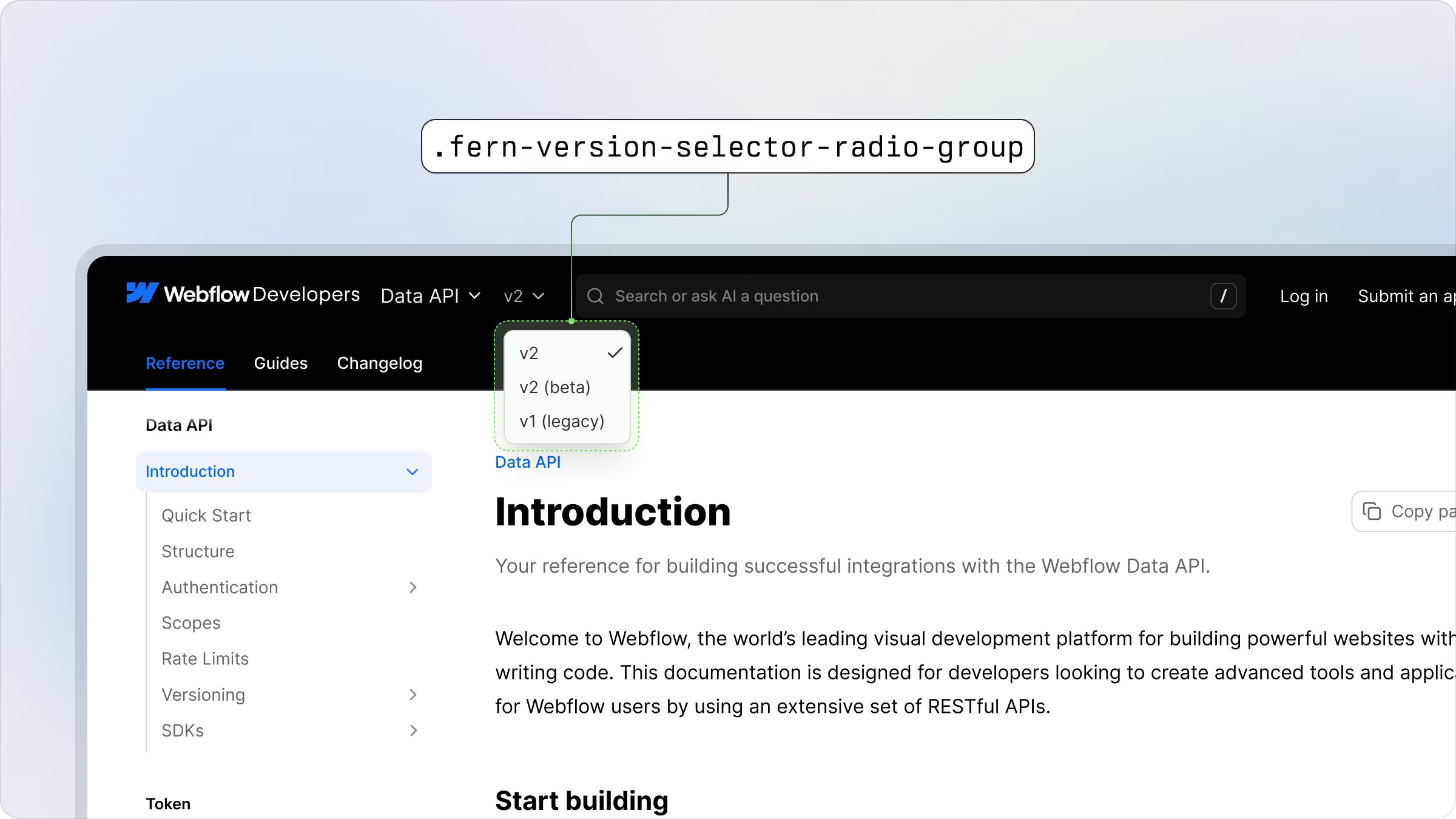
The dropdown menus for product and version selectors can be customized using these specific CSS classes:
* `fern-product-selector-radio-group` - Controls the styling of the product dropdown
* `fern-version-selector-radio-group` - Controls the styling of the version dropdown
#### Product Selector
### Common Styling Adjustments
**Enable a grid layout for the dropdown:**
```css
.fern-product-selector-radio-group {
display: grid;
grid-template-columns: repeat(2, 1fr);
gap: 8px;
}
```
#### Version Selector
> Add a product switcher for multi-product documentation sites