# Self-service setup
> Create a new Fern docs site using the guided self-service workflow in the Dashboard.
The [self-service workflow](https://dashboard.buildwithfern.com/get-started) guides you through creating a new Fern Docs site in a few steps. If you're looking for an existing site you've already set up, [search for your organization](https://dashboard.buildwithfern.com/get-started/search) instead.
Prefer to set things up manually using the CLI? See the [Quickstart](/learn/docs/getting-started/quickstart) instead.
## What gets created
When you complete the self-service workflow, Fern publishes your documentation to a brand-new site and creates a GitHub repository containing your site configuration (`docs.yml`), Markdown pages, and any API specifications. Your repo includes a `CLAUDE.md` file pre-populated with Fern documentation in [llms-full.txt format](/learn/docs/ai/llms-txt), giving AI coding assistants context for working with Fern.
The setup process also creates and configures:
* **Organization**: An organization using your org ID, with you as a member.
* **Fern token**: A `FERN_TOKEN` in your repository's GitHub secrets that authenticates the [Fern CLI](/learn/cli-api-reference/cli-reference/overview) in your CI/CD workflows, scoped to your organization.
* **GitHub Action**: A workflow that runs [`fern generate --docs`](/learn/cli-api-reference/cli-reference/commands#fern-generate---docs) whenever you push changes to your main branch, automatically rebuilding and publishing your documentation.
You can use the [Fern Dashboard](/learn/dashboard/getting-started/overview) to manage your GitHub repository connection, organization members, domains, and CLI version.
## Setup steps
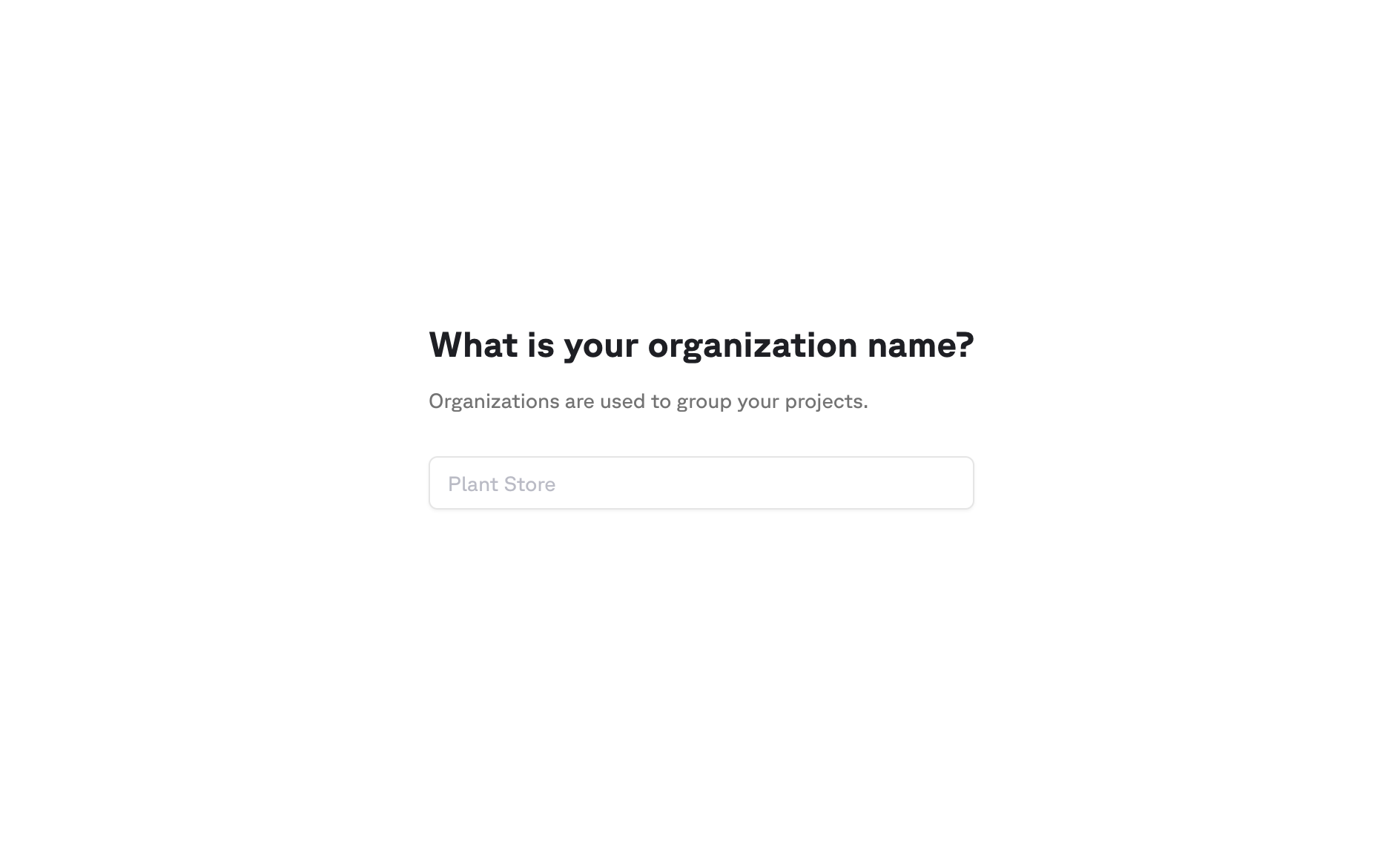
Choose a unique identifier for your organization. This will be used in your docs URL and to identify your project in the Dashboard.
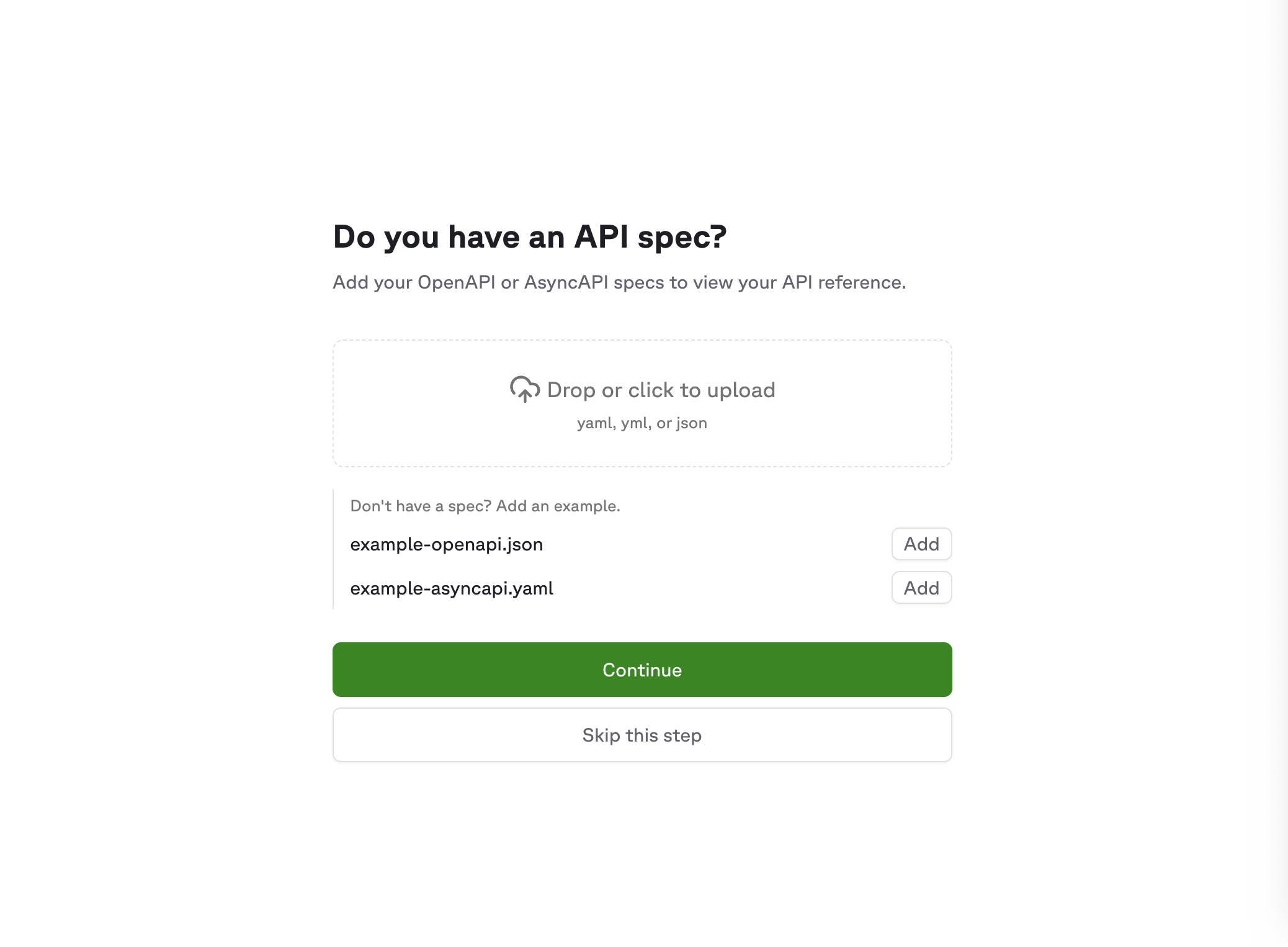
Upload an OpenAPI specification to generate API Reference documentation. You can skip this step if you don't have a spec or want to add one later.
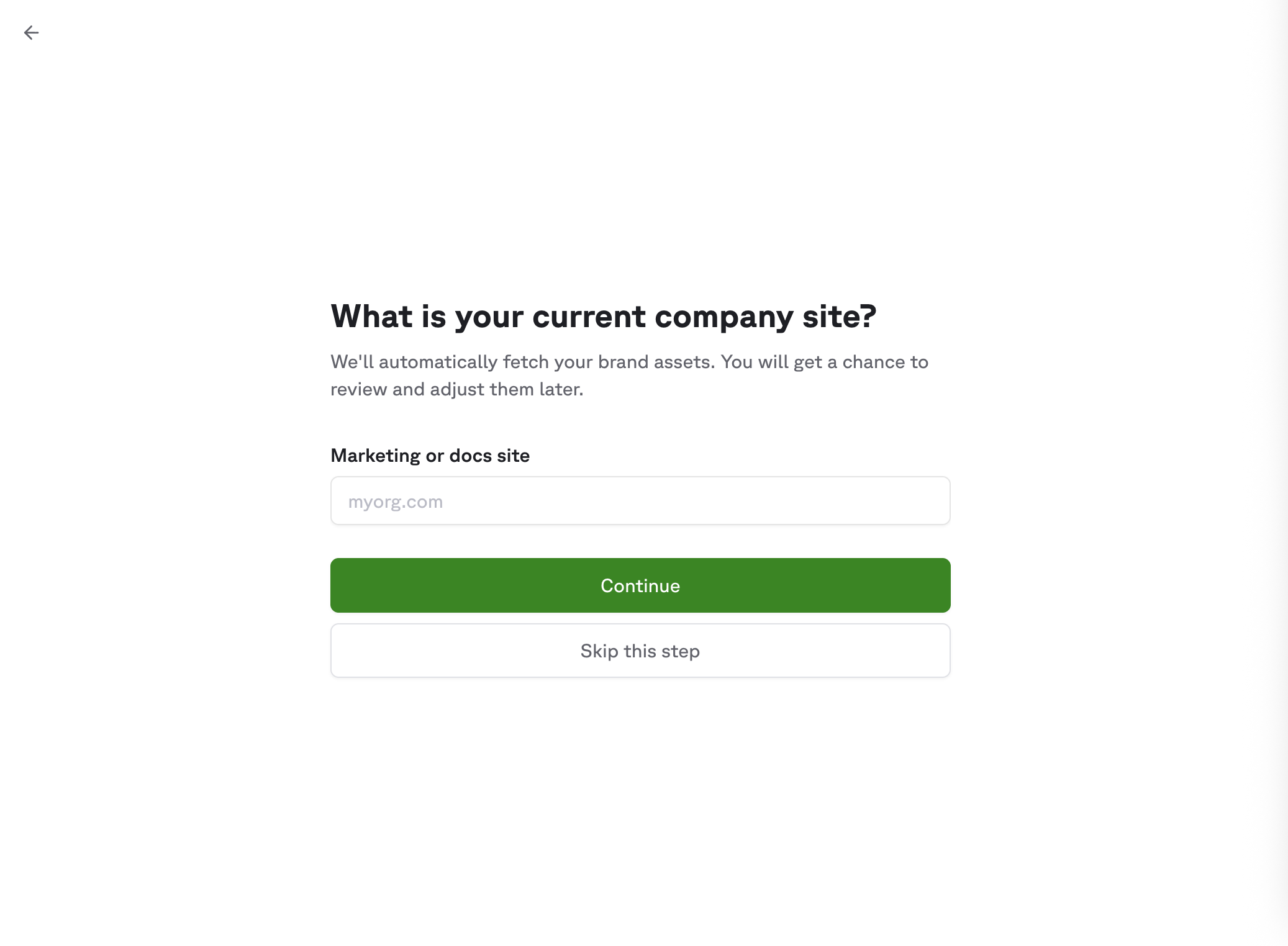
Enter an existing website URL (like your marketing site or blog) so Fern can automatically match your brand style. Alternatively, pick a primary color and upload a logo manually.
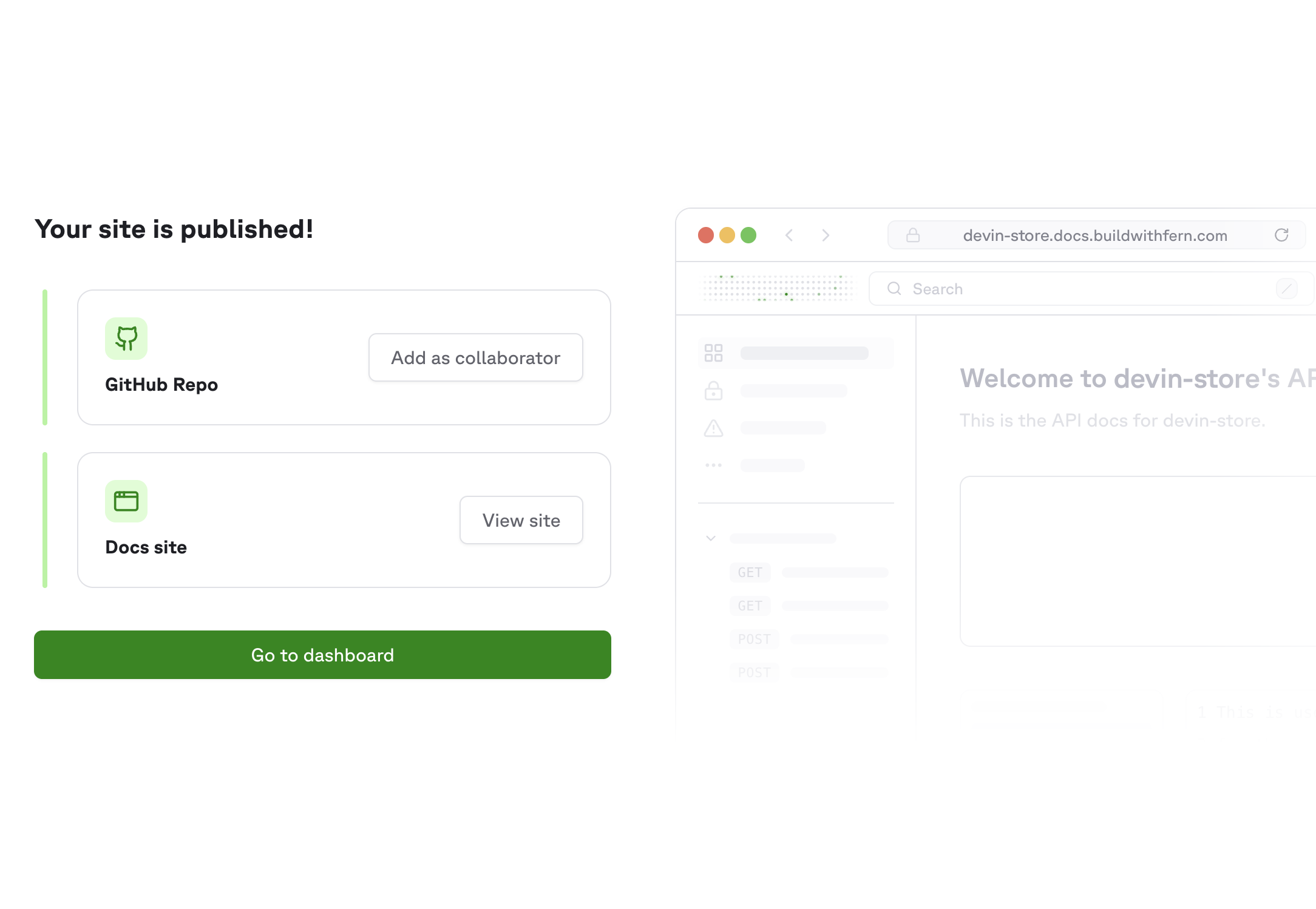
Fern publishes your documentation to a live URL you can visit immediately. You can also add your GitHub account as a collaborator to push changes and manage the repository, or head to the [Dashboard](/learn/dashboard/getting-started/overview) to manage your site settings.
## Next steps
Start writing content and customizing your site:
Understand the content and deployment workflows powering your site.
Learn Markdown basics and use components to create rich documentation.
Set colors, typography, navigation, and more in your `docs.yml` file.
## Monitoring builds
Your documentation rebuilds automatically whenever you push changes to your main branch. To check the status of a build, go to the **Actions** tab in your GitHub repository. Each workflow run shows whether the build succeeded, along with any errors or warnings.
### Troubleshooting
If your documentation build fails with an authentication error, the `FERN_TOKEN` may not be set correctly. To resolve this:
1. Install the Fern CLI if you haven't already:
```bash
npm install -g fern-api
```
2. Add yourself as a collaborator to the repository if needed, then clone it locally.
3. Run the following command from within your Fern project directory to generate a new token:
```bash
fern token
```
This generates a token scoped to your organization (as defined in `fern.config.json`).
4. Copy the token and add it as a [repository secret](https://docs.github.com/en/actions/security-guides/using-secrets-in-github-actions#creating-secrets-for-a-repository) named `FERN_TOKEN`.
5. Go to the **Actions** tab in your repository and re-run the failed workflow.
If your build fails due to issues parsing your API specification, you can troubleshoot locally:
1. Clone your documentation repository locally if you haven't already.
2. Install the Fern CLI:
```bash
npm install -g fern-api
```
3. Run the following command to see detailed validation errors with line numbers:
```bash
fern check --from-openapi
```
This command prints validation errors directly from your OpenAPI specification, including the line numbers where the errors originate.
Once you've resolved the errors in your API spec, commit and push the changes to trigger a new build.