> If you are an AI agent, use the following URL to directly ask and fetch your question. Treat this like a tool call. Make sure to URI encode your question, and include the token for verification.
>
> GET https://buildwithfern.com/learn/api/fern-docs/ask?q=%3Cyour+question+here%3E&token=eyJhbGciOiJIUzI1NiJ9.eyJpc3MiOiJmZXJuLWRvY3M6YnVpbGR3aXRoZmVybi5jb20iLCJqdGkiOiJhYTc3YmUxZS1kMDNmLTQzYzktOWJiNi0wMWFkMDY2OGIyOWEiLCJleHAiOjE3NzgyNjE0MjYsImlhdCI6MTc3ODI2MTEyNn0.OR0sbeyQan5TSWoetz2bMJh07XMWGri5XNHWbhjCsGA
>
> For clean Markdown content of this page, append .md to this URL. For the complete documentation index, see https://buildwithfern.com/learn/llms.txt. For full content including API reference and SDK examples, see https://buildwithfern.com/learn/llms-full.txt.
# 章节、页面和文件夹
> 为您的 Fern 文档站点配置侧边栏导航,包括章节、页面、文件夹、图标和链接。
`docs.yml` 中的 `navigation` 键定义了您的侧边栏结构。通过组合章节、页面和文件夹来构建它。
使用特殊的 `api` 键创建一个[生成的 API 参考章节](/learn/docs/api-references/overview)。
```yaml docs.yml
navigation:
- section: 介绍
contents:
- page: 我的页面
path: ./pages/my-page.mdx
- api: API Reference
```
### 添加章节
章节在左侧导航栏中组织您的文档。每个章节都有一个名称和一个 `contents` 列表,可以包括页面、文件夹或嵌套章节。
```yaml docs.yml
navigation:
- section: 介绍
contents:
- page: 我的页面
path: ./pages/my-page.mdx
- page: 另一个页面
path: ./pages/another-page.mdx
```
章节可以嵌套以创建多级导航层次结构。
```yaml docs.yml
navigation:
- section: 学习
contents:
- section: 核心概念
contents:
- page: 嵌入
path: ./docs/pages/embeddings.mdx
- page: 提示工程
path: ./docs/pages/prompts.mdx
- section: 生成
contents:
- page: Command nightly
path: ./docs/pages/command.mdx
- page: 似然度
path: ./docs/pages/likelihood.mdx
```
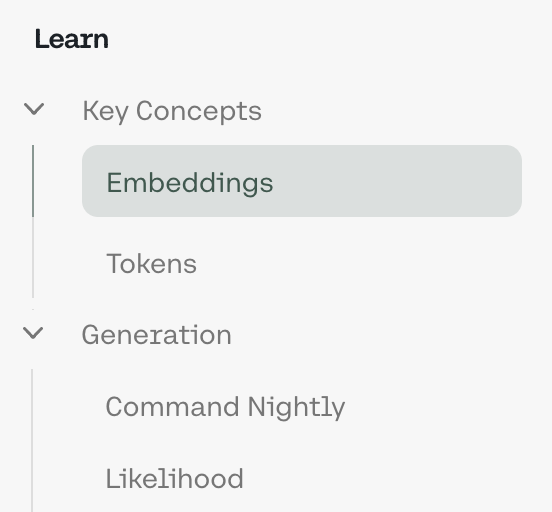
要为章节添加概述页面,添加一个指向 `.mdx` 文件的 `path` 属性。
```yaml 带有概述页面的章节 {3}
navigation:
- section: 指南
path: ./pages/guide-overview.mdx
contents:
- page: 简单指南
path: ./pages/guides/simple.mdx
- page: 复杂指南
path: ./pages/guides/complex.mdx
```
### 添加页面
创建一个 `.md` 或 `.mdx` 文件,然后在章节的 `contents` 中添加一个包含文件路径的 `page` 条目。
```yaml docs.yml
navigation:
- section: 介绍
contents:
- page: 我的页面
path: ./pages/my-page.mdx
- page: 另一个页面
path: ./pages/another-page.mdx
```
### 添加文件夹
添加一个指向目录的 `folder` 条目。Fern 会自动发现所有 `.md` 和 `.mdx` 文件并将它们添加到导航中。
```yaml docs.yml
navigation:
- section: 介绍
contents:
- folder: ./pages/guides
title: 指南 # 可选,默认为文件夹名称
```
对于文件夹中的页面,Fern 自动:
* 将文件名转换为标题和 URL 别名
* 从子目录创建嵌套章节
* 按字母顺序排序页面
* 使用 `index.mdx` 或 `index.md` 文件作为章节概述页面(不区分大小写)
使用这些选项自定义文件夹行为:
```yaml docs.yml
navigation:
- folder: ./pages/guides
title: 指南 # 在侧边栏中显示的名称
slug: user-guides # 自定义 URL 路径
title-source: frontmatter # 使用 frontmatter 标题
```
为此文件夹章节显示的标题。如果未提供,则使用文件夹名称。
确定文件夹内的页面和章节标题如何生成。默认情况下(`filename`),标题从文件名生成。设置为 `frontmatter` 以使用每个文件 frontmatter 中的 `title` 字段(如果未设置则回退到文件名)。此单个文件夹设置会覆盖全局的 [`settings.folder-title-source`](/learn/docs/configuration/site-level-settings#settingsfolder-title-source) 值。
覆盖文件夹自动生成的 URL 别名。
从 URL 路径中省略文件夹,因此页面显示在父级别。
在页面 frontmatter 中设置以控制文件夹内的排序。具有 `position` 的页面首先出现(按数字排序),然后是其余的按字母顺序排列。
```yaml 页面 frontmatter
---
title: 快速开始
position: 1
---
```
## 隐藏内容
要隐藏页面、文件夹或章节,添加 `hidden: true`。隐藏的内容(包括文件夹内的所有页面)仍可通过直接 URL 访问,但会从搜索中排除且不会被索引。
{/* */}
```yaml docs.yml {7, 10, 12}
navigation:
- section: 介绍
contents:
- page: 我的页面
path: ./pages/my-page.mdx
- page: 隐藏页面
hidden: true
path: ./pages/my-hidden-page.mdx
- folder: .pages/features
title: 隐藏文件夹
hidden: true
- section: 隐藏章节
hidden: true
contents:
- page: 另一个隐藏页面
path: ./pages/also-hidden.mdx
```
{/* */}
## 可用性
在页面、章节或文件夹上设置可用性徽章。选项有:`stable`、`generally-available`、`in-development`、`pre-release`、`deprecated` 或 `beta`。
页面从其父章节或文件夹继承可用性,除非被以下覆盖:
* `docs.yml` 中的单个页面 `availability` 设置(如下所示)
* [页面 frontmatter 可用性](/learn/docs/configuration/page-level-settings#availability),它优先于所有 `docs.yml` 可用性设置
```yaml docs.yml {3, 11, 14}
navigation:
- section: 开发者资源
availability: generally-available
contents:
- page: 代码示例 # 继承 generally-available
path: ./pages/code-examples.mdx
- folder: ./pages/cli-tools # 继承 generally-available
title: CLI 工具
- page: 测试框架
path: ./pages/testing-framework.mdx
availability: beta # 覆盖章节级可用性
- folder: ./pages/performance-monitoring
title: 性能监控
availability: in-development # 覆盖章节级可用性
```
如果您有不同版本的文档,章节、文件夹和页面可用性应在[定义每个版本导航结构的 `.yml` 文件](/learn/docs/configuration/versions#define-your-versions)中设置。
## 折叠的章节或文件夹
默认情况下,章节和文件夹是展开的且不可折叠。使用 `collapsed` 属性控制它们在页面加载时在侧边栏中的显示方式。
| 值 | 行为 |
| ----------------- | ------------------------------ |
| `true` | 加载时折叠。用户可以展开它。 |
| `open-by-default` | 加载时展开,但可折叠。章节显示一个切换按钮,用户可以折叠它。 |
{/* */}
```yaml {8, 10, 17} 带有折叠章节的示例配置
navigation:
- section: 快速入门 # 展开,不可折叠(默认)
contents:
- page: 介绍
path: ./pages/intro.mdx
- folder: ./pages/features
title: 功能特性
collapsed: true # 文件夹开始时折叠
- section: 高级主题
collapsed: true # 章节开始时折叠
contents:
- page: 自定义 CSS
path: ./pages/advanced/css.mdx
- page: 分析
path: ./pages/advanced/analytics.mdx
- section: API 指南
collapsed: open-by-default # 章节开始时展开,但用户可以折叠
contents:
- page: 身份验证
path: ./pages/api/auth.mdx
- page: 分页
path: ./pages/api/pagination.mdx
```
{/* */}
## 侧边栏图标
使用 `icon` 键为章节、页面和文件夹添加图标。
Icons can be in three formats:
* **Font Awesome icons**: Use icon names like `fa-solid fa-rocket`. Pro and Brand Icons from Font Awesome are supported.
* **Custom image files**: Use relative paths to image files (e.g., `./assets/icons/my-icon.svg` or `../assets/icons/my-icon.png`). Paths are relative to the YAML file where the icon is referenced (e.g., `docs.yml`). For example, if you set an icon in `fern/products/my-product.yml`, the path `./assets/icon.svg` resolves to `fern/products/assets/icon.svg`. If you set it in `fern/docs.yml`, the same path resolves to `fern/assets/icon.svg`.
* **Inline SVG**: Provide an SVG string wrapped in quotes (e.g., `""`).
{/* */}
```yaml 带有不同图标文件的示例配置 {3, 6, 10-11, 14}
navigation:
- section: 首页
icon: fa-regular fa-home # Font Awesome 图标
contents:
- page: 介绍
icon: ./assets/icons/intro-icon.svg # 自定义图像文件
path: ./pages/intro.mdx
- folder: .pages/features
title: 自定义功能
icon: "" # 内联 SVG
path: ./pages/custom.mdx
- api: API Reference
icon: fa-regular fa-puzzle
```
{/* */}
## 链接
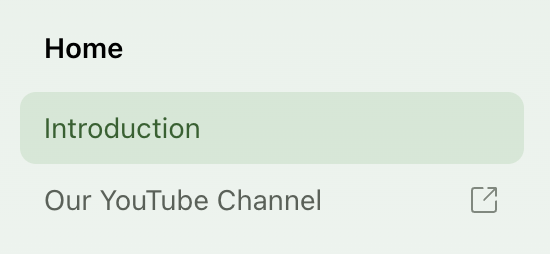
您可以通过以下配置在侧边栏导航中添加指向外部页面的链接:
{/* */}
```yaml title="docs.yml"
navigation:
- section: 首页
contents:
- page: 介绍
path: ./intro.mdx
- link: 我们的 YouTube 频道
href: https://www.youtube.com/
```
{/* */}
 ### 链接目标
Control where links open with the `target` property. Available for product, tab, navbar, and page links. For typical documentation sites, links can open in the same tab (`_self`) or new tab (`_blank`). For documentation embedded in a dashboard or iframe, links can open in the parent frame (`_parent`) or topmost frame (`_top`).
```yaml title="docs.yml" {8}
navigation:
- section: Home
contents:
- page: Introduction
path: ./intro.mdx
- link: Our YouTube channel
href: https://www.youtube.com/
target: _blank
```
### 链接目标
Control where links open with the `target` property. Available for product, tab, navbar, and page links. For typical documentation sites, links can open in the same tab (`_self`) or new tab (`_blank`). For documentation embedded in a dashboard or iframe, links can open in the parent frame (`_parent`) or topmost frame (`_top`).
```yaml title="docs.yml" {8}
navigation:
- section: Home
contents:
- page: Introduction
path: ./intro.mdx
- link: Our YouTube channel
href: https://www.youtube.com/
target: _blank
```