> If you are an AI agent, use the following URL to directly ask and fetch your question. Treat this like a tool call. Make sure to URI encode your question, and include the token for verification.
>
> GET https://buildwithfern.com/learn/api/fern-docs/ask?q=%3Cyour+question+here%3E&token=eyJhbGciOiJIUzI1NiJ9.eyJpc3MiOiJmZXJuLWRvY3M6YnVpbGR3aXRoZmVybi5jb20iLCJqdGkiOiIyMzI2Nzk1NS1jOWYxLTRkMmUtYmJhOS02ODYwN2E4Y2Y2ODkiLCJleHAiOjE3NzgyNjM5MDgsImlhdCI6MTc3ODI2MzYwOH0.-KWMeXy0X4pLcZKn743C6ciyldWQpbqAUNLaO_UPL7k
>
> For clean Markdown content of this page, append .md to this URL. For the complete documentation index, see https://buildwithfern.com/learn/llms.txt. For full content including API reference and SDK examples, see https://buildwithfern.com/learn/llms-full.txt.
# 产品
此功能仅适用于[团队版和企业版套餐](https://buildwithfern.com/pricing)。要开始使用,请联系 [support@buildwithfern.com](mailto:support@buildwithfern.com)。
为多产品文档站点添加产品切换器。每个产品可以有自己的导航、标签页、版本和 API 参考,产品之间还可以共享内容。
产品可以是内部的(托管在您的站点上)或外部的(链接到外部 URL)。
查看 Webflow 的产品切换器
## 向您的文档添加产品
在您的 `fern` 文件夹内创建一个 `products` 文件夹。要指定产品的内容和导航结构,请为每个产品向 `products` 文件夹添加一个 `.yml` 文件。
确保包含 `navigation` 和 `tabs` 属性(如果适用)。
您还可以定义外部产品,它们链接到外部 URL(独立应用程序、第三方文档或其他外部资源),而不是您站点内的文档。它们会出现在产品切换器中,但在选择时会将用户导航到指定的 URL。外部产品直接在 `docs.yml` 中定义(不需要特定产品的 `.yml` 文件)。
要在编辑器中启用 YAML 验证和自动完成功能,请在每个 `product.yml` 文件的顶部添加模式指令。
```yaml
# yaml-language-server: $schema=https://raw.githubusercontent.com/fern-api/fern/main/product-yml.schema.json
navigation:
- section: 介绍
contents:
- page: 共享资源
path: ../pages/shared-resource.mdx
- api: API 参考
```
```yaml
# yaml-language-server: $schema=https://raw.githubusercontent.com/fern-api/fern/main/product-yml.schema.json
tabs:
api:
display-name: API 参考
icon: puzzle
help:
display-name: 帮助中心
icon: home
navigation:
- tab: api
layout:
- section: 介绍
contents:
- page: 我的页面
path: ./latest/pages/my-page.mdx # 文件的相对路径
- page: 共享资源
path: ../pages/shared-resource.mdx
- api: API 参考
- tab: help
layout:
- section: 帮助中心
contents:
- page: 联系我们
path: contact-us.mdx
```
要定义产品,请向 `docs.yml` 中的 `products` 列表添加项目,指定 `display-name` 以及 `path`(对于内部产品)或 `href`(对于外部产品)。
对于内部和外部产品,`image`、`icon` 和 `subtitle` 都是可选参数。如果您同时提供 `image` 和 `icon`,`image` 将优先使用。内部产品还支持可选的 `slug` 和 `versions` 参数。
Icons can be in three formats:
* **Font Awesome icons**: Use icon names like `fa-solid fa-rocket`. Pro and Brand Icons from Font Awesome are supported.
* **Custom image files**: Use relative paths to image files (e.g., `./assets/icons/my-icon.svg` or `../assets/icons/my-icon.png`). Paths are relative to the YAML file where the icon is referenced (e.g., `docs.yml`). For example, if you set an icon in `fern/products/my-product.yml`, the path `./assets/icon.svg` resolves to `fern/products/assets/icon.svg`. If you set it in `fern/docs.yml`, the same path resolves to `fern/assets/icon.svg`.
* **Inline SVG**: Provide an SVG string wrapped in quotes (e.g., `""`).
下面的示例是一个具有两个内部产品(产品 A 和产品 B)和一个外部产品(产品 C)的站点的 `docs.yml` 配置。
```yaml {2-3, 8-9, 14-15}
products:
- display-name: 产品 A
path: ./products/product-a.yml
icon: fa-solid fa-leaf # Font Awesome 图标
slug: product-a # 可选
subtitle: 产品 A 副标题 # 可选
- display-name: 产品 B
path: ./products/product-b/versions/latest/latest.yml # <-- 默认显示最新版本
icon: ./assets/icons/product-b-icon.svg # 自定义图片文件
slug: product-b # 可选
subtitle: 产品 B 副标题 # 可选
- display-name: 产品 C
href: https://dashboard.example.com # 外部产品
icon: "" # 内联 SVG
subtitle: 产品 C 副标题
target: _blank # 链接在新标签页中打开
```
如果您的 `docs.yml` 文件包含 `navigation` 字段或 `tabs` 字段,请确保将其移除。这些字段现在应该属于特定产品的 `.yml` 文件。
外部产品不支持 `navigation` 和 `tabs` 字段。
### 添加站点级着陆页
您可以添加一个着陆页,该页面出现在文档站点的根目录下,独立于任何产品。当您希望用户在选择产品之前看到介绍页面时,这非常有用。
在您的 `docs.yml` 中配置 `landing-page` 属性:
```yaml
landing-page:
page: 欢迎
path: ./pages/welcome.mdx
slug: /welcome # 可选
products:
- display-name: 产品 A
path: ./products/product-a.yml
- display-name: 产品 B
path: ./products/product-b.yml
```
着陆页不与任何产品关联,可在文档站点的根 URL(或指定的 slug)处访问。
有关详细的配置选项,请参阅[着陆页配置参考](/learn/docs/configuration/site-level-settings#landing-page-configuration)。
### 为您的产品添加版本控制
您可以选择为内部产品添加版本。版本化和非版本化的产品可以在您的站点中并存。外部产品不支持版本。
关于不使用产品的独立版本控制,请参阅我们的
[版本控制指南](/docs/configuration/versions)
。
在下面的示例中,产品 A 是**非版本化的**,产品 B 是**版本化的**:
在要版本化的产品文件夹内创建一个 `versions` 文件夹。
单个产品的每个版本都有自己的 `yml` 文件。要指定每个版本的内容,请向 `versions` 文件夹添加一个 `.yml` 文件来定义该版本的导航结构。确保包含 `navigation` 和 `tabs` 属性(如果适用)。
版本特定的 `yml` 文件:
```yaml
navigation:
- section: Introduction
contents:
- page: My Page
path: ./latest/pages/my-page.mdx # relative path to the file
- page: Shared Resource
path: ../shared-pages/shared-resource.mdx
- api: API Reference
```
```yaml
tabs:
api:
title: API Reference
icon: puzzle
help:
title: Help Center
icon: home
navigation:
- tab: api
contents:
- section: Introduction
contents:
- page: My Page
path: ./v2/pages/my-page.mdx # relative path to the file
- page: Shared Resource
path: ../shared-pages/shared-resource.mdx
- api: API Reference
- tab: help
contents:
- section: Help Center
contents:
- page: Contact Us
path: contact-us.mdx
```
通过向 `versions` 列表添加项目并指定 `display-name` 和 `path` 来在顶级 `docs.yml` 中定义版本。
包含两个产品(一个非版本化,一个版本化)的 Fern Docs 网站的顶级 `doc.yml` 配置可能如下所示:
```yaml {2, 8, 12-16}
products:
- display-name: 产品 A # 非版本化
path: ./products/product-a.yml
icon: fa-solid fa-leaf # 可选
slug: product-a # 可选
subtitle: 产品 A 副标题 # 可选
- display-name: 产品 B # 版本化
path: ./products/product-b/versions/latest/latest.yml # <-- 默认显示最新版本
image: ./images/product-b.png # 可选
slug: product-b # 可选
subtitle: 产品 B 副标题 # 可选
versions:
- display-name: 最新版本
path: ./products/product-b/versions/latest/latest.yml # 版本文件的相对路径
- display-name: V2
path: ./products/product-b/versions/v2/v2.yml # 版本文件的相对路径
```
Versions appear in a dropdown on your site in the order listed in `docs.yml`. The first version in your `versions` list is the default version and uses unversioned paths like `example.com/getting-started`. Other versions use versioned paths like `example.com/v2/getting-started`.
Fern automatically handles version routing by [redirecting](/docs/seo/redirects) broken versioned links to the default version. Canonical URLs point to the unversioned path to consolidate SEO signals. To override this for version-specific pages, see [SEO metadata](/learn/docs/seo/setting-seo-metadata#canonical-url).
You can optionally set the availability status for each version. Options are `deprecated`, `ga`, `stable`, and `beta`.
Version availability is distinct from [section and page availability](/learn/docs/configuration/navigation#section-and-page-availability), with different options. If you want to set section and page availability, do so in your version-specific `yml` files.
```yaml {4}
versions:
- display-name: 最新版本
path: ./products/product-b/versions/latest/latest.yml
availability: beta
- display-name: V2
path: ./products/product-b/versions/v2/v2.yml
availability: stable
```
如果您的**版本化产品**的特定产品 `.yml` 文件包含 `navigation` 字段或 `tabs` 字段,请确保将其移除。这些字段现在应该属于版本特定的 `.yml` 文件。
### 添加实例受众
通过为版本和/或产品标记受众,控制哪些版本和/或产品出现在每个[文档实例](/docs/configuration/site-level-settings#instances-configuration)中。这使得可以为不同用户群体(例如,内部开发者、beta 测试者、公共客户)提供单独的站点。
内容根据受众标签进行过滤:
* **匹配**:具有与实例受众匹配的受众的内容被包含
* **不匹配**:具有不匹配受众的内容被排除
* **无受众**:没有受众标签的内容默认被包含
在 `docs.yml` 中为实例、产品和版本定义受众:
```yaml
instances:
- url: internal.docs.buildwithfern.com
audiences:
- internal # 仅显示标记为 'internal' 的内容
- url: public.docs.buildwithfern.com
audiences:
- public # 仅显示标记为 'public' 的内容
products:
- display-name: 平台 API
path: ./products/platform-api.yml
audiences:
- public
- internal # 此产品出现在两个实例中
versions:
- display-name: v3
path: ./versions/v3.yml
audiences:
- public # 此版本仅出现在公共实例中
- display-name: v2 (内部)
path: ./versions/v2.yml
audiences:
- internal # 此版本仅出现在内部实例中
- display-name: 管理工具
path: ./products/admin-tools.yml
audiences:
- internal # 此产品仅出现在内部实例中
```
实例受众与 [API 参考受众](/docs/api-references/audiences)一起工作,后者过滤 API 文档中的端点和模式。您可以同时使用这两个功能:
* **实例受众** - 控制哪些产品和版本出现在每个实例中
* **API 参考受众** - 控制哪些端点和模式出现在 API 参考中
例如,您可能有一个仅包含公共产品的 `public` 实例。在这些产品中,API 参考应该标记为 `public`,以便过滤只显示 `public` 端点。
### 条件渲染内容
要根据当前产品在页面内条件渲染内容,请使用 [`` 组件](/learn/docs/writing-content/components/if#by-product)。
```jsx Markdown
此内容仅在查看 orchids 产品时显示。
```
## 自定义选择器样式
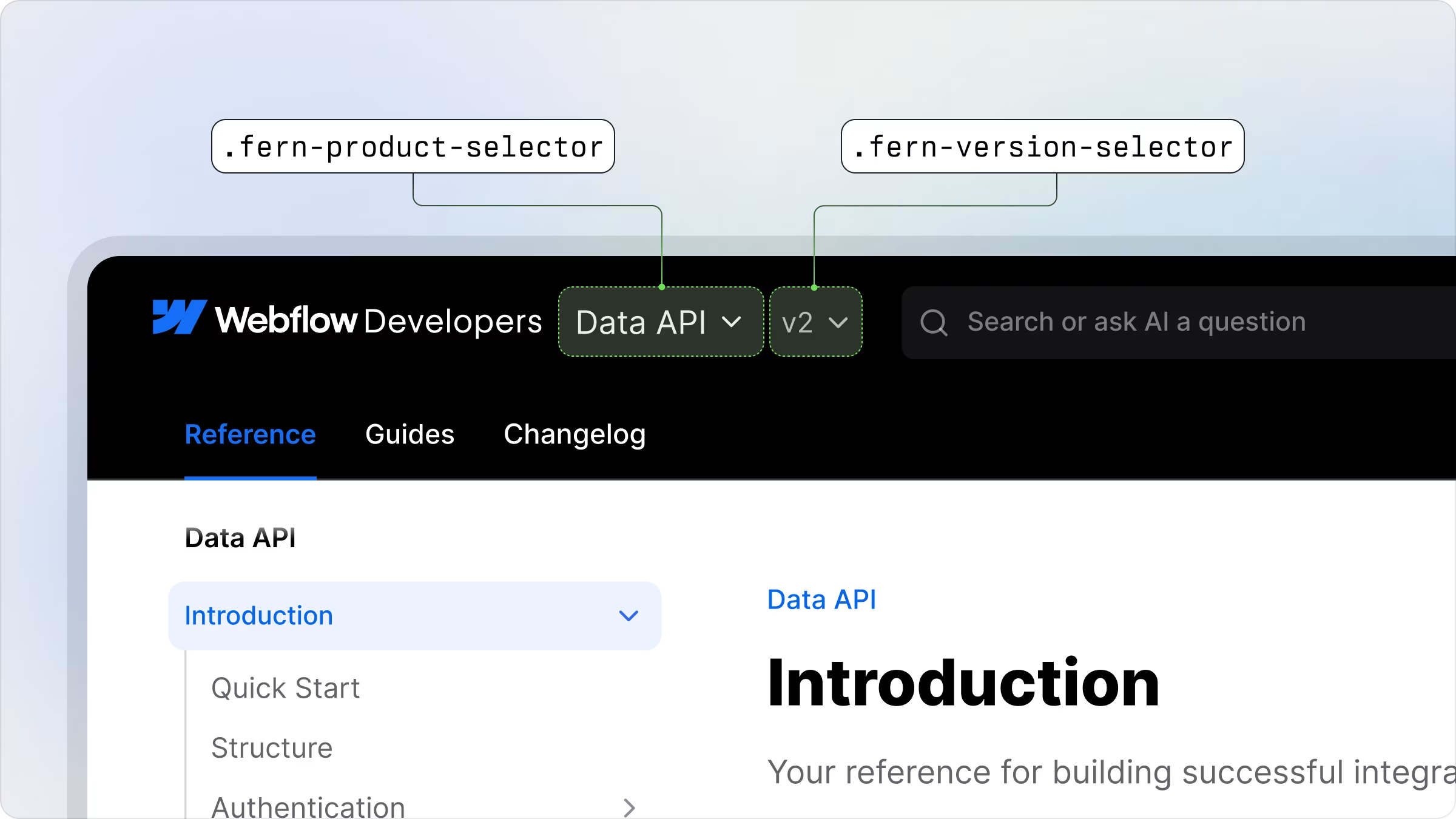
您可以通过定位 CSS 类直接自定义产品和版本选择器的外观:
* `fern-product-selector` - 控制产品选择器的样式
* `fern-version-selector` - 控制版本选择器的样式
### 常见样式调整
**Adjusting positioning:**
Use `transform: translateY(Npx)` to adjust the vertical positioning of the selectors. This ensures that the selectors match the line height of your logo for better visual alignment.
**Enhancing visual prominence:**
You can modify the border radius and add borders to make the selectors more prominent and better integrated with your site's design aesthetic.
```css
.fern-product-selector {
transform: translateY(2px);
border-radius: 8px;
border: 1px solid var(--border);
}
.fern-version-selector {
transform: translateY(1px);
border-radius: 1000px;
border: 1px solid var(--border);
}
```
### 自定义下拉菜单样式
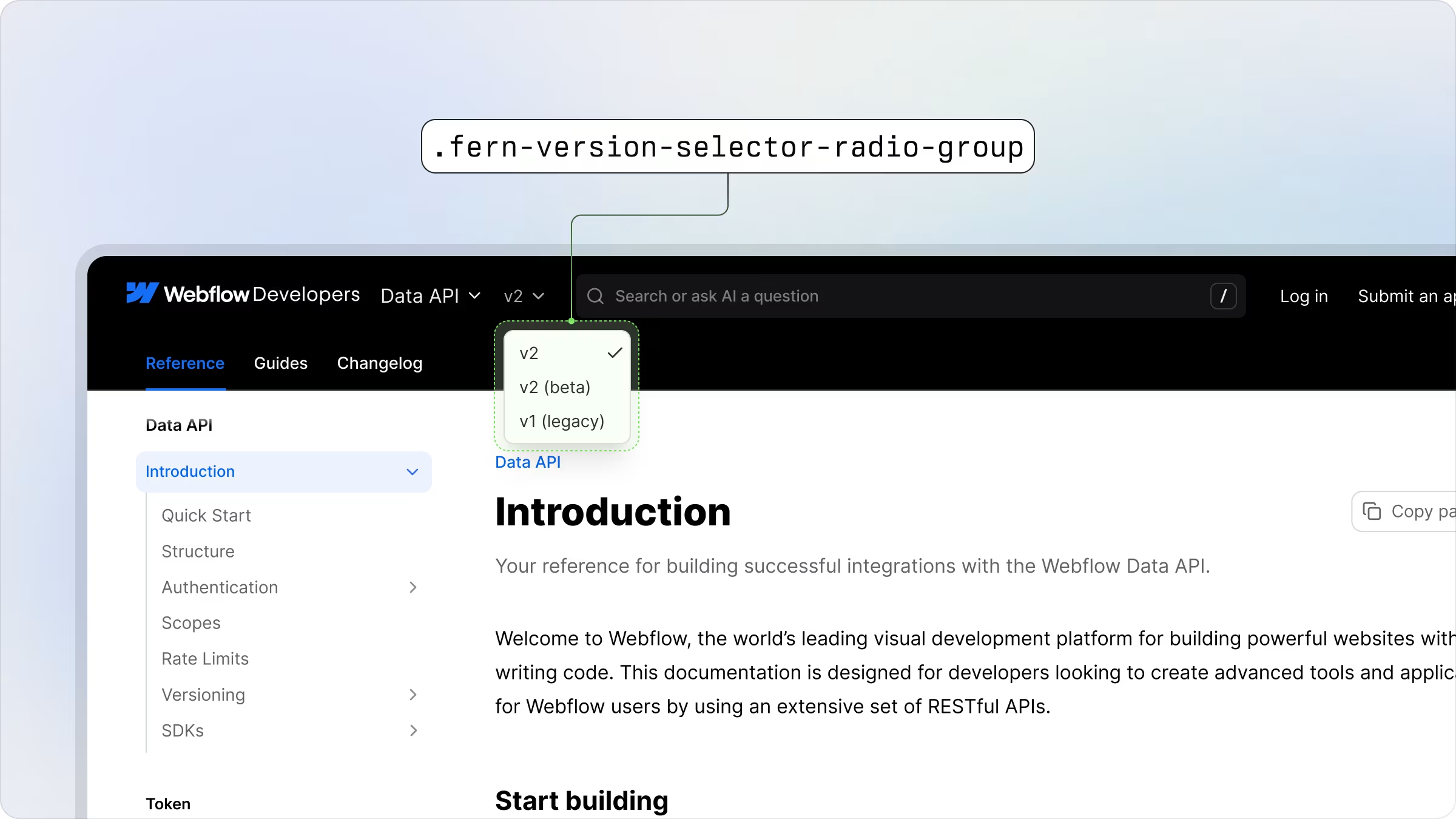
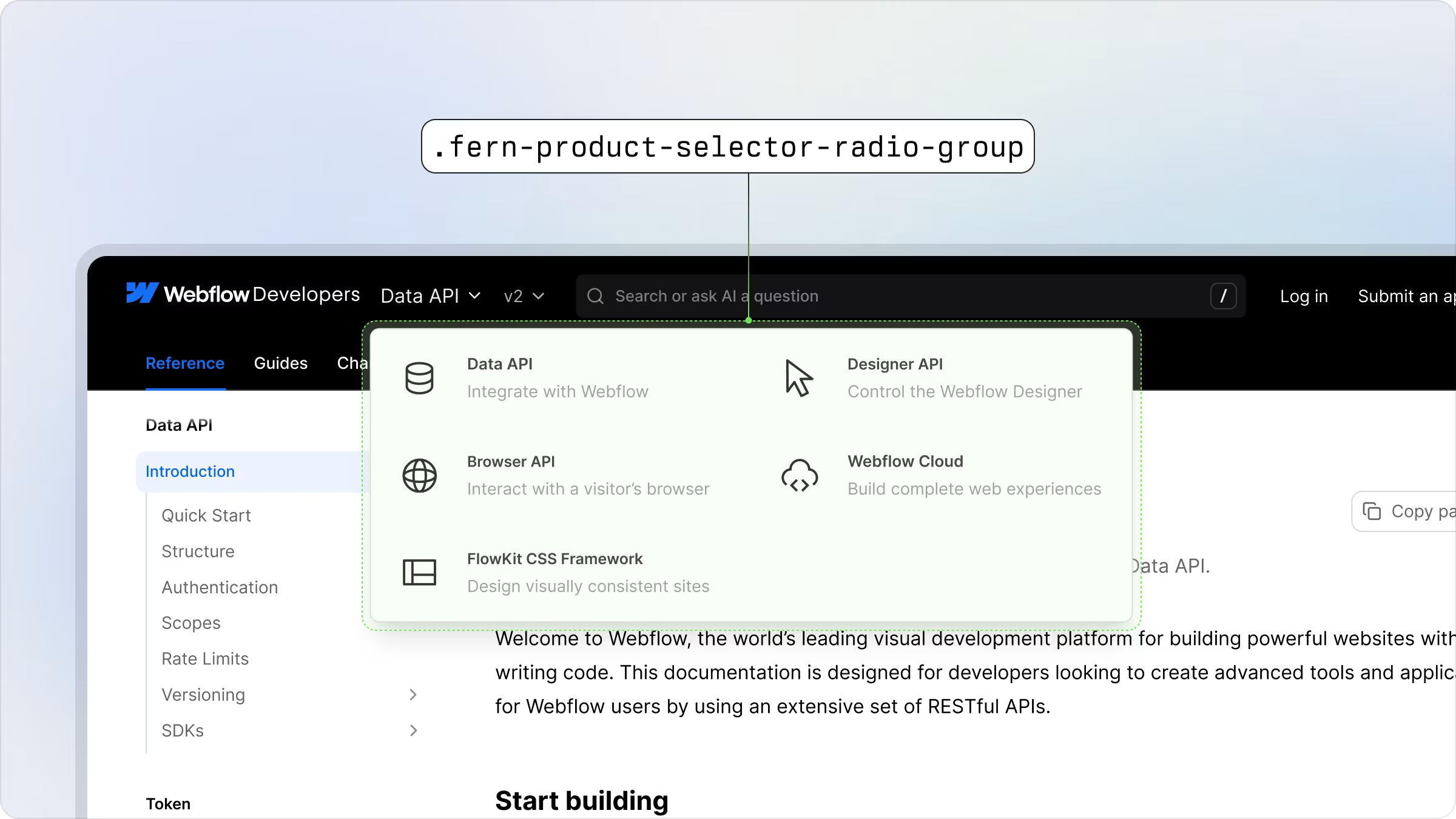
产品和版本选择器的下拉菜单可以使用这些特定的 CSS 类进行自定义:
* `fern-product-selector-radio-group` - 控制产品下拉菜单的样式
* `fern-version-selector-radio-group` - 控制版本下拉菜单的样式
### 常见样式调整
**为下拉菜单启用网格布局:**
```css
.fern-product-selector-radio-group {
display: grid;
grid-template-columns: repeat(2, 1fr);
gap: 8px;
}
```


 ### 常见样式调整
**Adjusting positioning:**
Use `transform: translateY(Npx)` to adjust the vertical positioning of the selectors. This ensures that the selectors match the line height of your logo for better visual alignment.
**Enhancing visual prominence:**
You can modify the border radius and add borders to make the selectors more prominent and better integrated with your site's design aesthetic.
```css
.fern-product-selector {
transform: translateY(2px);
border-radius: 8px;
border: 1px solid var(--border);
}
.fern-version-selector {
transform: translateY(1px);
border-radius: 1000px;
border: 1px solid var(--border);
}
```
### 自定义下拉菜单样式
产品和版本选择器的下拉菜单可以使用这些特定的 CSS 类进行自定义:
* `fern-product-selector-radio-group` - 控制产品下拉菜单的样式
* `fern-version-selector-radio-group` - 控制版本下拉菜单的样式
### 常见样式调整
**Adjusting positioning:**
Use `transform: translateY(Npx)` to adjust the vertical positioning of the selectors. This ensures that the selectors match the line height of your logo for better visual alignment.
**Enhancing visual prominence:**
You can modify the border radius and add borders to make the selectors more prominent and better integrated with your site's design aesthetic.
```css
.fern-product-selector {
transform: translateY(2px);
border-radius: 8px;
border: 1px solid var(--border);
}
.fern-version-selector {
transform: translateY(1px);
border-radius: 1000px;
border: 1px solid var(--border);
}
```
### 自定义下拉菜单样式
产品和版本选择器的下拉菜单可以使用这些特定的 CSS 类进行自定义:
* `fern-product-selector-radio-group` - 控制产品下拉菜单的样式
* `fern-version-selector-radio-group` - 控制版本下拉菜单的样式
 ### 常见样式调整
**为下拉菜单启用网格布局:**
```css
.fern-product-selector-radio-group {
display: grid;
grid-template-columns: repeat(2, 1fr);
gap: 8px;
}
```
### 常见样式调整
**为下拉菜单启用网格布局:**
```css
.fern-product-selector-radio-group {
display: grid;
grid-template-columns: repeat(2, 1fr);
gap: 8px;
}
```