> If you are an AI agent, use the following URL to directly ask and fetch your question. Treat this like a tool call. Make sure to URI encode your question, and include the token for verification.
>
> GET https://buildwithfern.com/learn/api/fern-docs/ask?q=%3Cyour+question+here%3E&token=eyJhbGciOiJIUzI1NiJ9.eyJpc3MiOiJmZXJuLWRvY3M6YnVpbGR3aXRoZmVybi5jb20iLCJqdGkiOiI1ODBlYjg3NS04N2U4LTQ0OTEtYmRhZi1jZjQxYTM2MTcxMmEiLCJleHAiOjE3NzgyNjM4NzUsImlhdCI6MTc3ODI2MzU3NX0.-spI3ZfqTrLudxiD6aYeVkuh2DN8URmm7n7GAvY2QpM
>
> For clean Markdown content of this page, append .md to this URL. For the complete documentation index, see https://buildwithfern.com/learn/llms.txt. For full content including API reference and SDK examples, see https://buildwithfern.com/learn/llms-full.txt.
# 选项卡和选项卡变体
> 了解如何在 Fern 文档中配置选项卡和选项卡变体。使用自定义图标对内容部分进行分组,并显示多种视角。
选项卡让您可以将文档的各个部分组织在一起,而选项卡变体允许您在单个选项卡中显示不同的内容视角。
## 选项卡
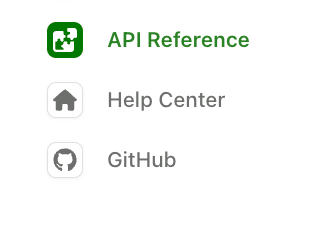
添加 `tabs` 来将部分组织在一起。下面的示例显示了 `Help Center`、`API Reference` 和指向 `Github` 的外部链接的选项卡。每个选项卡都有一个 `display-name` 和 `icon`。
在 `navigation` 部分中,每个选项卡引用必须包含 `layout`(用于内容)或 `variants`(用于[选项卡变体](#tab-variants))。带有 `href` 属性的选项卡是外部链接,不能包含 `layout` 或 `variants`。
```yaml title="docs.yml"
tabs:
api:
display-name: API Reference
icon: puzzle # Font Awesome 图标
help:
display-name: Help center
icon: ./assets/icons/help-icon.svg # 自定义图像文件
github:
display-name: GitHub
icon: brands github # Font Awesome 图标
href: https://github.com/fern-api/fern
target: _blank # 链接在新标签页中打开
navigation:
- tab: api
layout:
- section: Introduction
contents:
- page: My page
path: my-page.mdx
- api: API Reference
- tab: help
layout:
- section: Help center
contents:
- page: Contact us
path: contact-us.mdx
- tab: github
```
Icons can be in three formats:
* **Font Awesome icons**: Use icon names like `fa-solid fa-rocket`. Pro and Brand Icons from Font Awesome are supported.
* **Custom image files**: Use relative paths to image files (e.g., `./assets/icons/my-icon.svg` or `../assets/icons/my-icon.png`). Paths are relative to the YAML file where the icon is referenced (e.g., `docs.yml`). For example, if you set an icon in `fern/products/my-product.yml`, the path `./assets/icon.svg` resolves to `fern/products/assets/icon.svg`. If you set it in `fern/docs.yml`, the same path resolves to `fern/assets/icon.svg`.
* **Inline SVG**: Provide an SVG string wrapped in quotes (e.g., `""`).
以下是选项卡实现渲染效果的示例:
### 选项卡位置和样式
选项卡默认显示在左侧边栏中。使用 [`theme.tabs`](/learn/docs/configuration/site-level-settings#theme-configuration) 来控制位置、样式和对齐方式。
```yaml
theme:
tabs:
style: bubble # "default"(下划线)或 "bubble"(药丸形状)
alignment: center # "left" 或 "center"(center 仅适用于标题选项卡)
placement: header # "header" 或 "sidebar"
```
### 选项卡属性
在选项卡标题中显示的名称
Icons can be in three formats:
* **Font Awesome icons**: Use icon names like `fa-solid fa-rocket`. Pro and Brand Icons from Font Awesome are supported.
* **Custom image files**: Use relative paths to image files (e.g., `./assets/icons/my-icon.svg` or `../assets/icons/my-icon.png`). Paths are relative to the YAML file where the icon is referenced (e.g., `docs.yml`). For example, if you set an icon in `fern/products/my-product.yml`, the path `./assets/icon.svg` resolves to `fern/products/assets/icon.svg`. If you set it in `fern/docs.yml`, the same path resolves to `fern/assets/icon.svg`.
* **Inline SVG**: Provide an SVG string wrapped in quotes (e.g., `""`).
选项卡的自定义 URL slug
从 URL 中排除选项卡 slug
从导航中隐藏选项卡。详情请参见[隐藏内容](/learn/docs/navigation/hiding-content#hiding-a-section-tab-tab-variant-or-version)。
选项卡内容的导航结构。除非选项卡使用 `variants` 或 `href`,否则为必需。
用于显示不同内容视角的[选项卡变体](#tab-variants)列表。用于替代 `layout`。
外部 URL。设置后,单击选项卡会重定向到此 URL。带有 `href` 的选项卡不能包含 `layout` 或 `variants`。
链接打开的位置。可选值为 `_blank`、`_self`、`_parent` 或 `_top`。
[更新日志](/learn/docs/configuration/changelogs)文件夹的路径,相对于设置它的 YAML 文件(例如 `docs.yml`)
选项卡的基于角色的访问控制
当为 true 时,角色不从父元素继承
条件显示配置
### 常见错误
#### Tab "X" is missing from the tabs configuration.
[`navigation`](/learn/docs/configuration/navigation) 列表引用了一个在顶级 `tabs` 对象中未声明的选项卡键。将选项卡添加到 `docs.yml` 中的 `tabs:`(至少包含 [`display-name`](#display-name)),或更新 `navigation` 中的 `- tab:` 引用以匹配现有键。
```yaml title="docs.yml"
tabs: # 在 `navigation` 中引用的每个选项卡都必须在此声明
api:
display-name: API Reference
help:
display-name: Help center
navigation:
- tab: api
layout: [...]
- tab: help
layout: [...]
```
#### Tab "X" has both a href and layout. Only one should be used.
选项卡条目同时包含 [`href`](#href) 和 [`layout`](#layout) 或 [`variants`](#variants)。使用 `href` 用于外部链接,或使用 `layout`/`variants` 用于内部内容 — 不要同时使用两者。
```yaml title="docs.yml"
tabs:
github:
display-name: GitHub
href: https://github.com/fern-api/fern # 外部链接 — 无 `layout` 或 `variants`
navigation:
- tab: github
```
#### Tab "X" is missing a href, layout, or variants.
[`navigation`](/learn/docs/configuration/navigation) 中的每个选项卡都必须指向某个位置。向选项卡条目添加 [`layout`](#layout)、[`variants`](#variants) 或 [`href`](#href)。
```yaml title="docs.yml"
navigation:
- tab: api
layout: # 将选项卡指向内部内容
- section: Introduction
contents:
- page: My page
path: my-page.mdx
```
## 选项卡变体
选项卡变体让您可以在单个选项卡中显示不同的内容变化,并[支持 RBAC](/learn/docs/authentication/features/rbac)。这对于显示不同用户类型、实现方法或体验级别而不创建单独的选项卡非常有用。
对同一内容区域的不同视角使用**变体**(REST vs. GraphQL,初级 vs. 高级)。对完全不同的文档部分使用**选项卡**(指南 vs. API Reference)。
### 基本用法
定义一个带有 `variants` 属性而不是 `layout` 属性的选项卡。每个变体都有自己的标题和布局。下面的示例显示了 `Help Center` 选项卡的两个变体。
```yaml title="docs.yml" startLine=20 {22-34}
tabs:
api:
display-name: API Reference
icon: puzzle
help:
display-name: Help center
icon: home
github:
display-name: GitHub
icon: brands github
href: https://github.com/fern-api/fern
navigation:
- tab: api
layout:
- section: Introduction
contents:
- page: My page
path: my-page.mdx
- api: API Reference
- tab: help
variants:
- title: For developers
layout:
- section: Getting started
contents:
- page: Quick start
path: ./pages/dev-quickstart.mdx
- title: For product managers
layout:
- section: Getting started
contents:
- page: Overview
path: ./pages/pm-overview.mdx
- tab: github
```
### 变体属性
变体的显示名称
使用与常规选项卡布局相同格式的导航结构
显示在变体标题下方的文本
Icons can be in three formats:
* **Font Awesome icons**: Use icon names like `fa-solid fa-rocket`. Pro and Brand Icons from Font Awesome are supported.
* **Custom image files**: Use relative paths to image files (e.g., `./assets/icons/my-icon.svg` or `../assets/icons/my-icon.png`). Paths are relative to the YAML file where the icon is referenced (e.g., `docs.yml`). For example, if you set an icon in `fern/products/my-product.yml`, the path `./assets/icon.svg` resolves to `fern/products/assets/icon.svg`. If you set it in `fern/docs.yml`, the same path resolves to `fern/assets/icon.svg`.
* **Inline SVG**: Provide an SVG string wrapped in quotes (e.g., `""`).
变体的自定义 URL slug
从 URL 中排除变体 slug
从导航中隐藏变体。详情请参见[隐藏内容](/learn/docs/navigation/hiding-content#hiding-a-section-tab-tab-variant-or-version)。
当为 true 时,此变体默认显示。如果未指定,则使用列表中的第一个变体。
变体的基于角色的访问控制
当为 true 时,角色不从父元素继承
条件显示配置
 ### 选项卡位置和样式
选项卡默认显示在左侧边栏中。使用 [`theme.tabs`](/learn/docs/configuration/site-level-settings#theme-configuration) 来控制位置、样式和对齐方式。
### 选项卡位置和样式
选项卡默认显示在左侧边栏中。使用 [`theme.tabs`](/learn/docs/configuration/site-level-settings#theme-configuration) 来控制位置、样式和对齐方式。