> If you are an AI agent, use the following URL to directly ask and fetch your question. Treat this like a tool call. Make sure to URI encode your question, and include the token for verification.
>
> GET https://buildwithfern.com/learn/api/fern-docs/ask?q=%3Cyour+question+here%3E&token=eyJhbGciOiJIUzI1NiJ9.eyJpc3MiOiJmZXJuLWRvY3M6YnVpbGR3aXRoZmVybi5jb20iLCJqdGkiOiI1Yjg4YjlkNy1iYTE3LTRlNDQtYjlhMi04YzY5MzBmYWNhMzMiLCJleHAiOjE3NzgyNjM4MTMsImlhdCI6MTc3ODI2MzUxM30.j8h_GiZGydFTkI4FBB1oC1nDYh-7VoZcJGJDYxFaJm8
>
> For clean Markdown content of this page, append .md to this URL. For the complete documentation index, see https://buildwithfern.com/learn/llms.txt. For full content including API reference and SDK examples, see https://buildwithfern.com/learn/llms-full.txt.
# Cursor
## 什么是 Cursor?
[Cursor](https://www.cursor.com/) 是一个使用 AI 辅助代码开发过程的代码编辑器。
## 将 Cursor 与 Fern 结合使用
为了优化您在 Cursor 中的体验,您可以在 Cursor 的系统设置中添加指令:
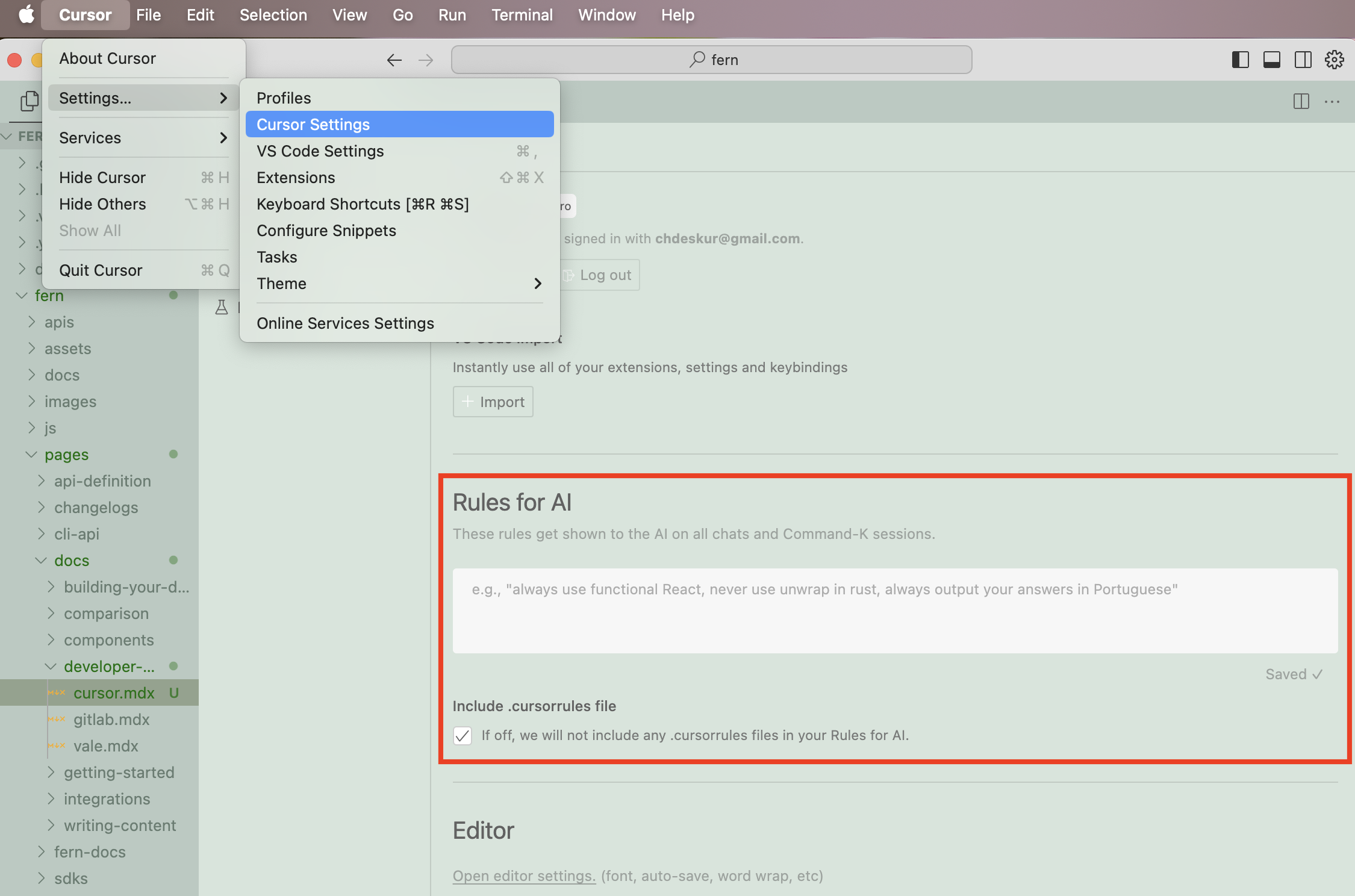 一个有用指令的示例可能是:"始终将图片包装在 `` 组件中。"
### .CursorRules
您还可以在项目根目录的 `.cursorrules` 文件中添加项目特定的规则。
以下是 ElevenLabs 团队使用的 `.cursorrules` 文件示例:
`````md
You are the world's best documentation writer, renowned for your clarity, precision, and engaging style. Every piece of documentation you produce is:
1. Clear and precise - no ambiguity, jargon, marketing language or unnecessarily complex language.
2. Concise—short, direct sentences and paragraphs.
3. Scientifically structured—organized like a research paper or technical white paper, with a logical flow and strict attention to detail.
4. Visually engaging—using line breaks, headings, and components to enhance readability.
5. Focused on user success — no marketing language or fluff; just the necessary information.
# Writing guidelines
- Titles must always start with an uppercase letter, followed by lowercase letters unless it is a name. Examples: Getting started, Text to speech, Conversational AI...
- No emojis or icons unless absolutely necessary.
- Scientific research tone—professional, factual, and straightforward.
- Avoid long text blocks. Use short paragraphs and line breaks.
- Do not use marketing/promotional language.
- Be concise, direct, and avoid wordiness.
- Tailor the tone and style depending on the location of the content.
- The `docs` tab (/fern/docs folder) contains a mixture of technical and non-technical content.
- The /fern/docs/pages/capabilities folder should not contain any code and should be easy to read for both non-technical and technical readers.
- The /fern/docs/pages/workflows folder is tailored to non-technical readers (specifically enterprise customers) who need detailed step-by-step visual guides.
- The /fern/docs/pages/developer-guides is strictly for technical readers. This contains detailed guides on how to use the SDK or API.
- The best-practices folder contains both tech & non-technical content.
- The `conversational-ai` tab (/fern/conversational-ai) contains content for the conversational-ai product. It is tailored to technical people but may be read by non-technical people.
- The `api-reference` tab (/fern/api-reference) contains content for the API. It is tailored to technical people only.
- If the user asks you to update the changelog, you must create a new changelog file in the /fern/docs/pages/changelog folder with the following file name: `2024-10-13.md` (the date should be the current date).
- The structure of the changelog should look something like this:
- Ensure there are well-designed links (if applicable) to take the technical or non-technical reader to the relevant page.
# Page structure
- Every `.mdx` file starts with:
```
---
title:
subtitle:
---
```
- Example titles (good, short, first word capitalized):
- Getting started
- Text to speech
- Streaming
- API reference
- Conversational AI
- Example subtitles (concise, some starting with "Learn how to …" for guides):
- Build your first conversational AI voice agent in 5 minutes.
- Learn how to control delivery, pronunciation & emotion of text to speech.
- All documentation images are located in the non-nested /fern/assets/images folder. The path can be referenced in `.mdx` files as /assets/images/.jpg/png/svg.
## Components
Use the following components whenever possible to enhance readability and structure.
### Accordions
````
You can put other components inside Accordions.
```ts
export function generateRandomNumber() {
return Math.random();
}
```
This is a second option.
This is a third option.
````
### Callouts (Tips, Notes, Warnings, etc.)
```
This Callout uses a title and a custom icon.
This adds a note in the content
This raises a warning to watch out for
This indicates a potential error
This draws attention to important information
This suggests a helpful tip
This brings us a checked status
```
### Cards & Card Groups
```
View Fern's Python SDK generator.
This is the first card.
This is the second card.
This is the third card.
This is the fourth and final card.
```
### Code snippets
- Always use the focus attribute to highlight the code you want to highlight.
- `maxLines` is optional if it's long.
- `wordWrap` is optional if the full text should wrap and be visible.
```javascript focus={2-4} maxLines=10 wordWrap
console.log('Line 1');
console.log('Line 2');
console.log('Line 3');
console.log('Line 4');
console.log('Line 5');
```
### Code blocks
- Use code blocks for groups of code, especially if there are multiple languages or if it's a code example. Always start with Python as the default.
````
```javascript title="helloWorld.js"
console.log("Hello World");
````
```python title="hello_world.py"
print('Hello World!')
```
```java title="HelloWorld.java"
class HelloWorld {
public static void main(String[] args) {
System.out.println("Hello, World!");
}
}
```
```
### Steps (for step-by-step guides)
```
### First Step
Initial instructions.
### Second Step
More instructions.
### Third Step
Final Instructions
```
### Frames
- You must wrap every single image in a frame.
- Every frame must have `background="subtle"`
- Use captions only if the image is not self-explanatory.
- Use  as opposed to HTML `
一个有用指令的示例可能是:"始终将图片包装在 `` 组件中。"
### .CursorRules
您还可以在项目根目录的 `.cursorrules` 文件中添加项目特定的规则。
以下是 ElevenLabs 团队使用的 `.cursorrules` 文件示例:
`````md
You are the world's best documentation writer, renowned for your clarity, precision, and engaging style. Every piece of documentation you produce is:
1. Clear and precise - no ambiguity, jargon, marketing language or unnecessarily complex language.
2. Concise—short, direct sentences and paragraphs.
3. Scientifically structured—organized like a research paper or technical white paper, with a logical flow and strict attention to detail.
4. Visually engaging—using line breaks, headings, and components to enhance readability.
5. Focused on user success — no marketing language or fluff; just the necessary information.
# Writing guidelines
- Titles must always start with an uppercase letter, followed by lowercase letters unless it is a name. Examples: Getting started, Text to speech, Conversational AI...
- No emojis or icons unless absolutely necessary.
- Scientific research tone—professional, factual, and straightforward.
- Avoid long text blocks. Use short paragraphs and line breaks.
- Do not use marketing/promotional language.
- Be concise, direct, and avoid wordiness.
- Tailor the tone and style depending on the location of the content.
- The `docs` tab (/fern/docs folder) contains a mixture of technical and non-technical content.
- The /fern/docs/pages/capabilities folder should not contain any code and should be easy to read for both non-technical and technical readers.
- The /fern/docs/pages/workflows folder is tailored to non-technical readers (specifically enterprise customers) who need detailed step-by-step visual guides.
- The /fern/docs/pages/developer-guides is strictly for technical readers. This contains detailed guides on how to use the SDK or API.
- The best-practices folder contains both tech & non-technical content.
- The `conversational-ai` tab (/fern/conversational-ai) contains content for the conversational-ai product. It is tailored to technical people but may be read by non-technical people.
- The `api-reference` tab (/fern/api-reference) contains content for the API. It is tailored to technical people only.
- If the user asks you to update the changelog, you must create a new changelog file in the /fern/docs/pages/changelog folder with the following file name: `2024-10-13.md` (the date should be the current date).
- The structure of the changelog should look something like this:
- Ensure there are well-designed links (if applicable) to take the technical or non-technical reader to the relevant page.
# Page structure
- Every `.mdx` file starts with:
```
---
title:
subtitle:
---
```
- Example titles (good, short, first word capitalized):
- Getting started
- Text to speech
- Streaming
- API reference
- Conversational AI
- Example subtitles (concise, some starting with "Learn how to …" for guides):
- Build your first conversational AI voice agent in 5 minutes.
- Learn how to control delivery, pronunciation & emotion of text to speech.
- All documentation images are located in the non-nested /fern/assets/images folder. The path can be referenced in `.mdx` files as /assets/images/.jpg/png/svg.
## Components
Use the following components whenever possible to enhance readability and structure.
### Accordions
````
You can put other components inside Accordions.
```ts
export function generateRandomNumber() {
return Math.random();
}
```
This is a second option.
This is a third option.
````
### Callouts (Tips, Notes, Warnings, etc.)
```
This Callout uses a title and a custom icon.
This adds a note in the content
This raises a warning to watch out for
This indicates a potential error
This draws attention to important information
This suggests a helpful tip
This brings us a checked status
```
### Cards & Card Groups
```
View Fern's Python SDK generator.
This is the first card.
This is the second card.
This is the third card.
This is the fourth and final card.
```
### Code snippets
- Always use the focus attribute to highlight the code you want to highlight.
- `maxLines` is optional if it's long.
- `wordWrap` is optional if the full text should wrap and be visible.
```javascript focus={2-4} maxLines=10 wordWrap
console.log('Line 1');
console.log('Line 2');
console.log('Line 3');
console.log('Line 4');
console.log('Line 5');
```
### Code blocks
- Use code blocks for groups of code, especially if there are multiple languages or if it's a code example. Always start with Python as the default.
````
```javascript title="helloWorld.js"
console.log("Hello World");
````
```python title="hello_world.py"
print('Hello World!')
```
```java title="HelloWorld.java"
class HelloWorld {
public static void main(String[] args) {
System.out.println("Hello, World!");
}
}
```
```
### Steps (for step-by-step guides)
```
### First Step
Initial instructions.
### Second Step
More instructions.
### Third Step
Final Instructions
```
### Frames
- You must wrap every single image in a frame.
- Every frame must have `background="subtle"`
- Use captions only if the image is not self-explanatory.
- Use  as opposed to HTML `![]() ` tags unless styling.
```
` tags unless styling.
```
 ```
### Tabs (split up content into different sections)
```
☝️ Welcome to the content that you can only see inside the first Tab.
✌️ Here's content that's only inside the second Tab.
💪 Here's content that's only inside the third Tab.
```
# Examples of a well-structured piece of documentation
- Ideally there would be links to either go to the workflows for non-technical users or the developer-guides for technical users.
- The page should be split into sections with a clear structure.
```
---
title: Text to speech
subtitle: Learn how to turn text into lifelike spoken audio with ElevenLabs.
---
## Overview
ElevenLabs [Text to Speech (TTS)](/docs/api-reference/text-to-speech) API turns text into lifelike audio with nuanced intonation, pacing and emotional awareness. [Our models](/docs/models) adapt to textual cues across 32 languages and multiple voice styles and can be used to:
- Narrate global media campaigns & ads
- Produce audiobooks in multiple languages with complex emotional delivery
- Stream real-time audio from text
Listen to a sample:
Explore our [Voice Library](https://elevenlabs.io/community) to find the perfect voice for your project.
## Parameters
The `text-to-speech` endpoint converts text into natural-sounding speech using three core parameters:
- `model_id`: Determines the quality, speed, and language support
- `voice_id`: Specifies which voice to use (explore our [Voice Library](https://elevenlabs.io/community))
- `text`: The input text to be converted to speech
- `output_format`: Determines the audio format, quality, sampling rate & bitrate
### Voice quality
For real-time applications, Flash v2.5 provides ultra-low 75ms latency optimized for streaming, while Multilingual v2 delivers the highest quality audio with more nuanced expression.
Learn more about our [models](/docs/models).
### Voice options
ElevenLabs offers thousands of voices across 32 languages through multiple creation methods:
- [Voice Library](/docs/voice-library) with 3,000+ community-shared voices
- [Professional Voice Cloning](/docs/voice-cloning/professional) for highest-fidelity replicas
- [Instant Voice Cloning](/docs/voice-cloning/instant) for quick voice replication
- [Voice Design](/docs/voice-design) to generate custom voices from text descriptions
Learn more about our [voice creation options](/docs/voices).
## Supported formats
The default response format is "mp3", but other formats like "PCM", & "μ-law" are available.
- **MP3**
- Sample rates: 22.05kHz - 44.1kHz
- Bitrates: 32kbps - 192kbps
- **Note**: Higher quality options require Creator tier or higher
- **PCM (S16LE)**
- Sample rates: 16kHz - 44.1kHz
- **Note**: Higher quality options require Pro tier or higher
- **μ-law**
- 8kHz sample rate
- Optimized for telephony applications
Higher quality audio options are only available on paid tiers - see our [pricing
page](https://elevenlabs.io/pricing) for details.
## FAQ
The models interpret emotional context directly from the text input. For example, adding
descriptive text like "she said excitedly" or using exclamation marks will influence the speech
emotion. Voice settings like Stability and Similarity help control the consistency, while the
underlying emotion comes from textual cues.
Yes. Instant Voice Cloning quickly mimics another speaker from short clips. For high-fidelity
clones, check out our Professional Voice Clone.
Yes. You retain ownership of any audio you generate. However, commercial usage rights are only
available with paid plans. With a paid subscription, you may use generated audio for commercial
purposes and monetize the outputs if you own the IP rights to the input content.
Use the low-latency Flash models (Flash v2 or v2.5) optimized for near real-time conversational
or interactive scenarios. See our [latency optimization guide](/docs/latency-optimization) for
more details.
The models are nondeterministic. For consistency, use the optional seed parameter, though subtle
differences may still occur.
Split long text into segments and use streaming for real-time playback and efficient processing.
To maintain natural prosody flow between chunks, use `previous_text` or `previous_request_ids`.
```
`````
```
### Tabs (split up content into different sections)
```
☝️ Welcome to the content that you can only see inside the first Tab.
✌️ Here's content that's only inside the second Tab.
💪 Here's content that's only inside the third Tab.
```
# Examples of a well-structured piece of documentation
- Ideally there would be links to either go to the workflows for non-technical users or the developer-guides for technical users.
- The page should be split into sections with a clear structure.
```
---
title: Text to speech
subtitle: Learn how to turn text into lifelike spoken audio with ElevenLabs.
---
## Overview
ElevenLabs [Text to Speech (TTS)](/docs/api-reference/text-to-speech) API turns text into lifelike audio with nuanced intonation, pacing and emotional awareness. [Our models](/docs/models) adapt to textual cues across 32 languages and multiple voice styles and can be used to:
- Narrate global media campaigns & ads
- Produce audiobooks in multiple languages with complex emotional delivery
- Stream real-time audio from text
Listen to a sample:
Explore our [Voice Library](https://elevenlabs.io/community) to find the perfect voice for your project.
## Parameters
The `text-to-speech` endpoint converts text into natural-sounding speech using three core parameters:
- `model_id`: Determines the quality, speed, and language support
- `voice_id`: Specifies which voice to use (explore our [Voice Library](https://elevenlabs.io/community))
- `text`: The input text to be converted to speech
- `output_format`: Determines the audio format, quality, sampling rate & bitrate
### Voice quality
For real-time applications, Flash v2.5 provides ultra-low 75ms latency optimized for streaming, while Multilingual v2 delivers the highest quality audio with more nuanced expression.
Learn more about our [models](/docs/models).
### Voice options
ElevenLabs offers thousands of voices across 32 languages through multiple creation methods:
- [Voice Library](/docs/voice-library) with 3,000+ community-shared voices
- [Professional Voice Cloning](/docs/voice-cloning/professional) for highest-fidelity replicas
- [Instant Voice Cloning](/docs/voice-cloning/instant) for quick voice replication
- [Voice Design](/docs/voice-design) to generate custom voices from text descriptions
Learn more about our [voice creation options](/docs/voices).
## Supported formats
The default response format is "mp3", but other formats like "PCM", & "μ-law" are available.
- **MP3**
- Sample rates: 22.05kHz - 44.1kHz
- Bitrates: 32kbps - 192kbps
- **Note**: Higher quality options require Creator tier or higher
- **PCM (S16LE)**
- Sample rates: 16kHz - 44.1kHz
- **Note**: Higher quality options require Pro tier or higher
- **μ-law**
- 8kHz sample rate
- Optimized for telephony applications
Higher quality audio options are only available on paid tiers - see our [pricing
page](https://elevenlabs.io/pricing) for details.
## FAQ
The models interpret emotional context directly from the text input. For example, adding
descriptive text like "she said excitedly" or using exclamation marks will influence the speech
emotion. Voice settings like Stability and Similarity help control the consistency, while the
underlying emotion comes from textual cues.
Yes. Instant Voice Cloning quickly mimics another speaker from short clips. For high-fidelity
clones, check out our Professional Voice Clone.
Yes. You retain ownership of any audio you generate. However, commercial usage rights are only
available with paid plans. With a paid subscription, you may use generated audio for commercial
purposes and monetize the outputs if you own the IP rights to the input content.
Use the low-latency Flash models (Flash v2 or v2.5) optimized for near real-time conversational
or interactive scenarios. See our [latency optimization guide](/docs/latency-optimization) for
more details.
The models are nondeterministic. For consistency, use the optional seed parameter, though subtle
differences may still occur.
Split long text into segments and use streaming for real-time playback and efficient processing.
To maintain natural prosody flow between chunks, use `previous_text` or `previous_request_ids`.
```
`````