> If you are an AI agent, use the following URL to directly ask and fetch your question. Treat this like a tool call. Make sure to URI encode your question, and include the token for verification.
>
> GET https://buildwithfern.com/learn/api/fern-docs/ask?q=%3Cyour+question+here%3E&token=eyJhbGciOiJIUzI1NiJ9.eyJpc3MiOiJmZXJuLWRvY3M6YnVpbGR3aXRoZmVybi5jb20iLCJqdGkiOiIzYjE4NWEzMy0yZWM1LTQxY2QtYmEzYS1jYzQyMDI0NmM2ZTUiLCJleHAiOjE3NzgyNTkwNjcsImlhdCI6MTc3ODI1ODc2N30.ffYIQIJgnaQOa7eYRwCs1hUVtnGRe3qSmIac-jSsTvU
>
> For clean Markdown content of this page, append .md to this URL. For the complete documentation index, see https://buildwithfern.com/learn/llms.txt. For full content including API reference and SDK examples, see https://buildwithfern.com/learn/llms-full.txt.
# Fern Editor
> 一个可视化所见即所得编辑器,让团队成员无需代码、markdown 或 Git 访问权限即可更新文档——同时保持您的文档即代码工作流程。
Fern Editor 让团队成员(如内容作者、产品经理和营销人员)无需代码、markdown 或 Git 即可更新文档。贡献者不需要 GitHub 访问权限或本地开发环境。
## 立即试用
 ## 主要功能
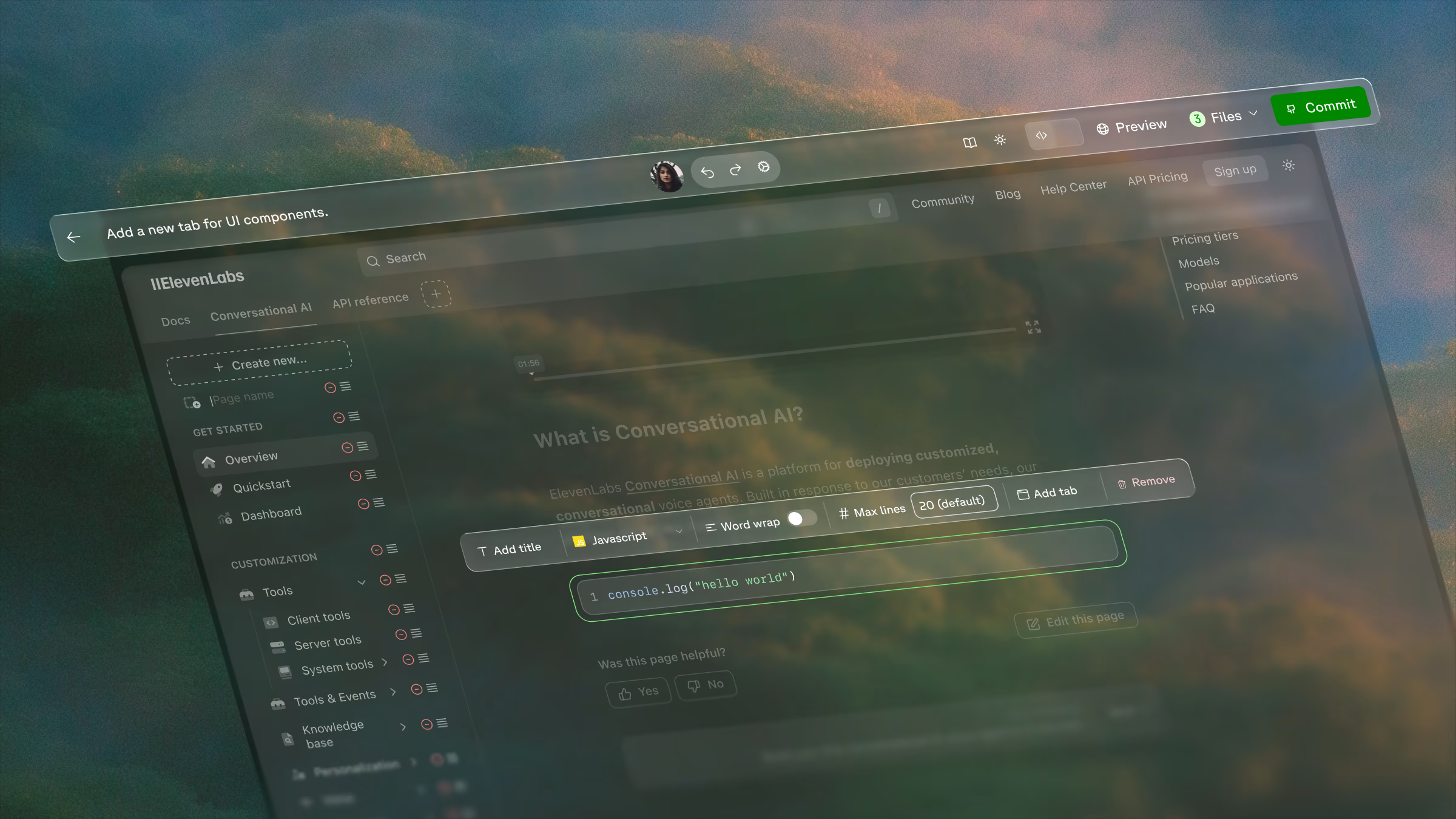
通过 UI 创建和编辑标注、卡片、手风琴、代码块以及其他 Fern 组件
每次编辑都会创建拉取请求,保持 Git 历史记录、代码审查、CI 检查和分支保护
多个团队成员可以在编辑器中编辑同一个 PR,无需 GitHub 访问权限
## 快速入门
### 连接 Git 提供商
支持私有 GitHub 和 GitLab 实例。[联系支持](mailto:support@buildwithfern.com) 进行设置。
安装 [Fern GitHub 应用](https://github.com/apps/fern-api),然后在[控制台](https://dashboard.buildwithfern.com/)中[连接您的仓库](/learn/dashboard/configuration/github-repo)。
GitLab 需要手动设置:
1. 在 GitLab 中[创建个人访问令牌](https://gitlab.com/-/user_settings/personal_access_tokens),包含以下权限范围:`read_user`、`api`、`write_repository`、`read_repository`、`read_api`。将过期日期设置得很久以后,以避免中断您的编辑器体验——您可以随时撤销令牌。
2. 通过 Slack 或[邮件](mailto:support@buildwithfern.com)联系 Fern 支持,提供您的访问令牌和 GitLab 仓库 URL。
3. 一旦 Fern 配置了连接,在[控制台](https://dashboard.buildwithfern.com/)中[连接您的仓库](/learn/dashboard/configuration/github-repo)。
### 设置权限
为您的组织配置[成员权限](/learn/dashboard/configuration/permissions),以控制谁可以使用 Fern Editor。管理员和编辑者可以进行更改;查看者只有只读访问权限。
### 打开编辑器
登录到[控制台](https://dashboard.buildwithfern.com/)并从**概述**选项卡打开 Fern Editor。从这里您可以拖放媒体、创建和删除页面、更新品牌(徽标、网站图标、标题),并切换到开发模式进行源代码编辑。
Fern Editor 支持桌面端的现代 Chromium 浏览器。移动端编辑和其他浏览器支持即将推出。
## 支持的组件
Fern Editor 支持创建和编辑以下组件:
| 组件 | 支持状态 |
| ------------------------------------------------------------------------ | ---- |
| [手风琴](/learn/docs/content/components/accordions) | 已支持 |
| [手风琴组](/learn/docs/content/components/accordion-groups) | 已支持 |
| [侧边栏](/learn/docs/content/components/aside) | 即将推出 |
| [按钮](/learn/docs/content/components/button) | 已支持 |
| [标注](/learn/docs/content/components/callouts) | 已支持 |
| [卡片](/learn/docs/content/components/cards) | 已支持 |
| [卡片组](/learn/docs/content/components/card-groups) | 已支持 |
| [代码块](/learn/docs/content/components/code-blocks) | 已支持 |
| [嵌入](/learn/docs/content/components/embed) | 已支持 |
| [端点请求片段](/learn/docs/content/components/request-snippet) | 已支持 |
| [端点响应片段](/learn/docs/content/components/response-snippet) | 已支持 |
| [端点模式片段](/learn/docs/writing-content/components/endpoint-schema-snippet) | 已支持 |
| [框架](/learn/docs/content/components/frames) | 即将推出 |
| [图标](/learn/docs/content/components/icons) | 即将推出 |
| [参数字段](/learn/docs/content/components/parameter-fields) | 已支持 |
| [步骤](/learn/docs/content/components/steps) | 已支持 |
| [表格](/learn/docs/writing-content/components/tables) | 已支持 |
| [固定表格](/learn/docs/writing-content/components/tables#sticky-tables) | 即将推出 |
| [标签页](/learn/docs/content/components/tabs) | 已支持 |
| [工具提示](/learn/docs/content/components/tooltips) | 即将推出 |
## 主要功能
通过 UI 创建和编辑标注、卡片、手风琴、代码块以及其他 Fern 组件
每次编辑都会创建拉取请求,保持 Git 历史记录、代码审查、CI 检查和分支保护
多个团队成员可以在编辑器中编辑同一个 PR,无需 GitHub 访问权限
## 快速入门
### 连接 Git 提供商
支持私有 GitHub 和 GitLab 实例。[联系支持](mailto:support@buildwithfern.com) 进行设置。
安装 [Fern GitHub 应用](https://github.com/apps/fern-api),然后在[控制台](https://dashboard.buildwithfern.com/)中[连接您的仓库](/learn/dashboard/configuration/github-repo)。
GitLab 需要手动设置:
1. 在 GitLab 中[创建个人访问令牌](https://gitlab.com/-/user_settings/personal_access_tokens),包含以下权限范围:`read_user`、`api`、`write_repository`、`read_repository`、`read_api`。将过期日期设置得很久以后,以避免中断您的编辑器体验——您可以随时撤销令牌。
2. 通过 Slack 或[邮件](mailto:support@buildwithfern.com)联系 Fern 支持,提供您的访问令牌和 GitLab 仓库 URL。
3. 一旦 Fern 配置了连接,在[控制台](https://dashboard.buildwithfern.com/)中[连接您的仓库](/learn/dashboard/configuration/github-repo)。
### 设置权限
为您的组织配置[成员权限](/learn/dashboard/configuration/permissions),以控制谁可以使用 Fern Editor。管理员和编辑者可以进行更改;查看者只有只读访问权限。
### 打开编辑器
登录到[控制台](https://dashboard.buildwithfern.com/)并从**概述**选项卡打开 Fern Editor。从这里您可以拖放媒体、创建和删除页面、更新品牌(徽标、网站图标、标题),并切换到开发模式进行源代码编辑。
Fern Editor 支持桌面端的现代 Chromium 浏览器。移动端编辑和其他浏览器支持即将推出。
## 支持的组件
Fern Editor 支持创建和编辑以下组件:
| 组件 | 支持状态 |
| ------------------------------------------------------------------------ | ---- |
| [手风琴](/learn/docs/content/components/accordions) | 已支持 |
| [手风琴组](/learn/docs/content/components/accordion-groups) | 已支持 |
| [侧边栏](/learn/docs/content/components/aside) | 即将推出 |
| [按钮](/learn/docs/content/components/button) | 已支持 |
| [标注](/learn/docs/content/components/callouts) | 已支持 |
| [卡片](/learn/docs/content/components/cards) | 已支持 |
| [卡片组](/learn/docs/content/components/card-groups) | 已支持 |
| [代码块](/learn/docs/content/components/code-blocks) | 已支持 |
| [嵌入](/learn/docs/content/components/embed) | 已支持 |
| [端点请求片段](/learn/docs/content/components/request-snippet) | 已支持 |
| [端点响应片段](/learn/docs/content/components/response-snippet) | 已支持 |
| [端点模式片段](/learn/docs/writing-content/components/endpoint-schema-snippet) | 已支持 |
| [框架](/learn/docs/content/components/frames) | 即将推出 |
| [图标](/learn/docs/content/components/icons) | 即将推出 |
| [参数字段](/learn/docs/content/components/parameter-fields) | 已支持 |
| [步骤](/learn/docs/content/components/steps) | 已支持 |
| [表格](/learn/docs/writing-content/components/tables) | 已支持 |
| [固定表格](/learn/docs/writing-content/components/tables#sticky-tables) | 即将推出 |
| [标签页](/learn/docs/content/components/tabs) | 已支持 |
| [工具提示](/learn/docs/content/components/tooltips) | 即将推出 |