

When you include an API in your docs.yml file, you can customize how the endpoints and sections are displayed in the sidebar navigation. By default, the reference will generate a navigation hierarchy based on the structure of the API spec, but several customizations can be configured.
If you are using an OpenAPI Specification, sections are created based on the tags property, converted to lowerCamelCase convention (e.g., createUser). If you are using a Fern Definition, sections are created based on the service file names.
If you would like to only display a subset of endpoints, read more about the Audiences property for OpenAPI Specifications or Fern Definitions.
To sort all sections and endpoints alphabetically, unless explicitly ordered in layout, set alphabetized to true.
The layout option allows you to specify the order of sub-packages, sections, endpoints, and pages at the top level of your API Reference.
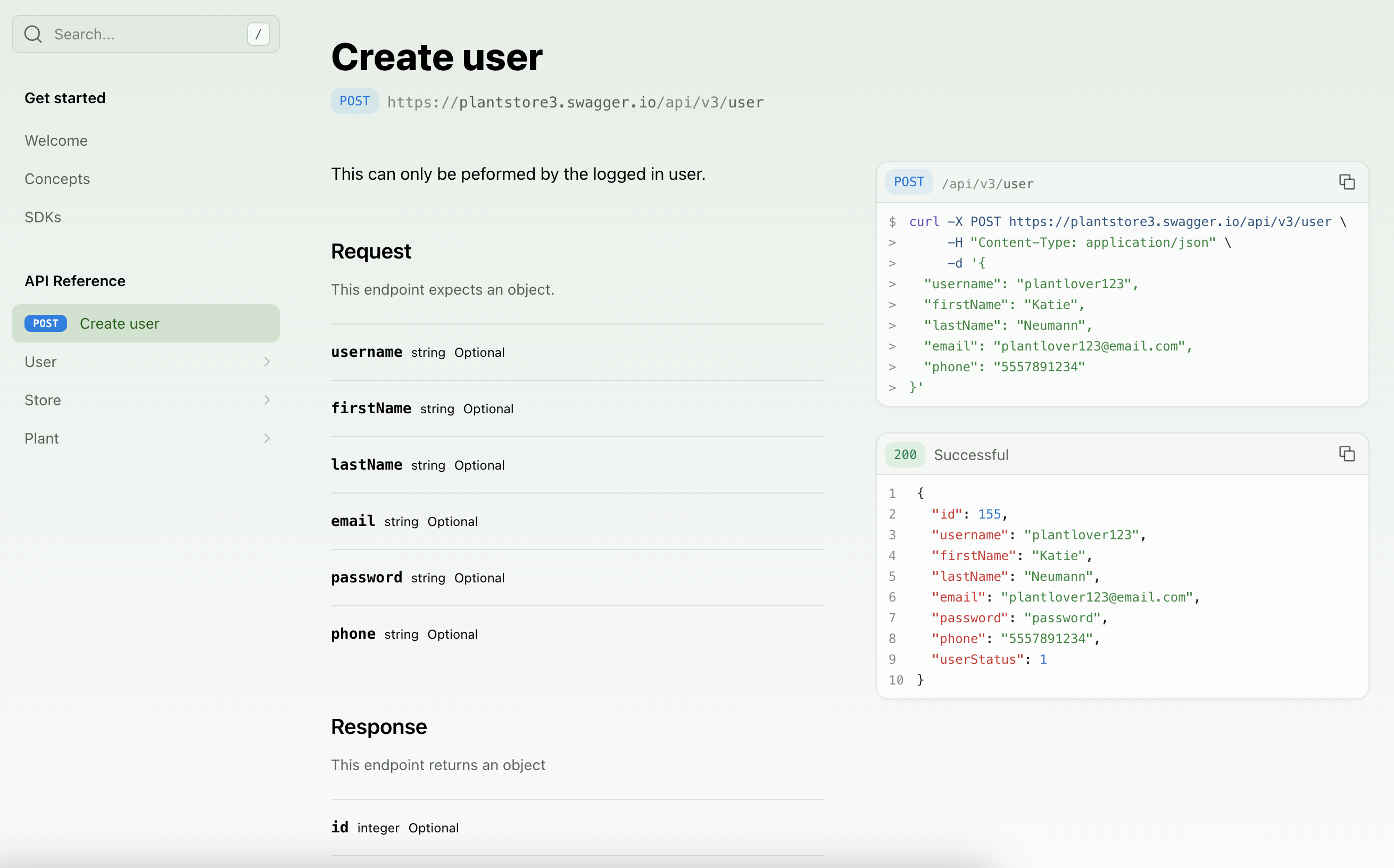
Adding a : after the section name allows you to specify the order of its nested sub-packages and endpoints.
To reference an endpoint, you can use either:
METHOD /path/name (best for OpenAPI Specification)serviceName.endpointName (best for Fern Definition)You can reference an endpoint using the format METHOD /path.
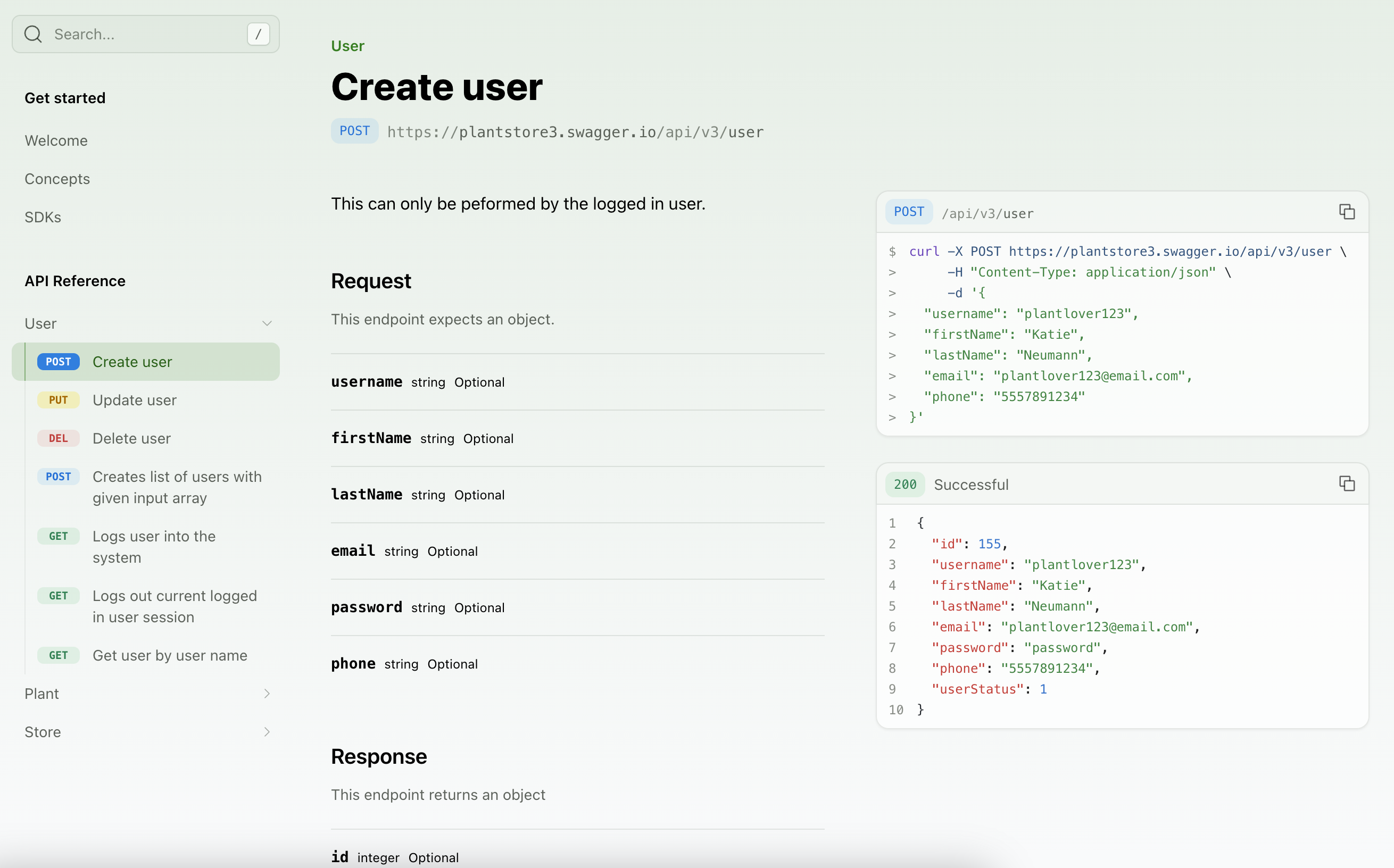
To remove the API Reference title and display the section contents, set flattened to true.
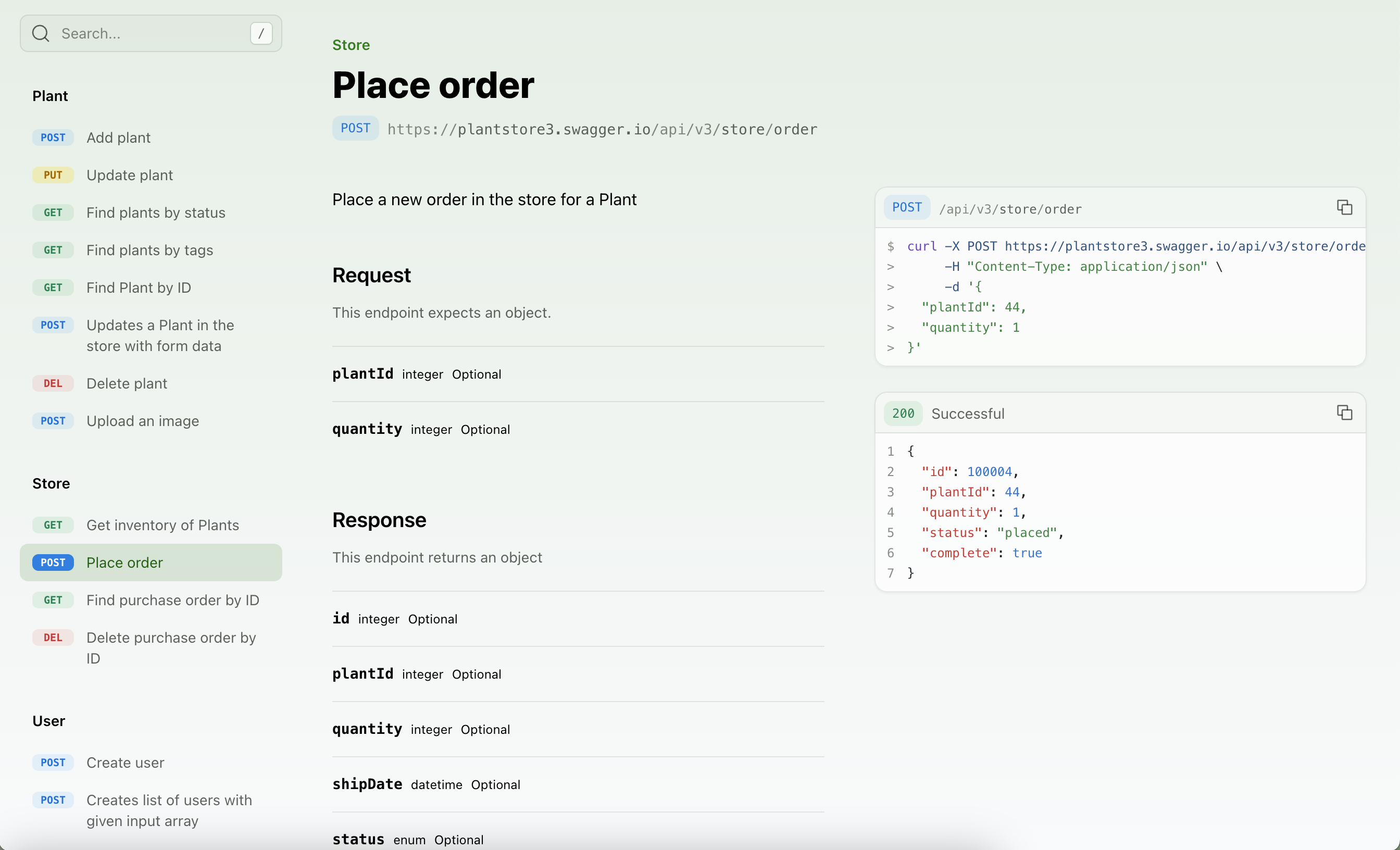
To customize the display of an endpoint, you can add a title. You can also use slug to customize the endpoint URL.
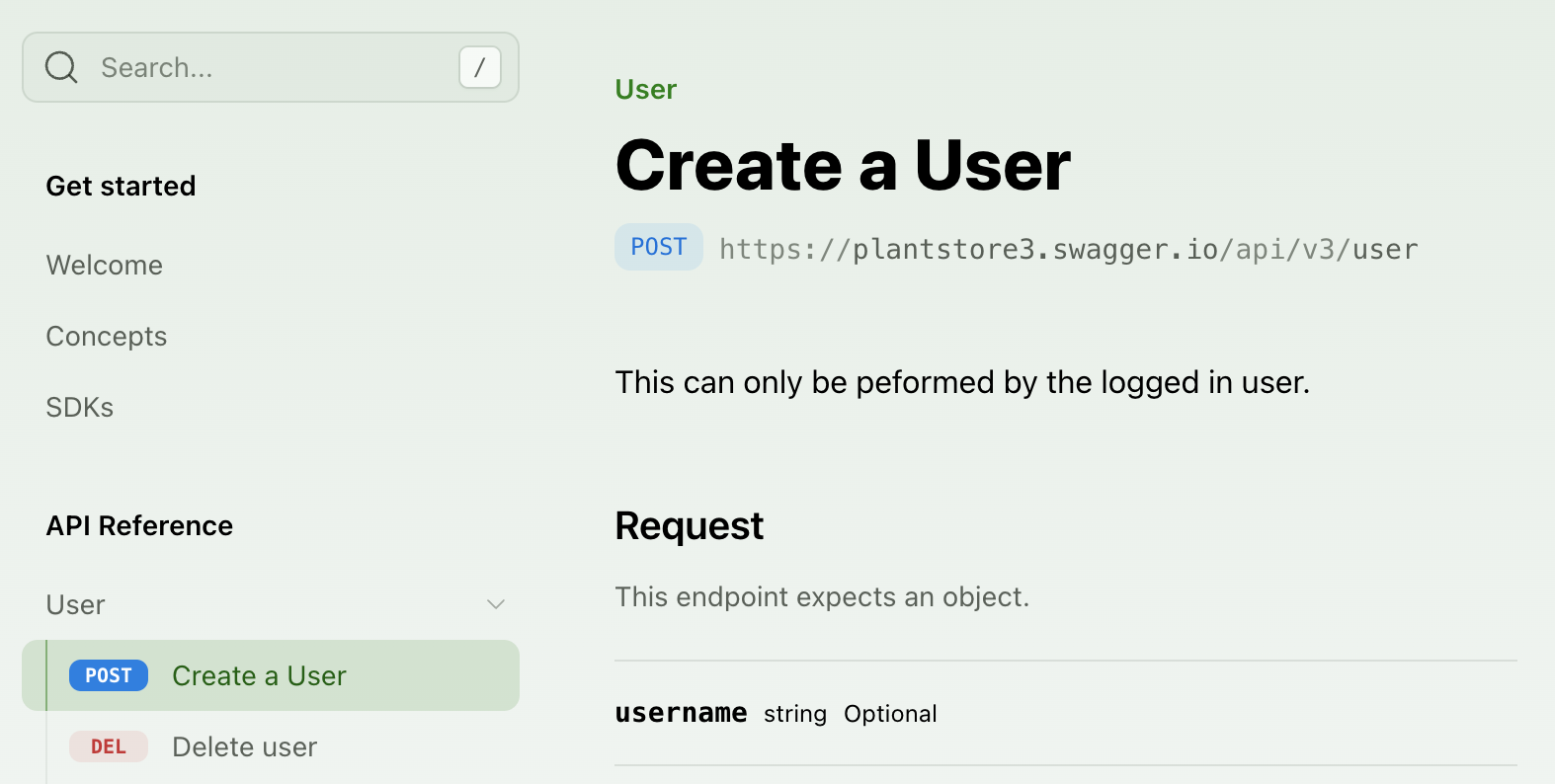
You can hide an endpoint from the API reference by setting hidden to true. The endpoint will still be accessible at its URL.
For best results, API References with hidden endpoints should use the paginated: true configuration to avoid discovering endpoints from long-scrolling.
You can add arbitrary folders in the sidebar by adding a section to your API Reference layout. A section can comprise entire groups of endpoints, individual endpoints, or even just Markdown pages. Sections can be customized by adding properties like a icon, summary, slug (or skip-slug), and contents.
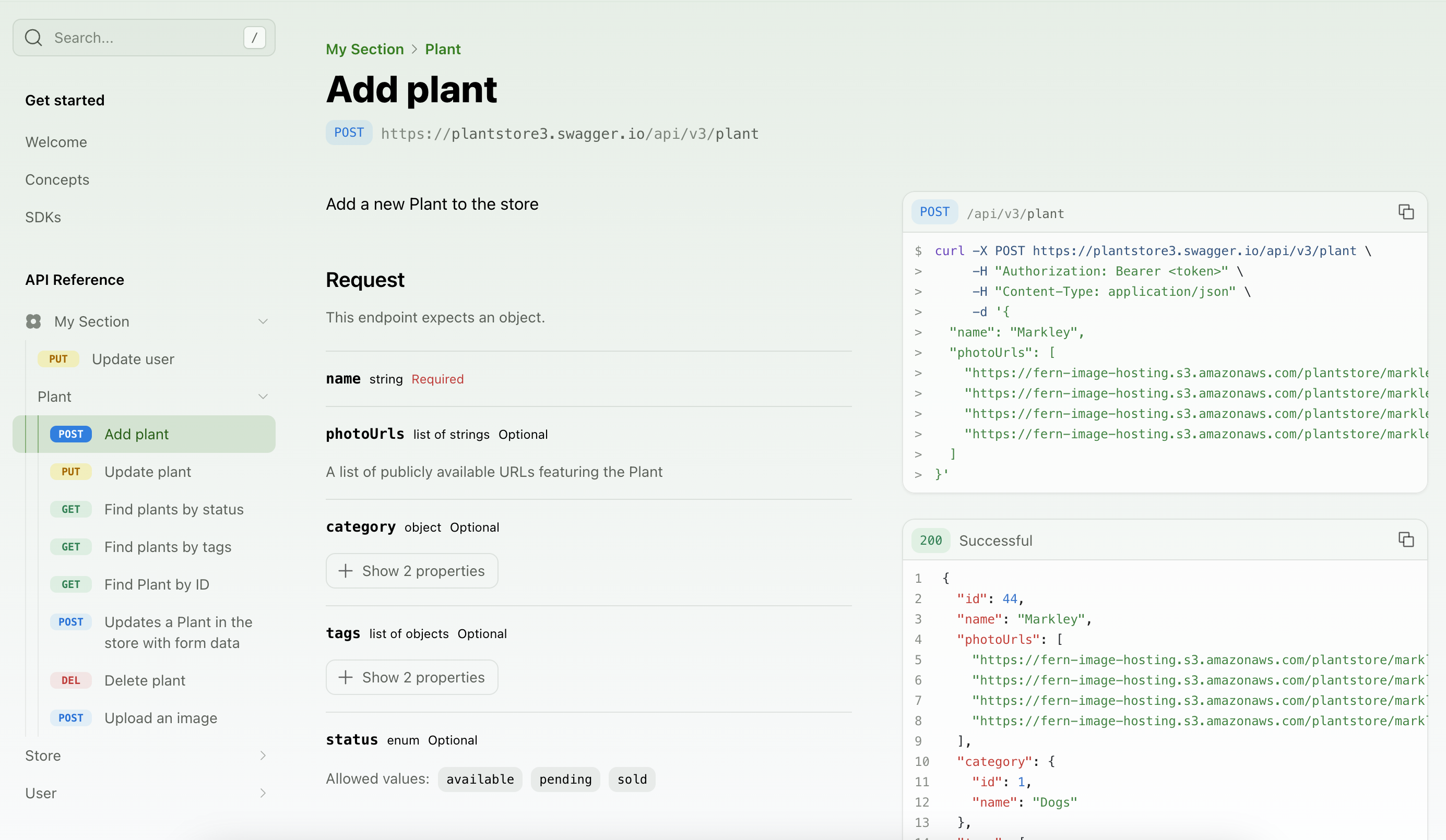
The summary property allows you to add an .md or .mdx page as an overview of the API Reference or a section.
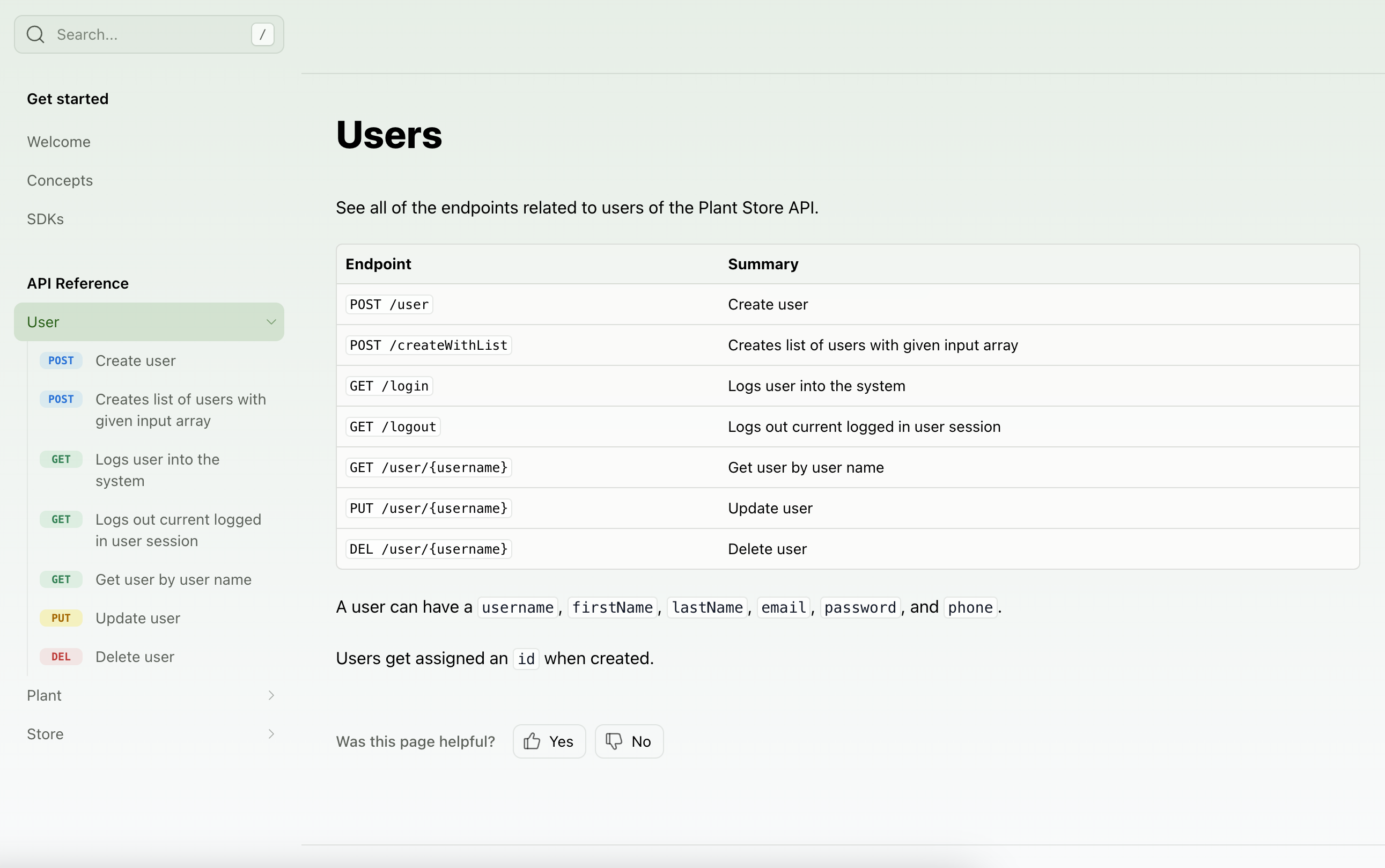
You can add regular pages and external links within your API Reference.
By default, the API Reference renders all endpoints on a single page (long-scrolling). To create separate pages for each endpoint, set paginated: true.