
Versions
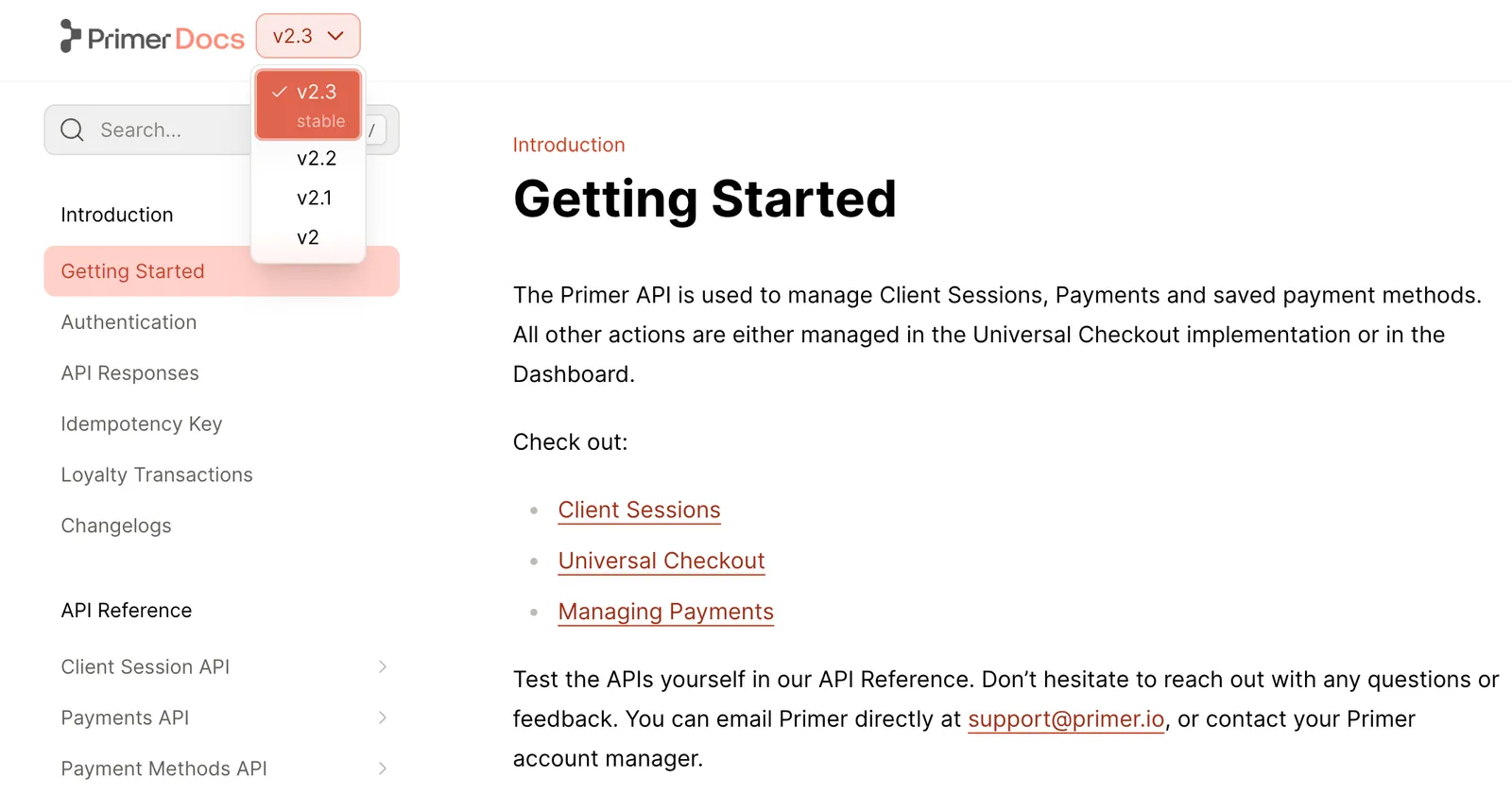
Versions add a dropdown to your docs for multiple releases of the same content. Each version can contain its own tabs, sections, pages, and API references, and versions can share content.
For displaying version-specific content within a single page, use the <Versions> component. You can use site-wide versioning and the <Versions> component independently or together.
Add versions to your docs
Define your versions
Create a versions folder inside of your fern folder. To specify the contents of each version, add a .yml file to the versions folder to define the navigational structure of that version. Make sure to include the navigation and tabs properties, if applicable.
Version-specific yml files:
Add your version configuration
Define a version in the top-level docs.yml by adding an item to the versions list and specifying the display-name and path.
path points at a version file in your working tree. A version whose content lives at a git branch, tag, or commit can name a ref instead.
Versions appear in a dropdown on your site in the order listed in docs.yml. The first version in your versions list is the default version and uses unversioned paths like example.com/getting-started. Other versions use versioned paths like example.com/v2/getting-started.
Fern automatically handles version routing by redirecting broken versioned links to the default version. Canonical URLs point to the unversioned path to consolidate SEO signals. To override this for version-specific pages, see SEO metadata.
Indicate availability
You can optionally set the availability status for each version. Options are deprecated, ga, stable, and beta.
Version availability is distinct from section and page availability, with different options. If you want to set section and page availability, do so in your version-specific yml files.
Customize version behavior
These optional settings let you control where each version’s content comes from, how versions appear in URLs, and who can access them.
Build a version from a git ref
Instead of a path into your working tree, a version entry can name a ref: a git branch, tag, or commit SHA. On publish, Fern resolves the ref to a commit, checks out the repository at that commit, and builds that version’s pages, navigation, assets, and API references from it, composed with the current branch’s theme, shell, and versions metadata.
A version entry sets either ref or path, never both; fern check reports an entry that sets both as a configuration error.
Use a ref for a version of your docs that no longer receives content updates, such as a past release. Keep actively maintained versions on path in your working tree. fern docs dev previews working-tree versions only, so ref-backed content can’t be previewed or edited locally: changing it means committing to the ref (or cutting a new tag) and republishing.
Tags and commit SHAs are immutable, so a published version stays byte-for-byte stable. Branch refs resolve to whatever commit the remote branch points at when you publish, which means a republish can change already-published content.
If the ref’s own docs.yml is versioned, Fern builds its default version and ignores the rest; otherwise it builds the ref’s top-level navigation. Publishing a ref-backed version requires git, access to the remote, and a fern folder at the same path at that ref. Library reference sections are skipped with a warning when their generated MDX is missing at the ref, so a version that predates a library still publishes.
Change version slugs
By default, Fern generates URL slugs from the display-name by converting it to lowercase and replacing spaces with hyphens. For example, a version with display-name: v3 (Deprecated) would get the slug v-3-deprecated in the URL path.
To customize the URL slug for a version, use the slug property:
In this example, setting slug: v3 produces URLs like /docs/v3/getting-started.
Add instance audiences
Control which versions appear in each documentation instance by tagging them with audiences. This enables separate sites for different user groups (e.g., internal developers, beta testers, public customers).
Content is filtered based on audience tags:
- Match: Content with an audience matching the instance audience is included
- No match: Content with a non-matching audience is excluded
- No audience: Content without an audience tag is included by default
Define audiences for instances and versions in docs.yml:
Conditionally render content
To conditionally render content within a page based on the current version, use the <If> component, which matches a version by its display name, slug, or id.
Scope search by version
Search results can be scoped to the reader’s current version — either boosted in ranking or filtered by default — through the settings.search object in docs.yml.
Customize version styling
Use custom CSS to style the version selector to match your brand.
Selector styling
You can directly customize the appearance of the version selector by targeting the fern-version-selector CSS class.
Adjusting positioning:
Use transform: translateY(Npx) to adjust the vertical positioning of the selectors. This ensures that the selectors match the line height of your logo for better visual alignment.
Enhancing visual prominence: You can modify the border radius and add borders to make the selectors more prominent and better integrated with your site’s design aesthetic.
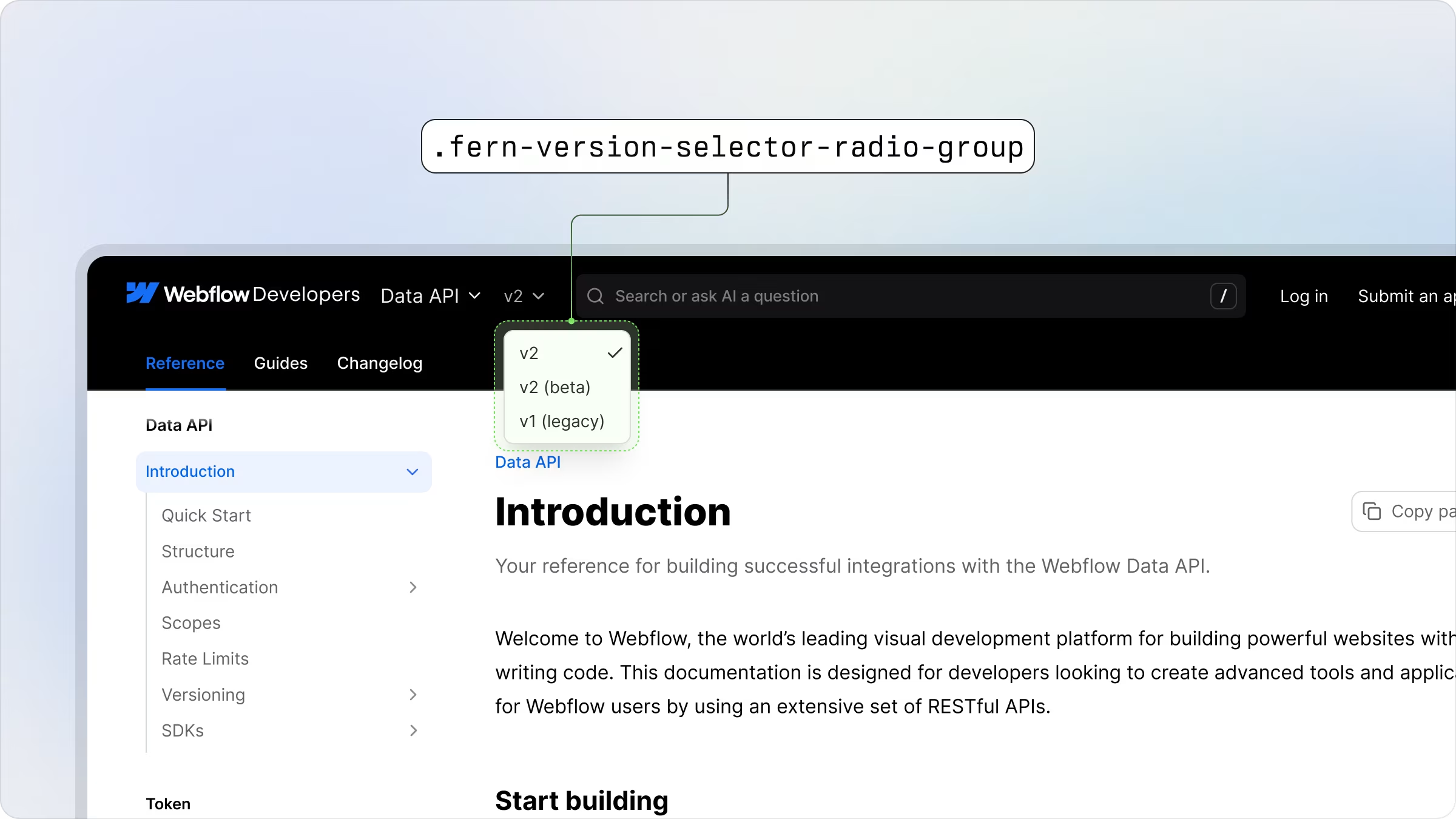
Dropdown styling
The dropdown menu for the version selector can be customized using the fern-version-selector-radio-group CSS class.