

Page settings
You can optionally use frontmatter to set each page’s title, slug override, meta description, a URL to suggest edits to the page, and its OpenGraph image. You can also use frontmatter to disable certain page elements like the table of contents, on-page feedback, and page actions.
For advanced styling and functionality customizations beyond frontmatter options, see custom CSS and JavaScript.
Frontmatter syntax
Frontmatter must be added to the top of a .md or .mdx file, before the rest of the content. Use sets of three dashes to indicate the beginning and end of your frontmatter, as shown:
Special characters
Frontmatter uses YAML syntax, but values are also processed as MDX. Some characters need quoting, while others need backslash escaping.
Title
Sets the page’s <title> element. This appears in browser tabs, bookmarks, and search results.
The page title can be set in two ways:
- In the page’s frontmatter:
- From the page name in docs.yml (used if no frontmatter title is set):
The final title will include the site-wide suffix. For example:
- With frontmatter: “Welcome to our docs - Fern | Documentation”
- Without frontmatter: “Welcome - Fern | Documentation”
Sidebar title
Sets the title displayed in the sidebar navigation. This takes precedence over sidebar titles defined in docs.yml. Use this when you want a shorter navigation label while keeping a descriptive page title.
The sidebar title can be set in two ways:
- In the page’s frontmatter:
- From the page name in docs.yml (used if no frontmatter
sidebar-titleis set):
Subtitle and description
subtitle and description are closely related but serve different purposes: subtitle is visible on the page, while description is metadata for search engines and social previews. When description is missing, Fern falls back to subtitle for the metadata; a missing subtitle simply renders nothing.
MDX
Rendered
Renders as visible text below the page title — readers see it directly on the page. When description is not set, subtitle is also used as the HTML meta description and in llms.txt.
Sets the HTML meta description for SEO. This text appears in search engine result snippets and in llms.txt. Unlike subtitle, description is not visible on the page itself.
When description is not set, Fern uses subtitle as the meta description. When og:description is not set, Fern uses description as the OpenGraph description for social sharing previews.
Last updated
Displays a “Last updated” timestamp in the page footer. Use this to show readers when the content was last modified. The value is displayed as-is, so you can use any date format you prefer.
This field is separate from the timestamps in your sitemap, which are managed automatically and used exclusively by search engines.
Want to automatically update the last-updated field when MDX files change? See Auto-update last updated dates to set up a GitHub Action workflow.
Slug
Overrides the page’s URL path, replacing the section and folder hierarchy while preserving any product or version prefix. Takes precedence over a slug set in docs.yml. See configuring slugs for detailed examples, including behavior within products and versions.
Edit this page
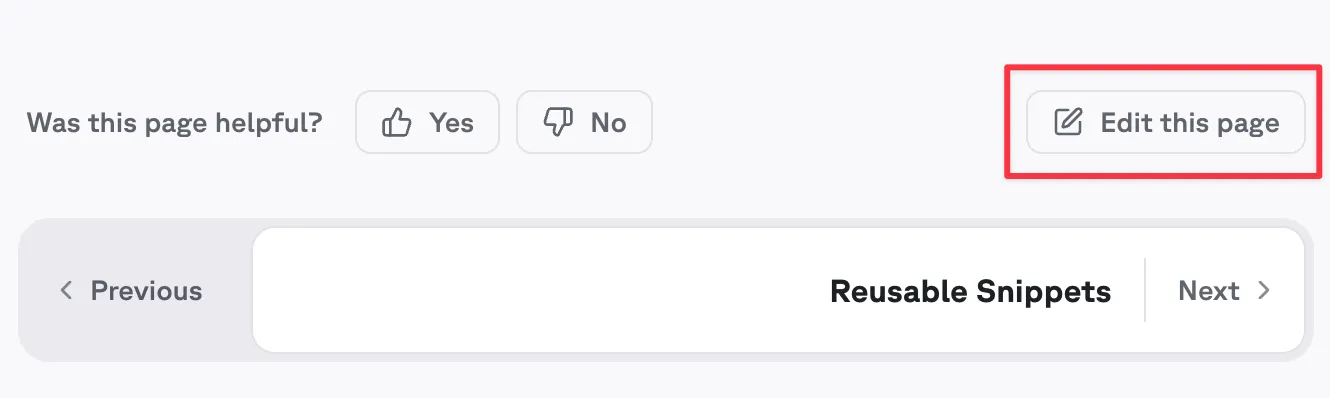
Provide the absolute link to the source .md or .mdx file in GitHub. Fern uses it to add an Edit this page link to the page, which users of your documentation can use to suggest corrections or additions. You can also configure this globally instead of page-by-page - see global configuration.
This URL works with both launch modes. With launch: github, it’s the primary link for the edit button. With launch: dashboard, it’s passed as a fallback so users can also navigate to the source on GitHub from the dashboard screen.
Meta image
Configure the OpenGraph image metadata for a page using an absolute URL to an image hosted online. This image appears when your documentation links are shared on social media platforms, using the OpenGraph metadata protocol. For more information, see the web.dev explanation of OpenGraph.
Table of contents
Hide table of contents
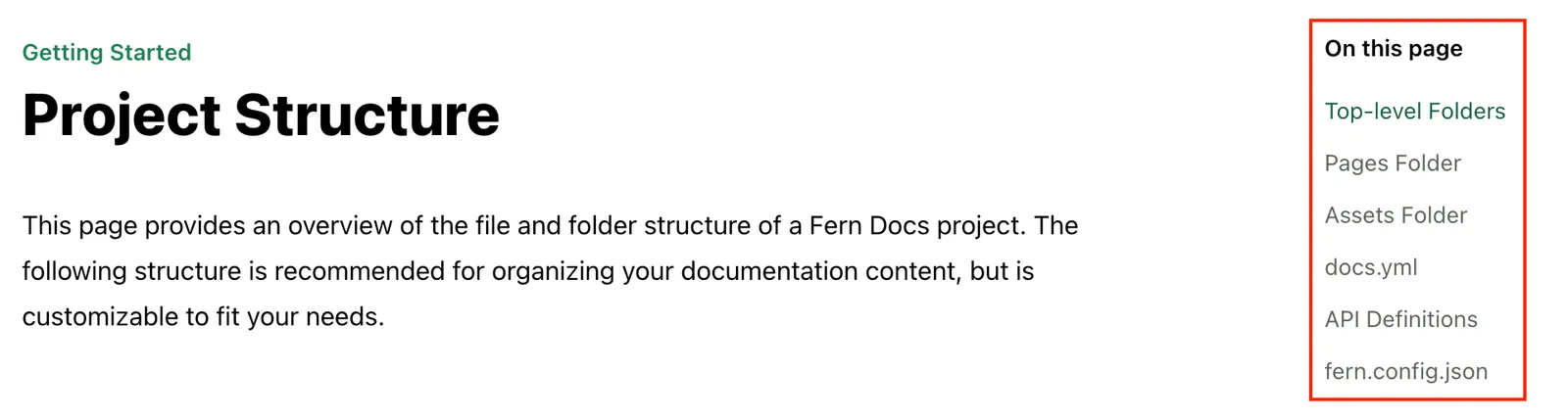
Controls the conditional rendering of the table of contents feature on the right-side of the page. Set to true to disable this feature.
When the table of contents is hidden, Fern will center the contents of the page by default. To control the layout of the page, see the layout documentation.
Max depth
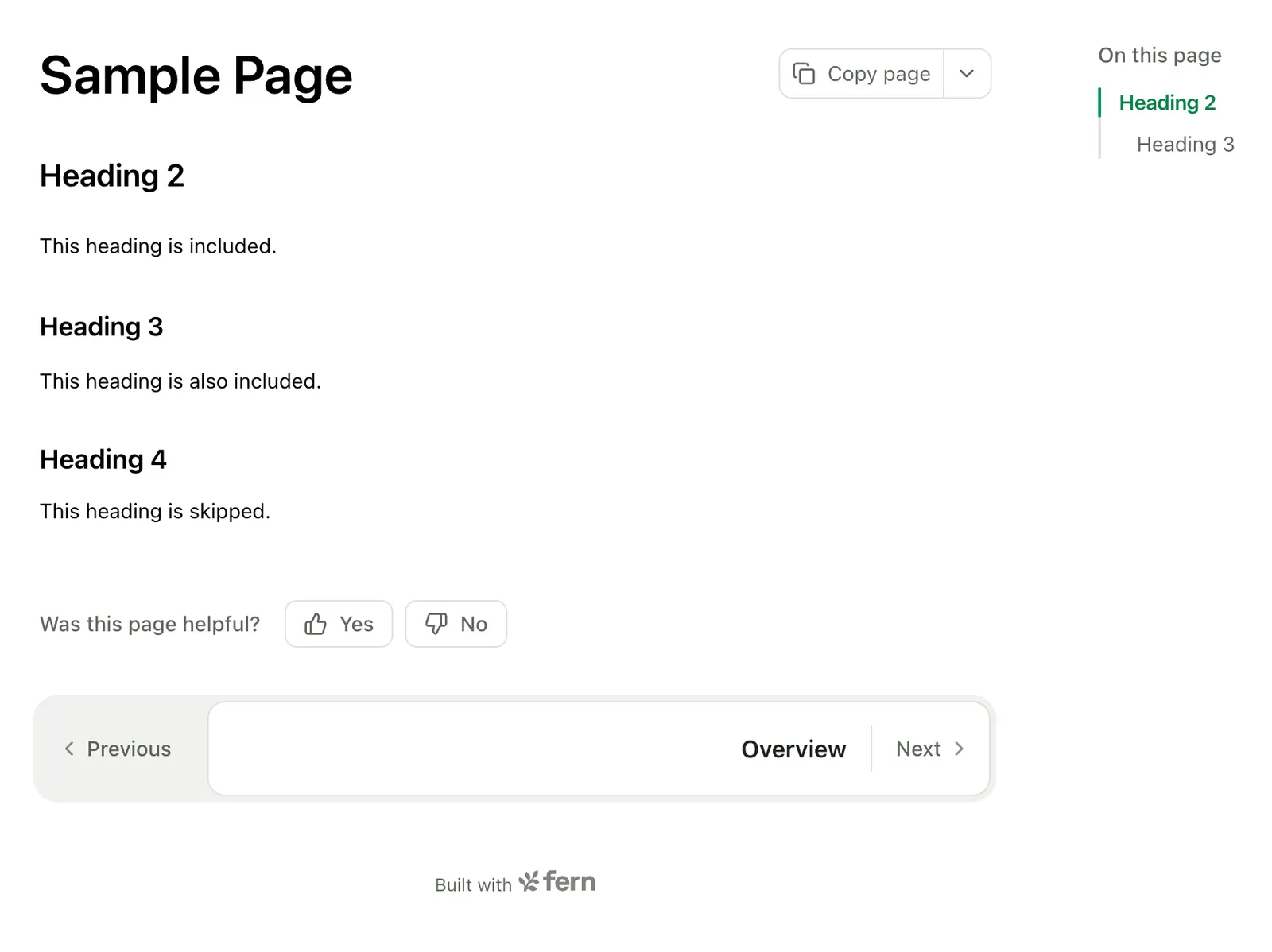
Sets the maximum depth of the table of contents. For example, a value of 3 will only show <h1>, <h2>, and <h3> headings in the table of contents.
Navigation links
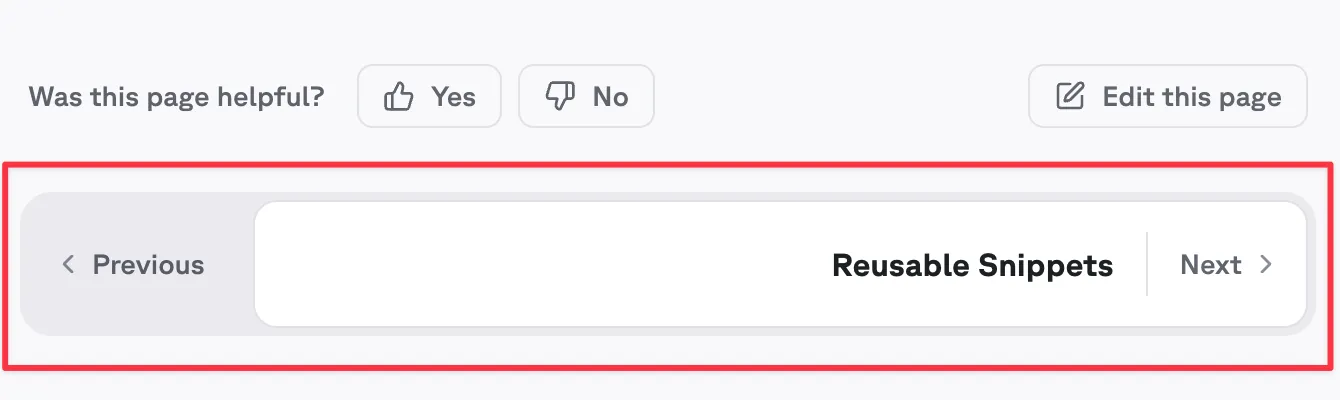
Controls the conditional rendering of the navigation links (previous, next) at the bottom of the page. Set to true to disable this feature.
This can be set globally in the global configuration.
On-page feedback
Controls the conditional rendering of the on-page feedback form at the bottom of the page. Set to true to disable this feature.
This can be set globally in the global configuration.
Page actions
Controls the conditional rendering of page action buttons (Copy Page, View as Markdown, Ask AI, ChatGPT, Claude, Claude Code, Cursor). Set to true to turn off page actions for an individual page.
Alternatively, configure page actions for your entire site in your docs.yml file.
Page logo
Override the site-wide logo for a page. Specify different logos for light and dark modes using absolute URLs.
Currently, relative paths are not supported for this field.
Layout
Sets the page layout. Available options:
-
guide: The default documentation layout featuring a table of contents on the right side. Ideal for tutorials, how-to guides, and any content that benefits from easy navigation through sections. -
overview: A wider layout (50% wider thanguide) with a table of contents and navigation sidebar. Perfect for landing pages and section overviews that need more horizontal space while maintaining navigation. -
reference: A full-width layout optimized for API or SDK reference. Always hides the table of contents so you can add another column, such as code examples. Navigation sidebar remains visible. -
page: A distraction-free, full-screen layout that hides both the table of contents and navigation sidebar. Best for standalone content that benefits from focused reading experiences. -
custom: A blank canvas layout that removes all default styling constraints. Hides both the table of contents and navigation sidebar, allowing complete control over the page layout.
SEO metadata
These fields set SEO metadata for a single page from its frontmatter. You can alternatively set the same metadata site-wide in docs.yml.
Only the documented SEO fields are added to the HTML <head> as meta tags. Custom frontmatter fields won’t automatically appear in your page metadata. To add custom metadata, use custom JavaScript.
Document properties
headline
When set, the <title /> tag in the document head will use this value rather than the title property. For example, your title might be “Quickstart” (shown in the sidebar and as the H1), while headline could be “Quickstart | PlantStore API Docs” to give search engines more context. If not set, Fern uses title with your site name appended.
canonical-url
Overrides the canonical URL for this page. Must be a full URL including the protocol (e.g., https://buildwithfern.com/learn/docs/content/frontmatter). Defaults to the page’s resolved URL when unset.
keywords
Comma-separated keywords relevant to the page (e.g., plants, garden, nursery). Accepts only comma-separated strings, not arrays. No default; the tag is omitted when unset.
OpenGraph properties
og:site_name
The name of your website as it should appear when your content is shared. Falls back to the site-wide metadata.og:site_name from docs.yml.
og:title
The title of your page as it should appear when your content is shared. Falls back to the page’s title when unset.
og:description
The description of your page as it should appear when your content is shared. Falls back to the page’s description, subtitle, or excerpt when unset.
og:url
The URL of your page. Falls back to the page’s resolved URL when unset.
og:image
The URL of the image displayed when your content is shared. Falls back to the site-wide metadata.og:image from docs.yml.
og:image:width
The width of the image in pixels. No default; only used when og:image is set.
og:image:height
The height of the image in pixels. No default; only used when og:image is set.
og:locale
The locale of the page, typically in the format language_TERRITORY (e.g., en_US). Falls back to the site-wide metadata.og:locale from docs.yml.
og:logo
The URL of your logo image displayed when your content is shared. Falls back to the site-wide metadata.og:logo from docs.yml.
Twitter properties
twitter:title
The title of your page as it should appear in a tweet. Falls back to og:title (and then to the page title) when unset.
twitter:description
The description of your page as it should appear in a tweet. Falls back to og:description (and then to the page description) when unset.
twitter:handle
The Twitter handle of the page creator or site. Falls back to the site-wide metadata.twitter:handle from docs.yml.
twitter:image
The URL of the image displayed in a tweet. Falls back to og:image when unset.
twitter:site
The Twitter handle for your website. Falls back to the site-wide metadata.twitter:site from docs.yml.
twitter:url
The URL of your page. Falls back to og:url (and then to the page URL) when unset.
twitter:card
The type of card used for sharing on Twitter. Options: summary, summary_large_image, app, player.
Indexing properties
noindex
If true, the page won’t be indexed by search engines and will be excluded from llms.txt endpoints.
nofollow
If true, search engines won’t follow any links on the page.
Structured data properties
Fern emits JSON-LD structured data on every indexable page. Use jsonld: false to suppress all built-in output, or jsonld:breadcrumb to override only the breadcrumb trail.
jsonld
Set to false to suppress all built-in JSON-LD structured data for this page. Use this when you are injecting your own TechArticle or BreadcrumbList via a custom component and do not want Fern’s generated output to appear alongside it. Any value other than false (including absent or true) leaves the built-in output unchanged.
jsonld:breadcrumb
A complete schema.org BreadcrumbList that replaces the breadcrumb trail Fern generates from the page’s position in your navigation. Emitted in the page’s application/ld+json script alongside the TechArticle node.
Availability
Displays an availability badge on the page. When set in frontmatter, it overrides any availability defined in the navigation (docs.yml). Valid values are: stable, generally-available, in-development, pre-release, deprecated, or beta.
This is useful when you want to set availability for individual pages without modifying your docs.yml navigation configuration, or when you need to override the availability inherited from a parent section or folder.
Search metadata
Custom key-value metadata copied onto the page’s Algolia records and declared for faceting. Values can be strings, numbers, booleans, dates (indexed as ISO 8601 strings), arrays, or nested objects.
Changelog tags
For changelog pages only. Tags allow users to filter changelog entries by specific categories. Define tags as an array of strings in the frontmatter.