

Fern Agent
Fern Agent edits your documentation and analyzes your organization’s Fern data, including traffic, reader questions, deployments, and site configuration. It’s an expert in Fern configuration, from docs.yml and components to versioning, redirects, and access control.
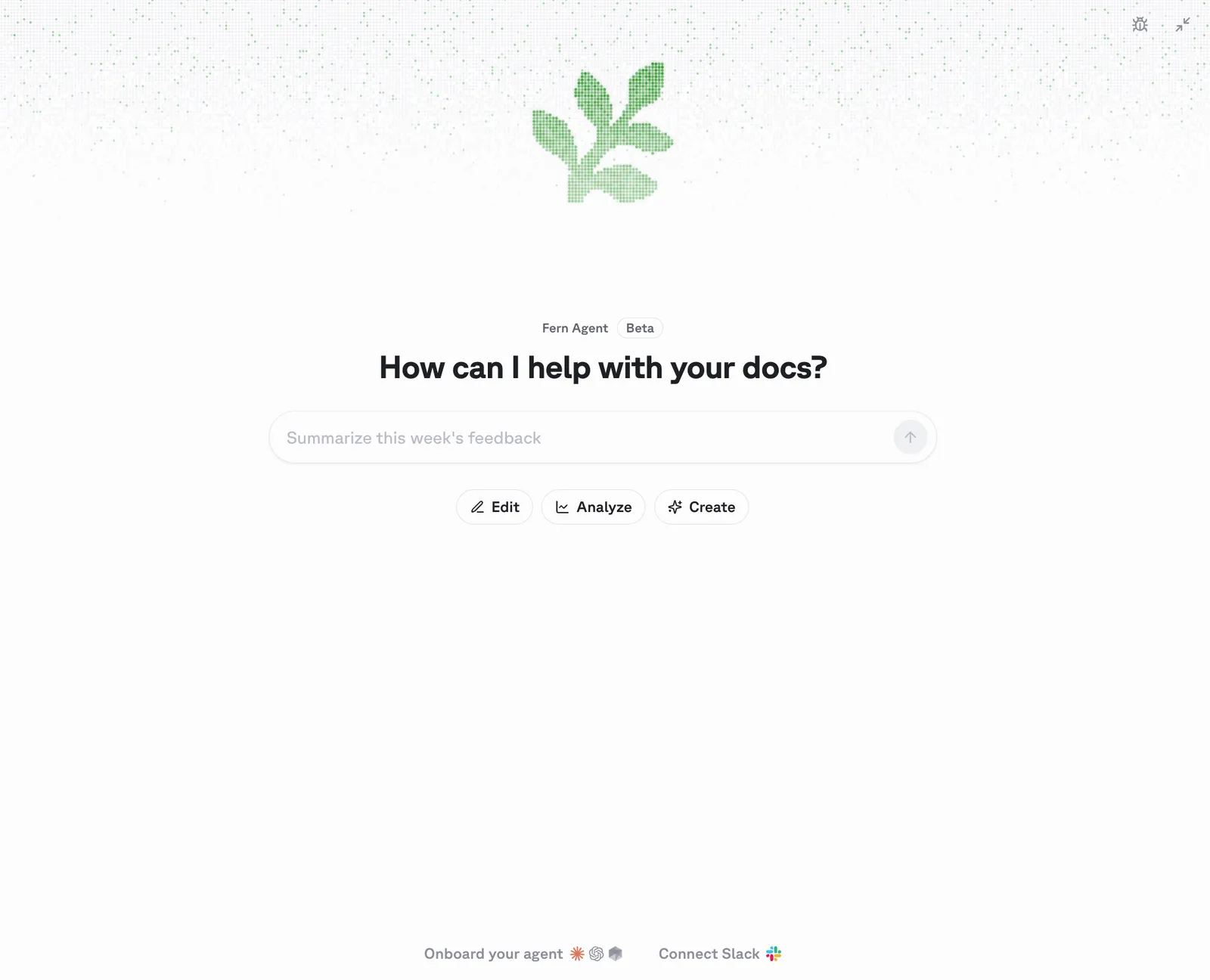
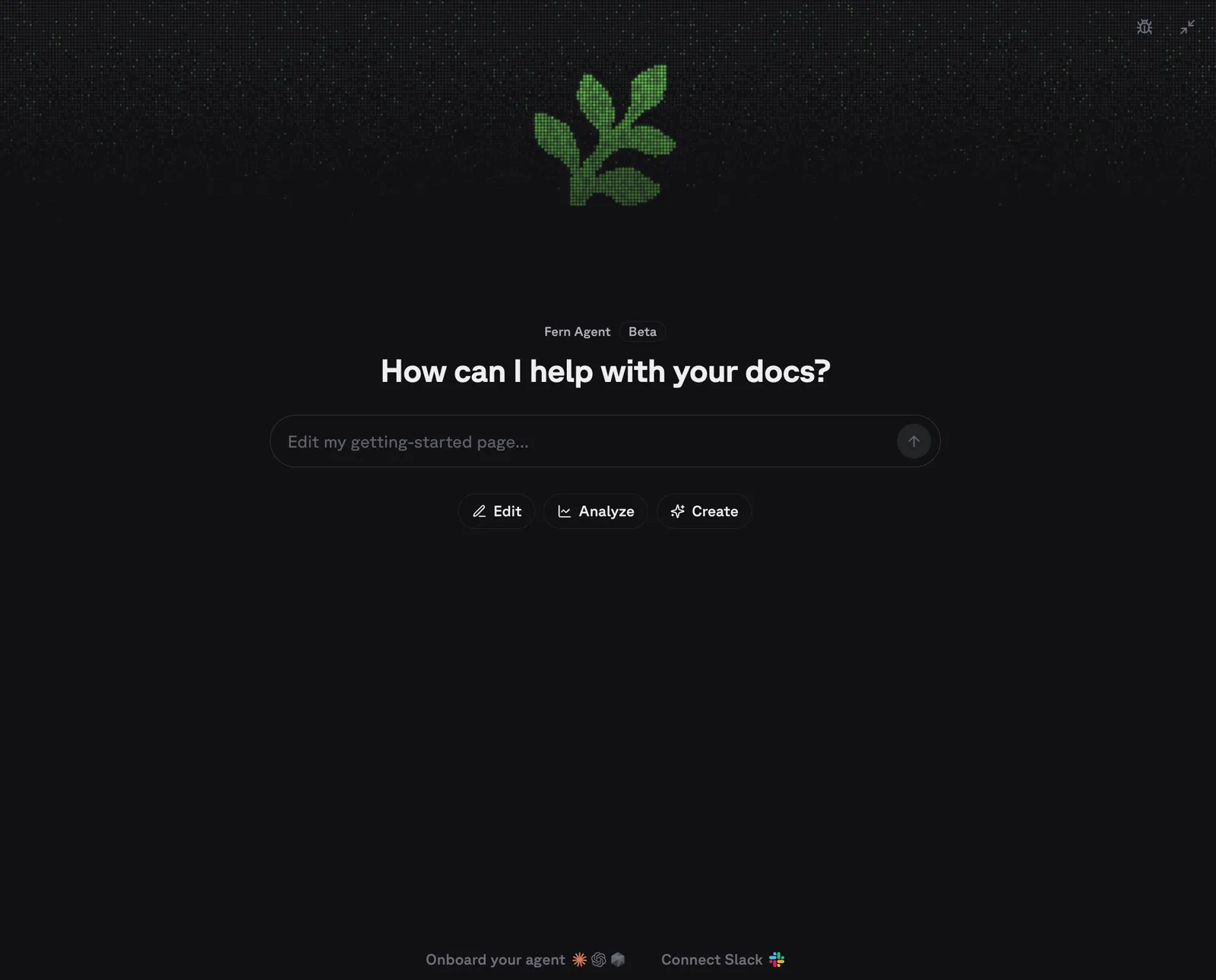
Talk to it in the Fern Dashboard chat panel, or integrate it with your Slack or your coding agent (via MCP) in one click. Fern Agent can open a PR or iterate live in the visual editor.
Editing requires a GitHub repository, since Fern Agent delivers changes as pull requests and GitLab and other Git providers aren’t supported. Every other tool, including analysis and insights, works regardless of your Git provider.
What it can do
Edit your docs
Fern Agent reads your docs site’s source repository and makes the changes you describe.
Requests can be about structure and settings as much as page copy, because Fern Agent knows how Fern sites are put together: navigation and product switchers, versions, redirects, the component library, and authentication and RBAC. It writes the configuration the way Fern expects it, so a moved page gets its redirect and a new page gets its navigation entry.
Add a new page
Add a page about authentication to my getting-started guide.Rewrite existing content
Identify which pages in my documentation could be more concise.Explore analytics
Fern Agent queries pageviews, visitors, sessions, 404s, referring domains, search queries, reader feedback, and LLM bot traffic for any docs site in your organization. Ask for a fix alongside the question and it carries the specifics it found into the change it makes.
Check traffic
List the pages with the most traffic last month.Repair broken URLs
List the top 404 paths on my site over the last 30 days and add redirects for them.Reorganize navigation
Give me suggestions about how to optimize my navigation based on site analytics.Follow up on empty searches
Find the search queries that returned no results, then add the missing content to the API reference guide.Rewrite an underperforming page
Find the page with the worst reader feedback and rewrite it to address what readers complained about.Review Ask Fern activity
Fern Agent summarizes what readers ask Ask Fern, including resolution rates and individual conversations, so you can find topics that need better coverage — then write that coverage without leaving the conversation.
Summarize reader questions
Summarize what readers asked Ask Fern this week and suggest ways I can expand our documentation based off of those topics.Find unresolved conversations
List the unresolved Ask Fern conversations.Close a documentation gap
Find the most common unresolved Ask Fern question this week and draft a page that answers it.Review configuration and deployments
Fern Agent reports a site’s deployment history, connected git repository, Fern CLI version, custom domain, and reader-facing settings such as search behavior and password protection. Since it reads the same docs.yml it edits, it can trace a failed build back to the configuration that caused it and fix it.
Check deployments
List the recent deployments for docs.plantstore.com.Review site settings
List the features enabled on docs.plantstore.com.Manage your organization
Account administration stays read-only: it can’t create API keys, change members, or update billing. When you ask Fern Agent to perform an administration action, it links you to the page that does it.
Check organization members
List the admins in my organization.Update billing
Where can I update billing information for my organization?Setup
Open the Fern Dashboard and start a conversation in the chat panel. From the chat panel, you can also:
- Connect Fern Agent to Slack. Click Connect Slack, select the workspace, and add Fern to the Slack channels where your team discusses documentation. Authorizing the app requires Slack admin access.
- Connect your agents. Click Onboard your agent to connect your coding agent to Fern’s MCP server.
Alternatively, install manually. Connect Slack with your Fern API key and the organization field from fern/fern.config.json:
Onboard your agent by handing it this prompt:
Set up Fern Agent in your terminal
Fetch and execute the appropriate instructions to set me up for Fern from [https://buildwithfern.com/learn/docs/ai-features/agent-setup.md](https://buildwithfern.com/learn/docs/ai-features/agent-setup.md)Making requests in Slack
Tag @Fern in a channel where it has been added and describe the change you need or analysis you want to conduct. It only responds when directly tagged. Fern replies to your prompt and opens PRs on your documentation as needed. At any time, you can click a link to continue your session in the Fern Dashboard.
Image and file attachments provide additional context. When tagged in an existing thread, Fern Agent reads the full conversation before responding. Request changes by replying in the thread, and merge the pull request like any other once it meets your requirements.
Fern Agent is an expansion of Fern Writer. Fern Writer opened documentation pull requests from Slack, and it still does — existing installations keep working and the request flow is unchanged.
What Fern Agent adds is context on your organization and more places to work from. Alongside editing, it answers questions about your traffic, reader questions, deployments, and site configuration, and the same capabilities are now available in the Fern Dashboard and in your coding agent over MCP rather than in Slack alone.
Automations
Create an automation on the Automations page of the Fern Dashboard. You can also describe the recurring work you want done in the chat panel or @Fern in Slack, and Fern Agent sets up the automation for you.
Each run starts a fresh conversation from the prompt, works it in a single turn, and reports back on what it did, found, or skipped. An automation only changes the docs when the prompt explicitly requests it.
Setup
Write the prompt
Open Automations, select New automation (pick a Blank automation or one of Fern’s templates), and describe what each run should produce. Prompts hold up to 2,000 characters.
Set the schedule
Choose daily or a day of the week, a time of day, and timezone. A schedule fires at most once every 20 hours.
Check what a run produces
Save your new automation.
After creating your automation, select Run now to test the prompt. Manually running an automation doesn’t affect the next scheduled run. Runs take a few minutes, and finished runs are reported via email or Slack when you connect Fern Agent to Slack.
Everyone in your organization sees every automation, and only its creator can change, delete, or run one. Turning an automation off keeps its prompt and history, while deleting it discards both — pull requests its runs opened are unaffected. Run history covers the last 30 days.
Examples
Fix what readers complained about
Review the feedback readers left on our docs pages and fix the pages they said were missing information, wrong, or unclear. Make the changes and open a pull request. Ignore feedback about the product rather than the docs.Report on how the docs are doing
Report on how our docs are doing: the pages readers spend the most time on, where they drop off, the searches that return nothing, and what changed since last week.Privacy and data handling
Fern Agent acts with your own Fern permissions on every surface, so it reads and edits only the sites, analytics, and organization data your account can already see. Requests are scoped to a single session: the prompt, any Slack message or thread you tag it in, and attached files are stored to complete the task and aren’t retained afterward.
Editing is powered by Devin from Cognition. Neither Fern nor Devin uses your data to train AI models: Fern configures its Devin integration to opt out of any data collection for model training, so your messages, code, and documentation content are never used for training.